
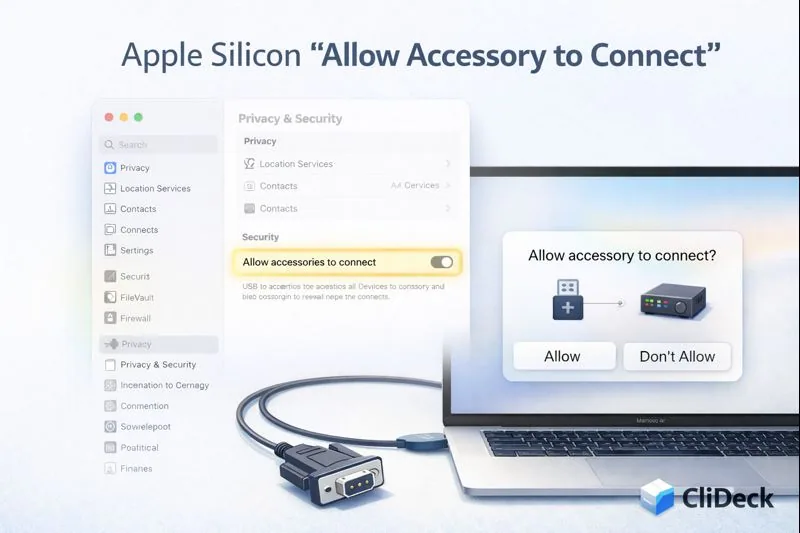
Apple Silicon: “Allow accessory to connect?” — Why Your USB-Serial Doesn’t Show Up (and How to Fix It)
Short answer
If a USB-serial adapter does not appear on an Apple silicon Mac, approve the accessory connection when prompted, reconnect it directly if possible, then check whether a /dev/cu.* device appears. If it still does not, narrow the problem to the cable, adapter, hub, or required driver before changing terminal settings.
What “Allow accessory to connect?” means (and why it blocks USB-Serial)
On Apple silicon Mac laptops, macOS includes an “accessory security” behavior for wired accessories. In practice, this means newly connected USB/Thunderbolt accessories (and sometimes peripherals connected through hubs) may require explicit approval before macOS fully enables them.
That security layer is great for preventing “drive-by” wired attacks, but it creates a very common serial-console pain:
- the adapter is physically connected,
- but the serial port never appears in
/dev/, - or it appears only after you approve the accessory.
This is usually not a driver issue and not a broken cable. It’s simply macOS waiting for permission.
Symptoms that strongly point to this issue
1) No new port appears in /dev/cu.*
Run:
ls -1 /dev/cu.*
If you don’t see anything that looks like your adapter (for example: usbserial, SLAB_USBtoUART, wchusbserial, usbmodem), keep reading.
2) You remember seeing the prompt (or you might have missed it)
The prompt can be easy to miss, especially if the Mac is locked, asleep, or you plug the adapter in while switching apps.
3) It used to work, then “stopped” after an update or reconnect
Changing macOS versions or moving through hubs/docks can cause the adapter to be treated like a “new accessory” again.
Fix in 2 minutes (step-by-step)
Step 1 — Unlock the Mac and replug the adapter
- Make sure the Mac is unlocked (not just awake).
- Unplug the USB-Serial adapter and plug it back in.
- If you see “Allow accessory to connect?”, click Allow.
Step 2 — Set a practical “Allow accessories to connect” policy
Open:
System Settings → Privacy & Security → Allow accessories to connect
Then choose an option from the table below.
Which option should you choose?
These options control how often macOS asks you to approve accessories.
| Setting | What it does | Best for |
|---|---|---|
| Ask Every Time | Prompts every time you connect an accessory | Maximum strictness; usually annoying for serial work |
| Ask for New Accessories | Prompts only when an accessory is “new” | Best balance for most people (often the default) |
| Automatically When Unlocked | Automatically allows accessories when your Mac is unlocked | Great for frequent console-cable use |
| Always | Automatically allows accessories without prompting | Most convenient; lowest friction |
Practical recommendation for USB-Serial console work:
- Start with Ask for New Accessories.
- If you connect console cables constantly, Automatically When Unlocked is often the sweet spot.
Verify it’s fixed
- Replug the adapter after changing the setting.
- Confirm the port exists:
ls -1 /dev/cu.*
- Quick “does it connect?” test using the built-in
cutool (example: 9600 baud):
cu -l /dev/cu.usbserial-XXXX -s 9600
If the port exists but the console is silent, that’s usually not accessory security anymore. Then you’re looking at the usual serial checklist: correct baud rate (often 9600 or 115200), correct wiring (RX/TX/GND), and using /dev/cu.* instead of /dev/tty.*.
If you’re working offline and just need a reliable console now, cu is still the best built-in fallback. When you want a more streamlined workflow across multiple devices with organized sessions and logs, take a look at CliDeck: CliDeck Features.
Common problems (and fast fixes)
Problem: The prompt appears, but the adapter still doesn’t show up
Try this checklist:
- Is the Mac unlocked when you plug in the adapter?
- Replug the adapter after changing the setting.
- Plug the adapter directly into the Mac (skip hubs/docks temporarily).
- Try a different USB port or cable.
- Restart the Mac if things seem “stuck” after a macOS update.
Problem: The port appears, but output is garbled
That’s almost always a baud rate mismatch. Try the two most common values:
cu -l /dev/cu.usbserial-XXXX -s 9600
cu -l /dev/cu.usbserial-XXXX -s 115200
Problem: The port appears, but nothing prints
Common causes:
- wrong baud rate,
- wrong port (use
/dev/cu.*), - device outputs only during boot,
- wiring issue (RX/TX swapped, missing ground).
Quick test: replug, connect, press Enter a few times, reboot the target device to catch boot logs.
Where CliDeck helps (and why it complements cu)
cu is perfect when you need to connect quickly and offline to a single device.
But once your workflow grows, you usually want:
- multiple devices and sessions managed in one place,
- consistent session history and logs,
- browser-first access and team-friendly workflows.
That’s exactly why we build CliDeck: CliDeck Workspace.
Bottom line
On Apple silicon Macs, a USB-Serial adapter often “doesn’t show up” because macOS is waiting for you to allow the accessory connection. Unlock the Mac, approve the prompt, and set Allow accessories to connect to a mode that matches how you work.
And when you need a smoother day-to-day workflow beyond “connect and exit,” try CliDeck: CliDeck Workspace.
Who this is for
This guide is for network engineers, field technicians, remote hands, lab engineers, and system administrators who need to connect to, troubleshoot, log, or verify a serial console session on switches, routers, firewalls, appliances, servers, and other devices with console ports.
When to use this
Use this guide when:
- You need direct console access to a switch, router, firewall, appliance, server, or lab device.
- SSH or management-plane access is unavailable, unreliable, or not yet configured.
- You need to troubleshoot a USB serial adapter, COM port, baud rate, or terminal session.
When not to use this
Do not use this guide when:
- Do not use this guide as a substitute for vendor documentation, site policy, or a verified device-specific runbook when the operation is risky.
- Do not continue if the console output suggests you are connected to the wrong device.
Quick checklist
- Identify the device and console connector
- Use the correct console cable or adapter
- Find the correct serial port or COM port
- Start with the expected baud rate and 8N1 settings
- Press Enter to confirm the prompt
- If output is unreadable, check baud rate and line settings
- If the port will not open, check permissions, drivers, and whether another program is holding the port
- Save useful session notes or logs when the work matters
Traditional cable vs CliDeck workflow
A traditional USB serial cable is still the simplest option for quick local work. CliDeck becomes useful when the console session needs browser access, notes, runbooks, sharing, logs, remote hands support, or a portable controller workflow.
Console Server Go can work like a wired USB serial adapter when connected by USB, but it also adds SSH Console on SSH-enabled firmware builds, browser Workspace, live sharing, 24h+ battery operation, OLED status, and magnetic rack mounting.
Workflow
- Identify the device, connector, cable, adapter, and host operating system.
- Find the correct serial port or COM port and confirm permissions or drivers.
- Open the session with the expected baud rate and line settings, usually 8N1 unless documented otherwise.
- Press Enter and verify the prompt before running commands.
- Save notes or logs when the session supports a change, recovery, handoff, or evidence workflow.
Verification checklist
- The detected serial port or COM port matches the connected adapter.
- Baud rate, data bits, parity, stop bits, and flow control match the device expectation.
- The terminal shows a readable prompt after pressing Enter.
- No other terminal application is holding the port.
- Useful notes or logs are saved when the work matters.
Common mistakes
- Using the wrong cable or adapter for the console connector.
- Opening the wrong COM port or
/dev/cu.*device. - Assuming unreadable output means hardware failure before checking baud rate and 8N1 settings.
- Leaving another terminal application attached to the port.
CliDeck workflow fit
A traditional USB serial cable is still the simplest option for quick local work. CliDeck becomes useful when the console session needs browser access, notes, runbooks, sharing, logs, remote hands support, or a portable controller workflow.
Console Server Go can work like a wired USB serial adapter when connected by USB, but it also adds SSH Console on SSH-enabled firmware builds, browser Workspace, live sharing, 24h+ battery operation, OLED status, and magnetic rack mounting.
FAQ
Is a USB serial cable still enough?
Yes, for simple local work where one engineer is sitting next to one device. CliDeck is more useful when the console session needs sharing, runbooks, browser Workspace, remote hands support, logs, or longer operational context.
What should I check first when serial output looks like garbage?
Check the baud rate, data bits, parity, stop bits, flow control, cable type, and whether the device is actually using the expected console port.
Can CliDeck help with serial console work?
Yes. CliDeck Workspace helps organize terminal sessions, notes, runbooks, and logs. Console Server Go adds portable rack-side access, and Net Controller supports larger batch workflows.
Related guides
- Linux Serial Disconnects: Collect the Right Boot and Time Window - Collect Linux serial-disconnect evidence from a specific boot and UTC time window while preserving journal permissions, retention and kernel-only limits.
- Linux Serial Permissions: Check Identity, Groups and ACLs - Inspect Linux serial-device identity, groups, node permissions and ACL masks before changing access or opening the console port.
- Linux Console Capture Storage: Check Blocks and Inodes - Check the actual Linux console capture filesystem for available blocks and inodes, and keep directory usage separate from capture completion.
- Console Capture Times: UTC Without False Precision - Record console capture times in UTC with the clock source and uncertainty; keep device events separate and avoid unsupported precise ordering.
- Linux Serial Settings: Inspect stty Without Guessing the Console Profile - Inspect GNU stty settings for an identified serial adapter, compare framing and flow control, and account for device-open effects and session ownership.