
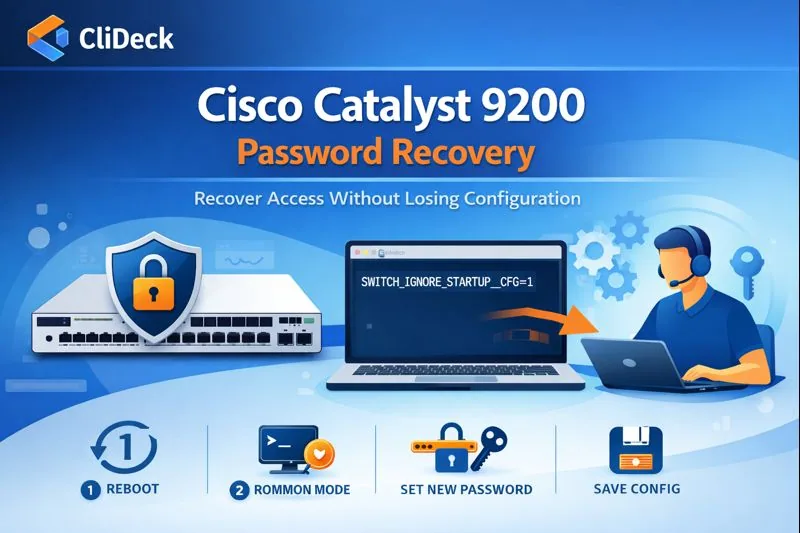
Cisco Catalyst 9200 Password Recovery (IOS XE)
Short answer
For an authorized Cisco Catalyst 9200 password recovery, use console access to interrupt boot, follow the approved recovery steps, restore administrative control, and verify the switch before returning it to service. Preserve or erase the existing configuration only according to the device’s authorized operational goal.
Safety note: This guidance applies only to devices your team owns or is authorized to process. Use the approved, device-specific procedure, customer policy, and your organization’s sanitization and evidence procedures.
Who this is for
This guide is for ITAD teams, refurbishment teams, network engineers, and operations teams who need to perform an owner-authorized reset, recovery, verification, or documented device-processing workflow on network devices that your team owns or is authorized to process.
When to use this
Use this guide when:
- Your team owns or is authorized to process the device.
- You need to reset, zeroize, recover, reimage, verify, or document a network device.
- The result must be attached to an asset, resale, reuse, refurbishment, or recycling workflow.
When not to use this
Do not use this guide when:
- You do not own or have authorization to work on the device.
- The device is outside your approved change, recovery, or processing scope.
- The task may expose customer data, secrets, licenses, or credentials that you are not allowed to view or store.
- You need a certified data destruction procedure and your organization has not provided one.
Workflow
- Confirm ownership, processing scope, device identity, and approved procedure.
- Connect through the console or approved management path and capture the session context.
- Run the reset, zeroize, recovery, reimage, or verification steps required by the article and vendor documentation.
- Reboot or reconnect as needed and verify the expected clean, default, or recovered state.
- Attach logs, verification output, exceptions, and final pass/fail/exception status to the asset record.
Verification checklist
- Device identity matches the asset record.
- Console or session log is attached to the asset.
- The reset, zeroize, recovery, or reimage method is recorded.
- The post-reboot state matches the expected clean or recovered state.
- Verification commands and outputs are captured.
- Exceptions or failures are quarantined instead of marked ready.
Resale and evidence checklist
Before marking the device ready for resale, capture:
- Device model and serial number
- Console transcript or session log
- Reset, zeroize, reimage, or recovery method used
- Any confirmation prompts and operator decisions
- Post-reboot state
- Visible default or clean-state prompt
- Verification commands and outputs
- Hardware alarms or boot errors
- License, entitlement, or customer identifiers handled according to policy
- Exceptions, failures, or quarantine decisions
- Final pass/fail/exception status attached to the asset record
What not to publish
Do not publish raw transcripts that include customer names, public IP addresses, VPN settings, license keys, entitlement IDs, serial numbers that must remain private, passwords, tokens, certificates, or other sensitive identifiers. Keep sensitive evidence in the customer-approved internal system and publish only sanitized examples.
Common mistakes
- Processing a device without owner authorization or the correct asset record.
- Treating a factory reset as certified data destruction.
- Failing to capture confirmation prompts, reboot state, verification output, or exceptions.
- Publishing raw logs that contain customer identifiers, licenses, keys, passwords, or configuration remnants.
CliDeck workflow fit
CliDeck can help turn this procedure into a repeatable workflow. Console Server Go is useful for portable rack-side console access and shared remote support. Net Controller is better for ITAD, refurbishment, and batch processing where multiple devices need barcode tracking, approved scripts, logs, API updates, and evidence-style results.
Net Controller can help operators connect devices, scan assets, run approved workflows, capture console logs, require verification steps, and attach the result to the asset record.
FAQ
Is this a certified data destruction procedure?
No. This article describes a practical, owner-authorized workflow and verification approach. Certification depends on your organization’s process, evidence requirements, customer contract, and any formal certification program that applies.
Does CliDeck provide vendor OS images?
No. CliDeck does not distribute vendor operating system images. Recovery or reimage workflows can use images already present on the device or images provided by the customer where the customer has appropriate rights and licenses.
Should I publish the full console log?
Usually no. Keep complete evidence in the approved internal system and publish only sanitized examples. Console logs can contain serial numbers, license details, customer names, IP addresses, keys, passwords, or configuration remnants.
Can CliDeck help with this workflow?
Yes. Console Server Go helps with portable rack-side console access and shared remote support. Net Controller is better for batch ITAD, refurbishment, recovery, provisioning, barcode/API tracking, and evidence-style results.
Related guides
- Cisco IOS XE Smart Licensing at Decommission: A Separate Checklist from Factory Reset - Before decommissioning an owned IOS XE device, identify its licensing model and coordinate license handling with the authorized Smart Account administrator.
- WatchGuard Firebox Factory Reset: Configuration, Feature Keys, and Resale Checks - Reset an owned Firebox with the procedure for its exact model when the goal is a fresh configuration.
- MikroTik Reset Configuration vs Netinstall: Which Path Fits Resale Preparation? - Choose a RouterOS configuration reset when the operating system is healthy and the approved task is to replace configuration.
- NIST SP 800-88 Rev. 2: A Defensible Media Sanitization Process - Build an asset-level sanitization workflow with method selection, execution evidence, verification, validation and clear exception handling.
- Aruba Instant AP Factory Reset: Isolate the Device and Verify the Fresh Baseline - For an owned Aruba Instant AOS-8 access point, use the supported factory-reset procedure for the exact model and software.