
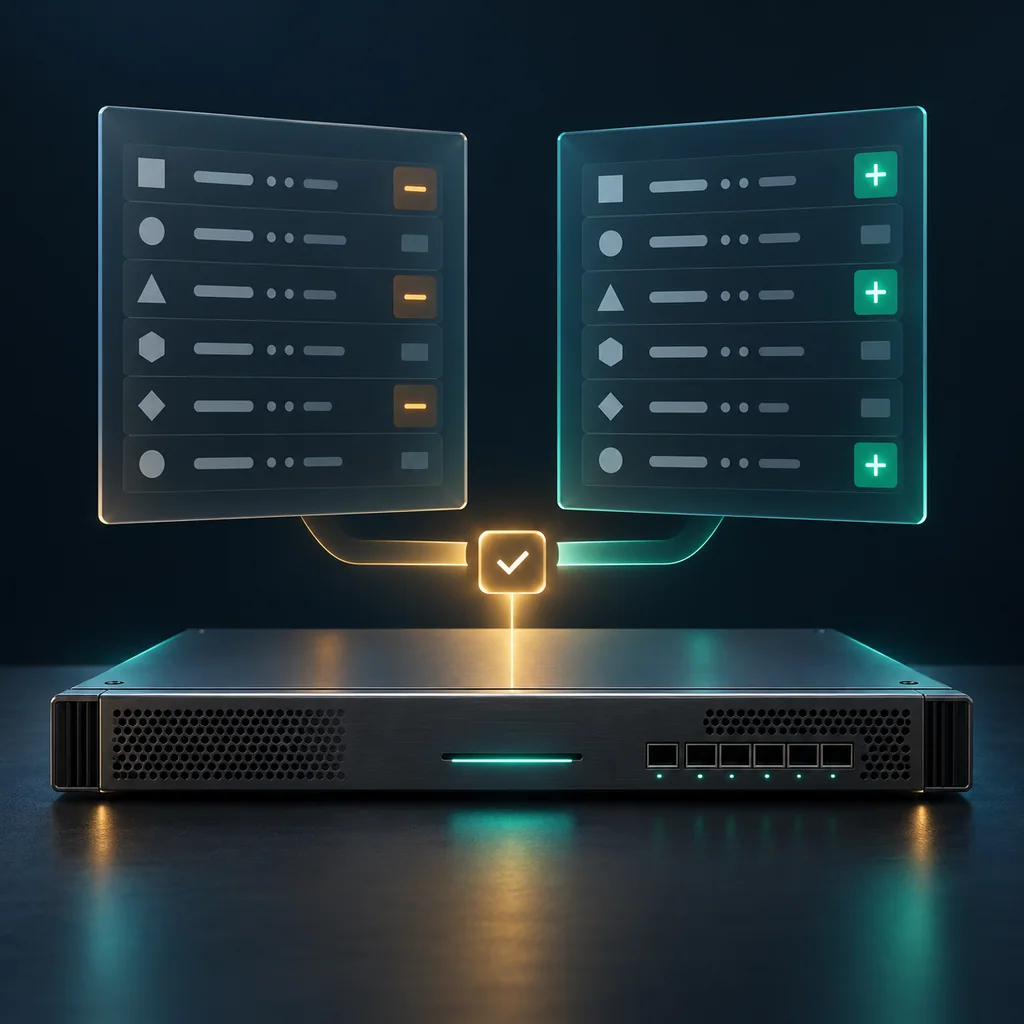
Junos Configuration Diff: Review the Candidate Before You Commit
Short answer
In Junos configuration mode, show | compare displays the candidate configuration's differences from the active configuration. Review the complete diff, identify additions and removals, and connect each change to the approved task before considering a commit. Comparing with a rollback configuration changes the comparison baseline; it does not load or activate that rollback.
Confirm the review context
This runbook applies to authorized Junos OS configuration review. The compare behavior is documented across Junos releases; formatting and available options can vary by platform and release. Record the device model, installed version, editing mode, and change owner. Use the local command help when adapting the examples.
Before entering configuration mode, inspect the commit state:
show version
show system commit
If a confirmed commit is awaiting verification, coordinate with its owner first. This matters because commit check can confirm a pending confirmed commit, removing the automatic rollback protection. An inspection checklist must not accidentally become a confirmation script.
Review from the intended hierarchy
Enter the site's approved configuration mode. If already editing within a subtree, return to the top before requesting a whole-candidate review:
top
show | compare
These examples belong at the configuration prompt, not the operational prompt. A diff requested from a narrower hierarchy can omit changes elsewhere. Save the complete output privately and check that pagination has not cut off the review.
Interpret the markers relative to the chosen baseline:
| Marker | Meaning for the comparison |
|---|---|
+ | Statement exists in the candidate but not the baseline |
- | Statement exists in the baseline but not the candidate |
| Blank prefix | Unchanged statement shown for context |
Read removals as carefully as additions. An interface, routing policy, authentication setting, or inherited group removed by the candidate can be more consequential than the new statement that motivated the task.
Keep historical comparison separate
To compare the candidate with the previous committed configuration, use:
show | compare rollback 1
Rollback index 0 refers to the most recently saved configuration; index 1 is the preceding version. The historical diff can contain changes already active before your current task. It is not interchangeable with the default candidate-versus-active comparison.
Record the baseline beside every exported diff. Do not run rollback 1 merely to obtain a comparison: loading a rollback changes the candidate and requires its own review. This guide does not instruct a rollback or commit.
Decide whether a syntax check is appropriate
After reviewing the full candidate and confirming that no rollback confirmation is pending, the approved operator may run:
commit check
A successful check validates configuration consistency according to Junos; it does not establish application reachability, route selection, or the correctness of the intended outcome. Treat warnings, unsupported statements, or unexpected dependencies as reasons to resolve the candidate before activation.
In shared editing environments, another operator can change the candidate after your inspection. Recheck the diff immediately before the separate commit decision. Do not discard another person's edits to obtain a clean-looking result.
Verification note: a review needs a baseline and an owner
The review is ready for handoff when the complete diff is preserved, its baseline is explicit, every addition and removal has an accountable purpose, and any syntax-check result is recorded with its limitations. An empty diff means no differences against that baseline; it does not prove that the active network is healthy.
These are operator acceptance criteria, not a report of a physical-device test. Store the diff, commit state, model/version, owner, and unresolved questions in CliDeck Workspace. If activation needs automatic recovery protection, use the separate Junos commit confirmed runbook.
Who this is for
This guide is for operations teams, incident responders, network engineers, and system administrators who need to prepare, run, verify, and document operational terminal work on approved network devices inside a planned change or lab scope.
When to use this
Use this guide when:
- Several commands or checks must be repeated safely.
- Another engineer, customer, onsite technician, or vendor may need context.
- The work should produce notes, logs, verification, or a clear handoff.
When not to use this
Do not use this guide when:
- You do not own or have authorization to work on the device.
- The device is outside your approved change, recovery, or processing scope.
- The task may expose customer data, secrets, licenses, or credentials that you are not allowed to view or store.
- The work requires vendor-specific approval, legal approval, or a customer-specific procedure that is not covered here.
Practical runbook format
A runbook does not need to be a complex script. For many operations, it can be a plain command list with notes, expected output, stop conditions, verification steps, and rollback instructions.
What to include
- Purpose
- When to use it
- When not to use it
- Target system or device
- Access path
- Read-only checks
- Change steps
- Expected output
- Stop conditions
- Rollback steps
- Verification steps
- Handoff notes
- Final summary format
Workflow
- Define the purpose, target device, access path, and approved scope.
- Run read-only checks first and record the expected healthy state.
- Execute commands from the runbook or handoff plan while watching for stop conditions.
- Verify the final state with independent checks.
- Summarize commands run, outputs reviewed, exceptions, and handoff notes.
Verification checklist
- The target device or system is correct.
- Read-only checks were captured before the work.
- Stop conditions and rollback notes were available before changes.
- Final verification checks match the expected result.
- Notes, logs, and handoff summary are stored where the team can find them.
Common mistakes
- Starting commands before confirming the target device and scope.
- Skipping read-only baseline checks.
- Copying commands without expected output, stop conditions, or rollback notes.
- Closing the work without a final verification summary.
CliDeck workflow fit
CliDeck Workspace is designed for this kind of operational workflow. Teams can keep terminals, notes, runbooks, logs, and shared sessions in one browser workspace instead of spreading work across terminal windows, chat messages, screenshots, and separate documents.
CliDeck runbooks can be plain command lists, one command per line. Operators can send commands with one click or use auto-run behavior that waits for the prompt before sending the next line where configured.
FAQ
Does a runbook need to be code?
No. A useful runbook can be a plain list of commands, checks, notes, expected output, stop conditions, and verification steps.
Why use a browser workspace for terminal work?
A browser workspace can keep terminals, notes, runbooks, logs, and shared sessions together, which helps during incidents, handoffs, maintenance windows, and remote support.
Can shared terminal sessions be safer than screen sharing?
Yes, when implemented with clear view/type permissions. The helper can see the relevant terminal context without taking over the operator’s entire desktop.
Can CliDeck help with this workflow?
Yes. CliDeck Workspace helps organize terminals, runbooks, notes, logs, and shared sessions. Console Server Go is useful when the workflow starts at a rack-side console port.
Related guides
- Junos Rescue Configuration: Save, Review, and Restore a Known Baseline - Save a reviewed Junos rescue baseline, inspect its contents, load it into the candidate, review the diff, and activate it through an approved commit.
- Cisco Catalyst Interface Errors: Measure the Change, Preserve the Baseline - Compare two Catalyst interface-counter snapshots without clearing the baseline; distinguish new receive errors, congestion, and counter discontinuities.
- Junos commit confirmed: A Remote Change Runbook That Keeps Rollback Available - A scoped Junos runbook for a confirmed commit, independent acceptance tests, timer inspection, and recovery decisions.
- FortiGate CLI Packet Capture: Use a Filter, a Count, and a Stop Condition - Run a narrowly filtered FortiGate CLI packet capture with a finite count, an operator deadline, private logging, and explicit offload limits.
- MikroTik RouterOS Safe Mode: Keep Remote Changes Small and Recoverable - Use RouterOS Safe Mode for a small remote change, inspect undo history, test fresh access, and distinguish deliberate release from undo.