
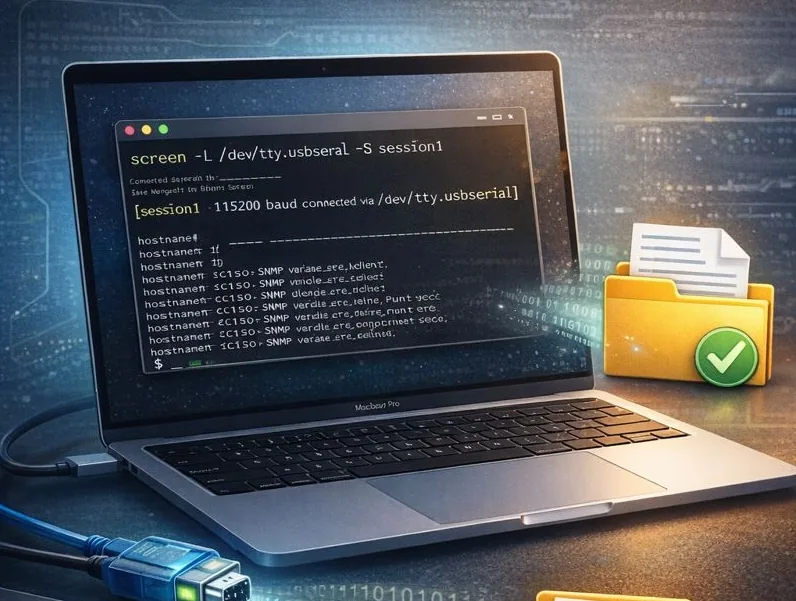
Logging a Serial Session on macOS: `screen -L`, Session Naming, and Best Practices
Short answer
On macOS, use screen -L to save a serial-console transcript and give the session a clear asset or task name. Keep the log only when it serves troubleshooting, verification, or handoff, and remove or protect any sensitive output before sharing it.
Why you should log serial sessions
If you work with serial consoles (network gear, embedded devices, UART debug), logs aren’t a “nice-to-have.” They help you:
- capture boot output and critical errors,
- keep an audit trail of what happened and when,
- share exact output with a teammate,
- compare “before vs after” changes.
screen on macOS is a common, fast tool—but people still lose logs due to a few predictable mistakes. The workflow below keeps things reliable.
If you run multiple sessions and want logs/history organized automatically (without managing files by hand), that’s exactly the kind of workflow CliDeck is built for: CliDeck Workspace.
The baseline command (works for most real setups)
Practical default: name the session + write logs to a known file
screen -S R1-9600 -L -Logfile "$HOME/serial-logs/R1-$(date +%F_%H-%M-%S).log" /dev/cu.usbserial-XXXX 9600
What this does:
-S R1-9600gives the session a readable name-Lturns on logging-Logfile ...sets the exact log path and filename (with a unique timestamp)/dev/cu... 9600connects to the serial port at the chosen speed
Important: on macOS, for interactive console work you almost always want /dev/cu.*, not /dev/tty.*.
One-time setup: create a dedicated log folder
mkdir -p "$HOME/serial-logs"
Now you always know where logs live, and you don’t end up hunting through random directories.
What -L, -S, -h, and “detached mode” actually do
-L — enable logging
When enabled, screen writes session output to a log file.
-Logfile <file> — set the log path and filename
Without this, screen may write a default log in your current directory (often not where you expect). With -Logfile, you control exactly where the log goes.
Example:
screen -L -Logfile "$HOME/serial-logs/session.log" /dev/cu.usbserial-XXXX 9600
-S <name> — name the session
This is critical when you have multiple devices.
Example:
screen -S SW1 -L -Logfile "$HOME/serial-logs/SW1.log" /dev/cu.usbserial-XXXX 9600
-h <lines> — scrollback buffer size
This is not disk logging. It controls how many lines you can scroll back inside screen.
Example (50,000 lines):
screen -h 50000 -S SW1 -L -Logfile "$HOME/serial-logs/SW1.log" /dev/cu.usbserial-XXXX 9600
Detached mode: keep sessions (and logs) alive
Start a session detached (in the background) with logging
If you want the session to keep running even if you close your terminal window:
screen -dmS SW1 -L -Logfile "$HOME/serial-logs/SW1-$(date +%F_%H-%M-%S).log" /dev/cu.usbserial-XXXX 9600
-d -m(commonly written as-dmS) starts the session detached- logging continues even when you are not attached
List sessions (don’t forget the dash)
A very common mistake is typing screen ls (no dash). Correct is:
screen -ls
Reattach by name
screen -r SW1
If the session is “Attached” somewhere else
screen -d -r SW1
This detaches the other client and attaches you.
How not to lose log files
Rule #1: always use -Logfile with an absolute path
That prevents logs from “ending up somewhere random.”
Recommended pattern:
-Logfile "$HOME/serial-logs/<device>-<timestamp>.log"
Rule #2: make filenames unique (timestamps)
If you always write to the same file, you’ll mix sessions or overwrite content.
Good pattern:
"DEVICE-$(date +%F_%H-%M-%S).log"
Rule #3: encode device context in the session name (-S)
When you have 3–5 active sessions, default names are not helpful.
Good examples:
R1-9600SW1-consoleFW-USB-A
Best practices for reliable serial logging
1) Record basic context at the start
It’s very useful to have a small “header” with port, speed, and timestamp.
A simple approach is to prepend a line into the log file:
printf "Device=SW1 Port=/dev/cu.usbserial-XXXX Speed=9600 Started=%s\n\n" "$(date)" >> "$HOME/serial-logs/SW1-$(date +%F).log"
2) For console work, keep flow control off
Not a screen feature, but a frequent cause of odd behavior. For most console sessions, flow control should be disabled unless you explicitly need it.
3) Don’t dump logs into Desktop/Downloads
Keep a dedicated folder, so logs are easy to find and archive.
4) If logs matter, start detached
Detached sessions don’t die when your terminal window closes.
5) Don’t confuse scrollback with logging
-h improves scrollback; it does not guarantee the output is saved. For saving, you need -L and a real -Logfile.
Command cheat sheet
| Goal | Command |
|---|---|
| Start a named session with logging | screen -S SW1 -L -Logfile "$HOME/serial-logs/SW1-$(date +%F_%H-%M-%S).log" /dev/cu.usbserial-XXXX 9600 |
| Start detached with logging | screen -dmS SW1 -L -Logfile "$HOME/serial-logs/SW1-$(date +%F_%H-%M-%S).log" /dev/cu.usbserial-XXXX 9600 |
| List sessions | screen -ls |
| Reattach | screen -r SW1 |
| Take over an attached session | screen -d -r SW1 |
Where CliDeck can be easier (practical, not salesy)
screen is a great built-in tool: fast, local, and offline. But when you have:
- multiple devices,
- a need for clean log archives,
- frequent sharing and reviewing of history,
- browser-first access to sessions,
it’s easier to use a workspace that treats sessions and logs as first-class features. That’s exactly what we’re building with CliDeck: CliDeck Features and CliDeck Workspace.
Bottom line
If you want to stop losing logs with screen on macOS, use this pattern:
- always name sessions:
-S - enable logging:
-L - always set a known path and a unique filename:
-Logfile "$HOME/serial-logs/<name>-<timestamp>.log" - increase scrollback if needed:
-h - run important sessions detached:
-dmS
This turns screen into a reliable serial logging setup you can repeat every time.
Who this is for
This guide is for network engineers, field technicians, remote hands, lab engineers, and system administrators who need to connect to, troubleshoot, log, or verify a serial console session on switches, routers, firewalls, appliances, servers, and other devices with console ports.
When to use this
Use this guide when:
- You need direct console access to a switch, router, firewall, appliance, server, or lab device.
- SSH or management-plane access is unavailable, unreliable, or not yet configured.
- You need to troubleshoot a USB serial adapter, COM port, baud rate, or terminal session.
When not to use this
Do not use this guide when:
- Do not use this guide as a substitute for vendor documentation, site policy, or a verified device-specific runbook when the operation is risky.
- Do not continue if the console output suggests you are connected to the wrong device.
Quick checklist
- Identify the device and console connector
- Use the correct console cable or adapter
- Find the correct serial port or COM port
- Start with the expected baud rate and 8N1 settings
- Press Enter to confirm the prompt
- If output is unreadable, check baud rate and line settings
- If the port will not open, check permissions, drivers, and whether another program is holding the port
- Save useful session notes or logs when the work matters
Traditional cable vs CliDeck workflow
A traditional USB serial cable is still the simplest option for quick local work. CliDeck becomes useful when the console session needs browser access, notes, runbooks, sharing, logs, remote hands support, or a portable controller workflow.
Console Server Go can work like a wired USB serial adapter when connected by USB, but it also adds SSH Console on SSH-enabled firmware builds, browser Workspace, live sharing, 24h+ battery operation, OLED status, and magnetic rack mounting.
Practical runbook format
A runbook does not need to be a complex script. For many operations, it can be a plain command list with notes, expected output, stop conditions, verification steps, and rollback instructions.
What to include
- Purpose
- When to use it
- When not to use it
- Target system or device
- Access path
- Read-only checks
- Change steps
- Expected output
- Stop conditions
- Rollback steps
- Verification steps
- Handoff notes
- Final summary format
Workflow
- Identify the device, connector, cable, adapter, and host operating system.
- Find the correct serial port or COM port and confirm permissions or drivers.
- Open the session with the expected baud rate and line settings, usually 8N1 unless documented otherwise.
- Press Enter and verify the prompt before running commands.
- Save notes or logs when the session supports a change, recovery, handoff, or evidence workflow.
Verification checklist
- The detected serial port or COM port matches the connected adapter.
- Baud rate, data bits, parity, stop bits, and flow control match the device expectation.
- The terminal shows a readable prompt after pressing Enter.
- No other terminal application is holding the port.
- Useful notes or logs are saved when the work matters.
Common mistakes
- Using the wrong cable or adapter for the console connector.
- Opening the wrong COM port or
/dev/cu.*device. - Assuming unreadable output means hardware failure before checking baud rate and 8N1 settings.
- Leaving another terminal application attached to the port.
CliDeck workflow fit
A traditional USB serial cable is still the simplest option for quick local work. CliDeck becomes useful when the console session needs browser access, notes, runbooks, sharing, logs, remote hands support, or a portable controller workflow.
Console Server Go can work like a wired USB serial adapter when connected by USB, but it also adds SSH Console on SSH-enabled firmware builds, browser Workspace, live sharing, 24h+ battery operation, OLED status, and magnetic rack mounting.
FAQ
Is a USB serial cable still enough?
Yes, for simple local work where one engineer is sitting next to one device. CliDeck is more useful when the console session needs sharing, runbooks, browser Workspace, remote hands support, logs, or longer operational context.
What should I check first when serial output looks like garbage?
Check the baud rate, data bits, parity, stop bits, flow control, cable type, and whether the device is actually using the expected console port.
Can CliDeck help with serial console work?
Yes. CliDeck Workspace helps organize terminal sessions, notes, runbooks, and logs. Console Server Go adds portable rack-side access, and Net Controller supports larger batch workflows.
Related guides
- Linux Serial Disconnects: Collect the Right Boot and Time Window - Collect Linux serial-disconnect evidence from a specific boot and UTC time window while preserving journal permissions, retention and kernel-only limits.
- Linux Serial Permissions: Check Identity, Groups and ACLs - Inspect Linux serial-device identity, groups, node permissions and ACL masks before changing access or opening the console port.
- Linux Console Capture Storage: Check Blocks and Inodes - Check the actual Linux console capture filesystem for available blocks and inodes, and keep directory usage separate from capture completion.
- Console Capture Times: UTC Without False Precision - Record console capture times in UTC with the clock source and uncertainty; keep device events separate and avoid unsupported precise ordering.
- Linux Serial Settings: Inspect stty Without Guessing the Console Profile - Inspect GNU stty settings for an identified serial adapter, compare framing and flow control, and account for device-open effects and session ownership.