
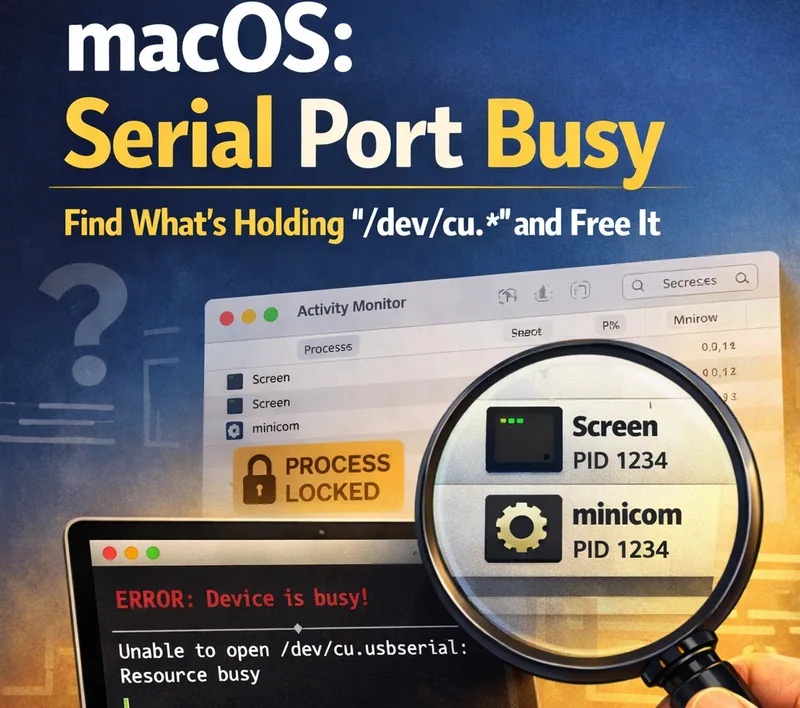
macOS: Serial Port Busy — Find What’s Holding `/dev/cu.*` and Free It
Short answer
When macOS says a /dev/cu.* serial port is busy, find the process holding it, close or stop that session safely, and reconnect with the correct device path. Check existing terminal sessions, background tools, and stale locks before assuming the adapter or cable has failed.
Quick fix
- List ports and copy the one you’re using:
ls -1 /dev/cu.* | head
- See what process is holding the port (replace with your port name):
lsof /dev/cu.usbserial-0001
- If it’s
screen, close it cleanly:
screen -ls
screen -r <ID>
# then inside screen: Ctrl+A, then K, then y
- If the process is stuck, end it:
kill <PID>
If that doesn’t work:
kill -9 <PID>
- Confirm the port is free:
lsof /dev/cu.usbserial-0001
No output usually means you’re good.
Why this happens
On macOS, a serial port is a device file (like /dev/cu.* and /dev/tty.*). Once one process opens it, a second process typically can’t open the same port at the same time.
Common culprits:
- a forgotten
screensession (maybe in another Terminal window) - SecureCRT / CoolTerm / Serial / any GUI terminal app
- a Python script (pyserial) still running
- a background logging command you started and forgot about
Step 1: Make sure you’re opening the right port
On macOS, you usually want /dev/cu.*, not /dev/tty.*.
List them:
ls -1 /dev/cu.*
If you have multiple adapters plugged in, it’s easy to grab the wrong one. Always copy/paste the full device name.
Step 2: Identify what’s holding the port
The simplest check:
lsof /dev/cu.usbserial-0001
If you’re not sure which exact port name you need, you can scan all open serial devices:
lsof | grep -E '/dev/cu\.' | head -n 50
In the lsof output, pay attention to:
- COMMAND (what program it is)
- PID (the process ID you can kill)
- USER (useful if it’s not your session)
Step 3: The most common case — it’s screen
List active screen sessions
screen -ls
If you see entries like:
12345.tty.usbserial-0001(Attached)67890.tty.usbserial-0001(Detached)
…that’s usually your answer.
If the session is “Attached”
Sometimes it’s open in another window and you forgot. You can:
- go to that window and exit normally, or
- take control of the session:
screen -r <ID>
If it says it’s already attached, use:
screen -d -r <ID>
Close screen the right way so the port is released
Inside screen:
Ctrl+A, thenK, theny
Then confirm:
lsof /dev/cu.usbserial-0001
Step 4: If it’s not screen
You might see python, node, cu, minicom, CoolTerm, Serial, etc.
Try a normal stop first
kill <PID>
Wait a second, then re-check:
lsof /dev/cu.usbserial-0001
If it’s hung
kill -9 <PID>
That usually frees the port immediately.
Step 5: “I killed it, but the port is still busy”
This is less common, but it happens.
1) You’re checking the wrong port name
Double-check the exact device path.
2) There’s a second process holding it
Run the check again:
lsof /dev/cu.usbserial-0001
3) The USB chain is acting up (hub/dock/adapter)
Fast hardware fix:
- unplug/replug the adapter
- try a different USB port
- if you’re on a dock, try plugging directly into the Mac
After replugging, the device name can change, so re-list ports:
ls -1 /dev/cu.*
How to avoid this next time
1) If you use screen a lot, glance at sessions before connecting
screen -ls
It takes one second and often reveals the problem instantly.
2) Always exit screen cleanly
Closing the Terminal window isn’t the same as closing the port. Use Ctrl+A → K → y.
3) If you write scripts, close the port on errors
If you’re using Python/pyserial, make sure you close the port reliably (e.g., try/finally or a context manager). Otherwise a process can stay alive and keep the device locked.
Mini command cheat sheet
Who’s holding the port:
lsof /dev/cu.usbserial-0001
List screen sessions:
screen -ls
Take over an attached screen session:
screen -d -r <ID>
Stop a process:
kill <PID>
Force-stop:
kill -9 <PID>
Who this is for
This guide is for network engineers, field technicians, remote hands, lab engineers, and system administrators who need to connect to, troubleshoot, log, or verify a serial console session on switches, routers, firewalls, appliances, servers, and other devices with console ports.
When to use this
Use this guide when:
- You need direct console access to a switch, router, firewall, appliance, server, or lab device.
- SSH or management-plane access is unavailable, unreliable, or not yet configured.
- You need to troubleshoot a USB serial adapter, COM port, baud rate, or terminal session.
When not to use this
Do not use this guide when:
- Do not use this guide as a substitute for vendor documentation, site policy, or a verified device-specific runbook when the operation is risky.
- Do not continue if the console output suggests you are connected to the wrong device.
Quick checklist
- Identify the device and console connector
- Use the correct console cable or adapter
- Find the correct serial port or COM port
- Start with the expected baud rate and 8N1 settings
- Press Enter to confirm the prompt
- If output is unreadable, check baud rate and line settings
- If the port will not open, check permissions, drivers, and whether another program is holding the port
- Save useful session notes or logs when the work matters
Traditional cable vs CliDeck workflow
A traditional USB serial cable is still the simplest option for quick local work. CliDeck becomes useful when the console session needs browser access, notes, runbooks, sharing, logs, remote hands support, or a portable controller workflow.
Console Server Go can work like a wired USB serial adapter when connected by USB, but it also adds SSH Console on SSH-enabled firmware builds, browser Workspace, live sharing, 24h+ battery operation, OLED status, and magnetic rack mounting.
Workflow
- Identify the device, connector, cable, adapter, and host operating system.
- Find the correct serial port or COM port and confirm permissions or drivers.
- Open the session with the expected baud rate and line settings, usually 8N1 unless documented otherwise.
- Press Enter and verify the prompt before running commands.
- Save notes or logs when the session supports a change, recovery, handoff, or evidence workflow.
Verification checklist
- The detected serial port or COM port matches the connected adapter.
- Baud rate, data bits, parity, stop bits, and flow control match the device expectation.
- The terminal shows a readable prompt after pressing Enter.
- No other terminal application is holding the port.
- Useful notes or logs are saved when the work matters.
Common mistakes
- Using the wrong cable or adapter for the console connector.
- Opening the wrong COM port or
/dev/cu.*device. - Assuming unreadable output means hardware failure before checking baud rate and 8N1 settings.
- Leaving another terminal application attached to the port.
CliDeck workflow fit
A traditional USB serial cable is still the simplest option for quick local work. CliDeck becomes useful when the console session needs browser access, notes, runbooks, sharing, logs, remote hands support, or a portable controller workflow.
Console Server Go can work like a wired USB serial adapter when connected by USB, but it also adds SSH Console on SSH-enabled firmware builds, browser Workspace, live sharing, 24h+ battery operation, OLED status, and magnetic rack mounting.
FAQ
Is a USB serial cable still enough?
Yes, for simple local work where one engineer is sitting next to one device. CliDeck is more useful when the console session needs sharing, runbooks, browser Workspace, remote hands support, logs, or longer operational context.
What should I check first when serial output looks like garbage?
Check the baud rate, data bits, parity, stop bits, flow control, cable type, and whether the device is actually using the expected console port.
Can CliDeck help with serial console work?
Yes. CliDeck Workspace helps organize terminal sessions, notes, runbooks, and logs. Console Server Go adds portable rack-side access, and Net Controller supports larger batch workflows.
Related guides
- Linux Serial Disconnects: Collect the Right Boot and Time Window - Collect Linux serial-disconnect evidence from a specific boot and UTC time window while preserving journal permissions, retention and kernel-only limits.
- Linux Serial Permissions: Check Identity, Groups and ACLs - Inspect Linux serial-device identity, groups, node permissions and ACL masks before changing access or opening the console port.
- Linux Console Capture Storage: Check Blocks and Inodes - Check the actual Linux console capture filesystem for available blocks and inodes, and keep directory usage separate from capture completion.
- Console Capture Times: UTC Without False Precision - Record console capture times in UTC with the clock source and uncertainty; keep device events separate and avoid unsupported precise ordering.
- Linux Serial Settings: Inspect stty Without Guessing the Console Profile - Inspect GNU stty settings for an identified serial adapter, compare framing and flow control, and account for device-open effects and session ownership.