
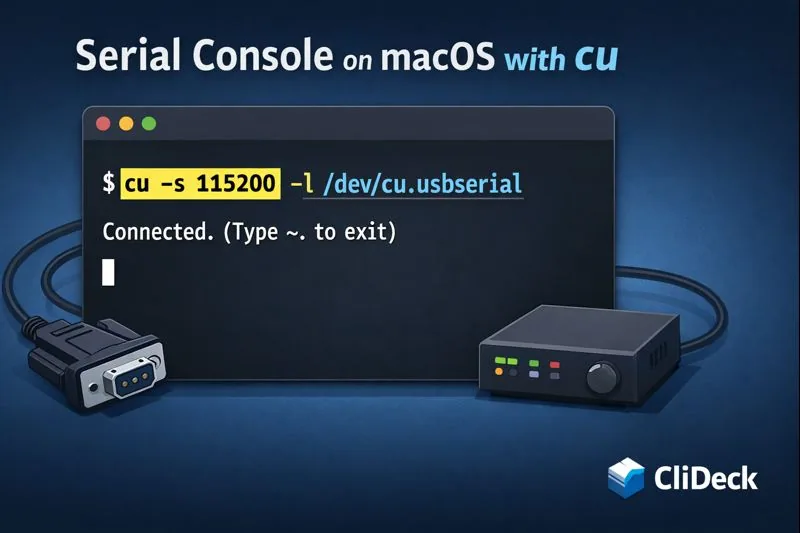
Serial Console on macOS with `cu`: The Simplest Built-In Alternative to `screen`
Short answer
For a simple built-in macOS serial-console session, use cu with the adapter’s /dev/cu.* path and the expected baud rate. It is a practical alternative to screen when you want a direct terminal connection without extra software.
Why cu on macOS
If you need serial console access on macOS and you want the simplest possible tool that’s already on the system, cu is hard to beat.
On modern macOS, cu commonly comes from Taylor UUCP 1.07 (you can confirm with cu --help), and it’s designed to open a serial line with minimal configuration. That makes it ideal for “connect now” situations:
- You’re offline or on a restricted network.
- You’re on a clean Mac (no Homebrew, no extra installs).
- You just need a reliable local terminal to a console port.
When you do have internet access and want a smoother workflow (multiple devices, organized sessions, shared access, and consistent logs), that’s where CliDeck fits naturally: CliDeck Workspace.
Quick Start (30 seconds)
- Plug in your USB-to-Serial adapter.
- Find the device name:
ls /dev/cu.*
- Connect (common console default is 9600 baud):
cu -l /dev/cu.usbserial-XXXX -s 9600
- Exit safely:
- Press Enter (so the escape character is the first character on the line),
- then type:
~.
Tip: The default escape character is ~. If you ever forget the available escape commands, the quickest way to discover them is usually ~? inside the session (or check man cu on your Mac).
Choosing the Right Port on macOS (/dev/cu.*)
On macOS you’ll typically see serial devices as:
/dev/cu.usbserial-*(often FTDI USB-serial)/dev/cu.SLAB_USBtoUART(often Silicon Labs CP210x)/dev/cu.wchusbserial*(often WCH CH340/CH9102)/dev/cu.usbmodem*(often CDC/ACM-style devices)
The most reliable method: diff before/after
ls /dev/cu.* > /tmp/cu_before.txt
# plug in the adapter
ls /dev/cu.* > /tmp/cu_after.txt
diff /tmp/cu_before.txt /tmp/cu_after.txt
The new line(s) in the diff is your candidate port.
Setting Speed (Baud Rate)
In Taylor UUCP cu, speed is set with:
-s,--speed, or--baud- or the short form
-#(where#is a number)
Examples:
cu -l /dev/cu.usbserial-XXXX -s 9600
cu -l /dev/cu.usbserial-XXXX -s 115200
cu -l /dev/cu.usbserial-XXXX -115200
Practical baud rate table (what to try first)
| Use case | Most common | Next to try |
|---|---|---|
| Network gear console (typical) | 9600 | 115200, 38400 |
| Dev boards / UART debug | 115200 | 57600, 9600 |
| Older equipment | 9600 | 19200, 38400 |
| Boot/debug on some platforms | 115200 | 230400 |
If you see “garbage characters,” in most cases it’s simply the wrong baud rate. Switch between 9600 and 115200 first.
Parity, Line Settings, and Flow Control (What cu Actually Exposes)
Taylor UUCP cu exposes parity options directly:
- Even parity:
-eor--parity=even - Odd parity:
-oor--parity=odd
Examples:
cu -l /dev/cu.usbserial-XXXX -s 9600 -e
cu -l /dev/cu.usbserial-XXXX -s 9600 --parity=odd
Software flow control (XON/XOFF)
By default, many setups handle XON/XOFF. If your device behaves strangely (paused output, missing characters) and you suspect software flow control is interfering, try disabling it:
cu -l /dev/cu.usbserial-XXXX -s 9600 --nostop
Carriage return mapping (CR → CRLF)
If the device expects CRLF or your terminal formatting looks off, you can map CR to CR/LF:
cu -l /dev/cu.usbserial-XXXX -s 9600 -t
The Options You’ll Actually Use (Taylor UUCP cu)
The most important flags on macOS (Taylor UUCP build) are:
| Option | Meaning | When to use |
|---|---|---|
-l, --line <device> | Use a named device (serial line) | Your normal serial console case (/dev/cu.*) |
-a, -p, --port <port> | Use a named port | Useful if you’ve defined ports in UUCP config |
-s, --speed, --baud <n> or -<n> | Set baud rate | Always |
-e / -o / --parity=... | Set parity | When the device requires it |
-E, --escape <char> | Change escape character (default is ~) | If ~ conflicts with your workflow |
-h, --halfduplex | Echo locally | Rare, but useful for some links |
--nostop | Disable XON/XOFF handling | If flow control breaks output |
-t, --mapcr | Map CR to CR/LF | For formatting quirks |
-x, --debug <type> / -d | Debug mode | When troubleshooting |
Important note: On this build, -h is half-duplex, not help. Use cu --help (double dash) to print help reliably.
How to Exit cu Cleanly
On macOS cu, the escape character is usually ~ (tilde). Escape sequences only work when ~ is the first character on the line, so:
- Press Enter
- Then type your escape command
Common patterns:
~.— disconnect and exit~?— show escape help (if supported by your build)- Change escape char if needed:
cu -l /dev/cu.usbserial-XXXX -s 9600 -E %
Then you’d use % as the session escape prefix instead of ~.
Logging a cu Session (Practical Approach on macOS)
Taylor UUCP cu is intentionally minimal, and logging behavior can vary by build. The most reliable approach on macOS is to use the built-in script command to capture everything printed in your terminal:
script -q /tmp/serial-session.log
cu -l /dev/cu.usbserial-XXXX -s 9600
# exit cu with ~.
exit
This creates a readable log you can attach to tickets, paste into notes, or archive.
If you find yourself doing this often (multiple devices, repeatable workflows, centralized history), that’s a good point to switch to a toolchain that treats sessions and logs as first-class objects. That’s exactly one of the reasons CliDeck exists: CliDeck Features.
Troubleshooting (Based on Real macOS Output)
1) Permission denied and UUCP lock errors
You may see errors like:
cu: creat during lock (...) Permission deniedcu: p: Line in use
This happens because cu tries to create UUCP lock/spool files (commonly under /var/spool/uucp/) and your user may not have permission.
Fix A: Run cu with sudo (quickest test)
sudo cu -l /dev/cu.usbserial-XXXX -s 9600
If this works, you’ve confirmed a permissions/lock directory issue.
Fix B: Check the spool directory permissions
ls -ld /var/spool/uucp
ls -la /var/spool/uucp | head
If the directory doesn’t exist or is not writable by your user, cu won’t be able to create its lock/temp files without elevated privileges.
Fix C: Stale lock file (shows as “Line in use”)
If you’re sure nothing is using the port, a stale lock may be present. Inspect first:
ls -la /var/spool/uucp
If you see an obvious stale lock and you understand the risk, remove it with care (often requires sudo):
sudo rm -f /var/spool/uucp/LCK..*
Then retry cu. Be conservative here: deleting locks while another process truly uses the port can cause conflicts.
2) cu: must specify system, line, port or speed
This is normal when you run cu without enough arguments. For a serial console session you usually want at least:
-l /dev/cu.*(the device)-s <baud>(speed)
Example:
cu -l /dev/cu.usbserial-XXXX -s 9600
3) Nothing prints (blank screen)
Most common causes:
- Wrong port (
/dev/cu.*mismatch) - Wrong baud rate (try 9600 then 115200)
- Wiring issue (RX/TX swapped, incorrect adapter, wrong ground)
- The device only speaks after boot or after you press Enter
Checklist:
ls /dev/cu.*
cu -l /dev/cu.usbserial-XXXX -s 9600
# press Enter a few times
# try again with 115200
4) Garbled output (“random symbols”)
Almost always baud mismatch. Try:
- 9600 (most network console defaults)
- 115200 (many dev/UART consoles)
Also check whether you need parity or whether XON/XOFF is interfering:
cu -l /dev/cu.usbserial-XXXX -s 9600 --nostop
cu -l /dev/cu.usbserial-XXXX -s 9600 -e
Mini FAQ
Is cu the best option on macOS?
If you need a built-in, offline, no-install serial console tool, cu is often the best choice. It’s simple, fast, and available when you have nothing else.
When should I use CliDeck instead?
If you want:
- multiple devices and sessions organized in one workspace,
- consistent logging and session history,
- browser access and team workflows,
then cu becomes a fallback tool rather than your primary workflow. That’s where CliDeck fits: CliDeck Workspace.
Bottom Line
Use cu when you need the quickest, most reliable offline way to connect to a serial console on macOS.
And when you’re ready to move beyond “connect and exit” into a workflow with structured sessions, consistent logs, and a browser-first experience, take a look at CliDeck: CliDeck Workspace.
Who this is for
This guide is for network engineers, field technicians, remote hands, lab engineers, and system administrators who need to connect to, troubleshoot, log, or verify a serial console session on switches, routers, firewalls, appliances, servers, and other devices with console ports.
When to use this
Use this guide when:
- You need direct console access to a switch, router, firewall, appliance, server, or lab device.
- SSH or management-plane access is unavailable, unreliable, or not yet configured.
- You need to troubleshoot a USB serial adapter, COM port, baud rate, or terminal session.
When not to use this
Do not use this guide when:
- Do not use this guide as a substitute for vendor documentation, site policy, or a verified device-specific runbook when the operation is risky.
- Do not continue if the console output suggests you are connected to the wrong device.
Quick checklist
- Identify the device and console connector
- Use the correct console cable or adapter
- Find the correct serial port or COM port
- Start with the expected baud rate and 8N1 settings
- Press Enter to confirm the prompt
- If output is unreadable, check baud rate and line settings
- If the port will not open, check permissions, drivers, and whether another program is holding the port
- Save useful session notes or logs when the work matters
Traditional cable vs CliDeck workflow
A traditional USB serial cable is still the simplest option for quick local work. CliDeck becomes useful when the console session needs browser access, notes, runbooks, sharing, logs, remote hands support, or a portable controller workflow.
Console Server Go can work like a wired USB serial adapter when connected by USB, but it also adds SSH Console on SSH-enabled firmware builds, browser Workspace, live sharing, 24h+ battery operation, OLED status, and magnetic rack mounting.
Workflow
- Identify the device, connector, cable, adapter, and host operating system.
- Find the correct serial port or COM port and confirm permissions or drivers.
- Open the session with the expected baud rate and line settings, usually 8N1 unless documented otherwise.
- Press Enter and verify the prompt before running commands.
- Save notes or logs when the session supports a change, recovery, handoff, or evidence workflow.
Verification checklist
- The detected serial port or COM port matches the connected adapter.
- Baud rate, data bits, parity, stop bits, and flow control match the device expectation.
- The terminal shows a readable prompt after pressing Enter.
- No other terminal application is holding the port.
- Useful notes or logs are saved when the work matters.
Common mistakes
- Using the wrong cable or adapter for the console connector.
- Opening the wrong COM port or
/dev/cu.*device. - Assuming unreadable output means hardware failure before checking baud rate and 8N1 settings.
- Leaving another terminal application attached to the port.
CliDeck workflow fit
A traditional USB serial cable is still the simplest option for quick local work. CliDeck becomes useful when the console session needs browser access, notes, runbooks, sharing, logs, remote hands support, or a portable controller workflow.
Console Server Go can work like a wired USB serial adapter when connected by USB, but it also adds SSH Console on SSH-enabled firmware builds, browser Workspace, live sharing, 24h+ battery operation, OLED status, and magnetic rack mounting.
FAQ
Is a USB serial cable still enough?
Yes, for simple local work where one engineer is sitting next to one device. CliDeck is more useful when the console session needs sharing, runbooks, browser Workspace, remote hands support, logs, or longer operational context.
What should I check first when serial output looks like garbage?
Check the baud rate, data bits, parity, stop bits, flow control, cable type, and whether the device is actually using the expected console port.
Can CliDeck help with serial console work?
Yes. CliDeck Workspace helps organize terminal sessions, notes, runbooks, and logs. Console Server Go adds portable rack-side access, and Net Controller supports larger batch workflows.
Related guides
- Linux Serial Disconnects: Collect the Right Boot and Time Window - Collect Linux serial-disconnect evidence from a specific boot and UTC time window while preserving journal permissions, retention and kernel-only limits.
- Linux Serial Permissions: Check Identity, Groups and ACLs - Inspect Linux serial-device identity, groups, node permissions and ACL masks before changing access or opening the console port.
- Linux Console Capture Storage: Check Blocks and Inodes - Check the actual Linux console capture filesystem for available blocks and inodes, and keep directory usage separate from capture completion.
- Console Capture Times: UTC Without False Precision - Record console capture times in UTC with the clock source and uncertainty; keep device events separate and avoid unsupported precise ordering.
- Linux Serial Settings: Inspect stty Without Guessing the Console Profile - Inspect GNU stty settings for an identified serial adapter, compare framing and flow control, and account for device-open effects and session ownership.