
SonicWall SafeMode Factory Reset for Owned Firewalls: Recovery and Resale Checks
Short answer
Use SafeMode to return an owned SonicWall firewall to a manageable default configuration when normal administration is unavailable. Identify the appliance generation, obtain any required maintenance key, and select the boot option with factory defaults. Then inspect the rebooted appliance for customer remnants. A default login screen is a recovery milestone, not proof that every stored artifact has been removed.
When this applies
This workflow is for authorized ITAD intake, refurbishment, or recovery of a firewall you own or are contracted to process. Remove it from the customer's network first. If a configuration must be returned, or the appliance is under investigation, resolve that requirement before resetting it.
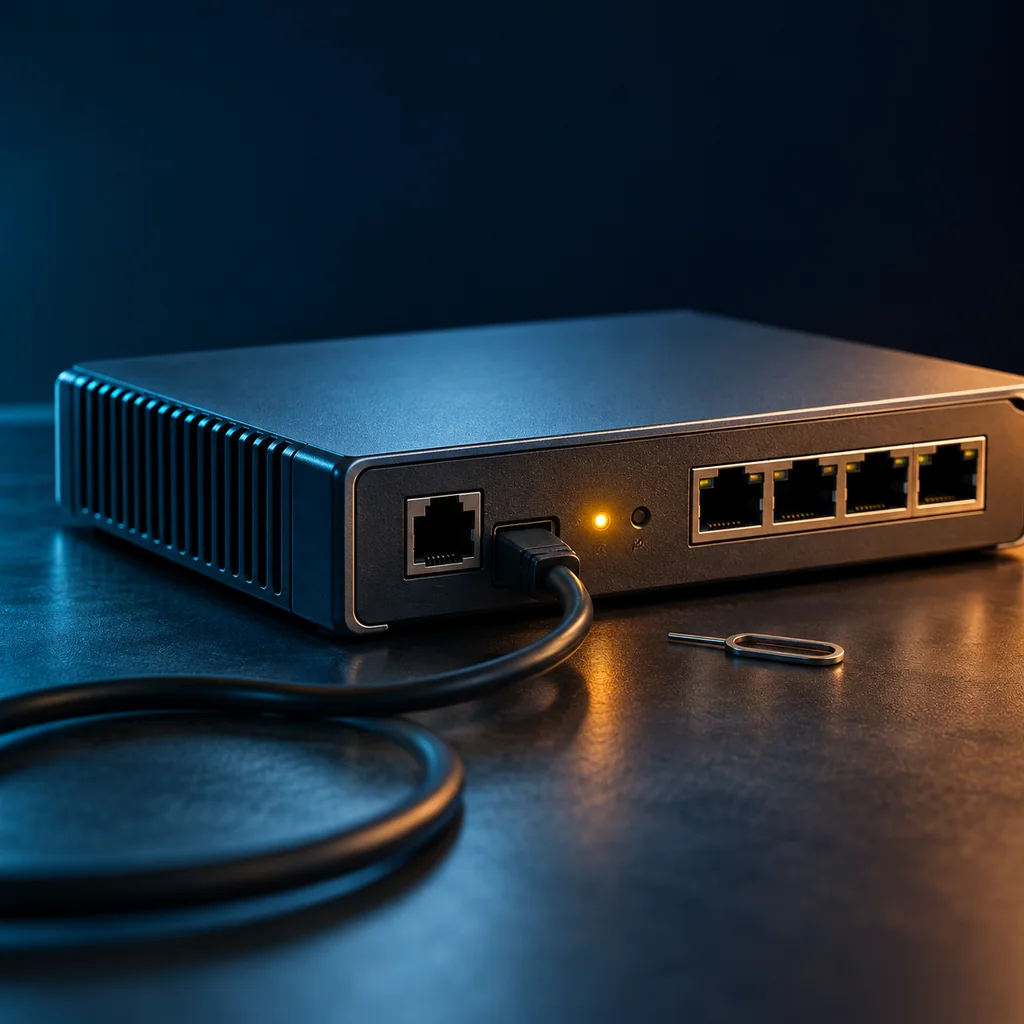
Record the exact model, SonicOS version if visible, power supply, interface labels, and whether the unit is registered to an account your team can access. Photograph the reset-button location. Generation-specific differences matter more than the superficial similarity of two firewall cases.
Prepare an isolated management connection
- Use one firewall and one workstation on a separate bench segment.
- Disconnect WAN, HA, and production-facing cables.
- Confirm stable power and allow the appliance to finish booting.
- Arrange console capture where the model exposes a supported console interface.
- Retrieve a Gen 7 maintenance key through the authorized account before starting, when required.
Do not assume the recovery address and the normal X0 management address are identical. Set the workstation address for the mode currently in use, and inspect the model's recovery instructions before choosing a port.
Enter SafeMode and select the correct boot action
Use the reset procedure for the exact hardware generation. The timing for entering recovery is different from a brief restart; stop if the LED sequence does not match the selected procedure. Avoid repeated blind button presses on a unit whose storage or power condition is uncertain.
In SafeMode, choose the current firmware with factory-default settings when the installed image is usable. Read the entire option name before confirming. Booting with the current configuration or a backup configuration can restore the very settings you are trying to remove.
If the current firmware fails to boot, use the separate SonicWall firmware recovery workflow. Do not upgrade the recovery ROM as an improvised fix.
Verification note: defaults are narrower than a complete wipe
Some SafeMode firmware boot choices reset configuration while retaining logs and local backups. Treat those as separate inspection targets.
After normal boot, inspect:
| Check | Pass condition | Hold condition |
|---|---|---|
| Boot | Normal startup completes | Recovery loop or storage error |
| Active configuration | Former customer settings absent | Old VPN, users, routes, or HA settings |
| Local artifacts | Backup and log disposition recorded | Unreviewed customer artifacts remain |
| Ownership | Account handling agreed | Registration or transfer unresolved |
Test the default management path only on the isolated bench. Use a temporary bench credential if testing requires changing the administrator password, and record how that credential will be handled at handoff.
Close the asset record
Save the selected boot action, version before and after, console or screen evidence, artifact disposition, operator, and result. Label the result precisely: configuration reset verified, further sanitization required, or recovery failed. Do not label a configuration reset as certified storage erasure.
CliDeck Workspace can keep the console transcript and checklist alongside the task. For a repeatable intake process, start with the network-device intake checklist.
Safety note: This guidance applies only to devices your team owns or is authorized to process. Use the approved, device-specific procedure, customer policy, and your organization’s sanitization and evidence procedures.
Who this is for
This guide is for ITAD teams, refurbishment teams, network engineers, and operations teams who need to perform an owner-authorized reset, recovery, verification, or documented device-processing workflow on network devices that your team owns or is authorized to process.
When to use this
Use this guide when:
- Your team owns or is authorized to process the device.
- You need to reset, zeroize, recover, reimage, verify, or document a network device.
- The result must be attached to an asset, resale, reuse, refurbishment, or recycling workflow.
When not to use this
Do not use this guide when:
- You do not own or have authorization to work on the device.
- The device is outside your approved change, recovery, or processing scope.
- The task may expose customer data, secrets, licenses, or credentials that you are not allowed to view or store.
- You need a certified data destruction procedure and your organization has not provided one.
Workflow
- Confirm ownership, processing scope, device identity, and approved procedure.
- Connect through the console or approved management path and capture the session context.
- Run the reset, zeroize, recovery, reimage, or verification steps required by the article and vendor documentation.
- Reboot or reconnect as needed and verify the expected clean, default, or recovered state.
- Attach logs, verification output, exceptions, and final pass/fail/exception status to the asset record.
Verification checklist
- Device identity matches the asset record.
- Console or session log is attached to the asset.
- The reset, zeroize, recovery, or reimage method is recorded.
- The post-reboot state matches the expected clean or recovered state.
- Verification commands and outputs are captured.
- Exceptions or failures are quarantined instead of marked ready.
Resale and evidence checklist
Before marking the device ready for resale, capture:
- Device model and serial number
- Console transcript or session log
- Reset, zeroize, reimage, or recovery method used
- Any confirmation prompts and operator decisions
- Post-reboot state
- Visible default or clean-state prompt
- Verification commands and outputs
- Hardware alarms or boot errors
- License, entitlement, or customer identifiers handled according to policy
- Exceptions, failures, or quarantine decisions
- Final pass/fail/exception status attached to the asset record
What not to publish
Do not publish raw transcripts that include customer names, public IP addresses, VPN settings, license keys, entitlement IDs, serial numbers that must remain private, passwords, tokens, certificates, or other sensitive identifiers. Keep sensitive evidence in the customer-approved internal system and publish only sanitized examples.
Common mistakes
- Processing a device without owner authorization or the correct asset record.
- Treating a factory reset as certified data destruction.
- Failing to capture confirmation prompts, reboot state, verification output, or exceptions.
- Publishing raw logs that contain customer identifiers, licenses, keys, passwords, or configuration remnants.
CliDeck workflow fit
CliDeck can help turn this procedure into a repeatable workflow. Console Server Go is useful for portable rack-side console access and shared remote support. Net Controller is better for ITAD, refurbishment, and batch processing where multiple devices need barcode tracking, approved scripts, logs, API updates, and evidence-style results.
Net Controller can help operators connect devices, scan assets, run approved workflows, capture console logs, require verification steps, and attach the result to the asset record.
FAQ
Is this a certified data destruction procedure?
No. This article describes a practical, owner-authorized workflow and verification approach. Certification depends on your organization’s process, evidence requirements, customer contract, and any formal certification program that applies.
Does CliDeck provide vendor OS images?
No. CliDeck does not distribute vendor operating system images. Recovery or reimage workflows can use images already present on the device or images provided by the customer where the customer has appropriate rights and licenses.
Should I publish the full console log?
Usually no. Keep complete evidence in the approved internal system and publish only sanitized examples. Console logs can contain serial numbers, license details, customer names, IP addresses, keys, passwords, or configuration remnants.
Can CliDeck help with this workflow?
Yes. Console Server Go helps with portable rack-side console access and shared remote support. Net Controller is better for batch ITAD, refurbishment, recovery, provisioning, barcode/API tracking, and evidence-style results.
Related guides
- SonicWall Firmware Recovery in SafeMode: Image Selection and Clean-State Verification - Recover an owned SonicWall firewall with a firmware image matched to its exact appliance model and generation.
- SonicWall TSR Before Wipe: A Diagnostic Capture Checklist for Refurbish Teams - Capture a SonicWall Tech Support Report before changing the appliance if the processing agreement permits diagnostic collection.
- Aruba Instant AP Factory Reset: Isolate the Device and Verify the Fresh Baseline - For an owned Aruba Instant AOS-8 access point, use the supported factory-reset procedure for the exact model and software.
- Palo Alto ZTP After Factory Reset: Keep Refurbishment on a Controlled Bench - After resetting an owned Palo Alto firewall, inspect its Zero Touch Provisioning state before connecting it to an unrestricted uplink.
- Cisco IOS XE Smart Licensing at Decommission: A Separate Checklist from Factory Reset - Before decommissioning an owned IOS XE device, identify its licensing model and coordinate license handling with the authorized Smart Account administrator.