
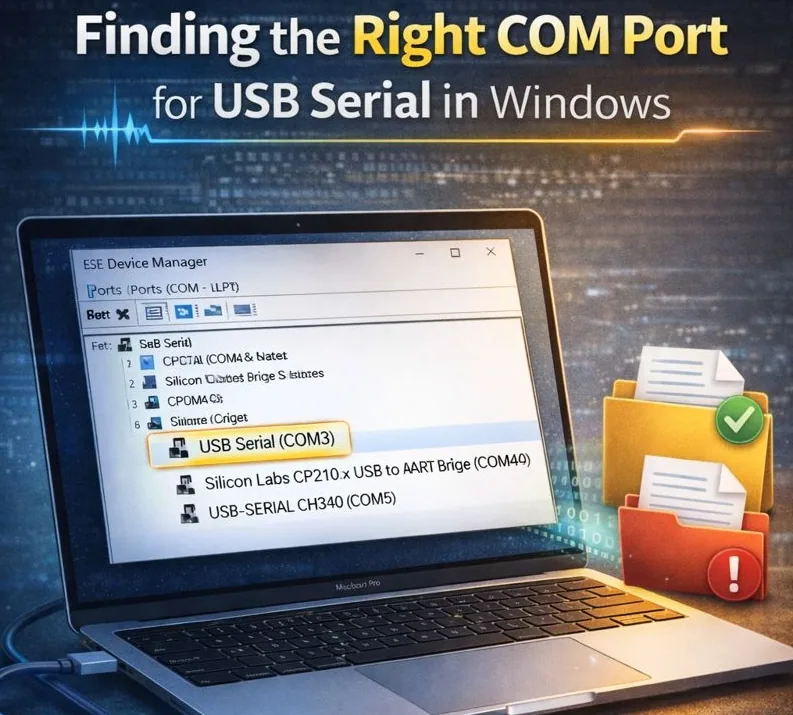
Windows: Finding the Right COM Port for USB-Serial (FTDI/CP210x/CH340) + Driver Sanity Checks
Short answer
On Windows, find the correct USB-serial port in Device Manager under Ports (COM & LPT), then use that COM number with the expected baud rate and line settings. If the adapter does not appear or changes number unexpectedly, check the cable, driver, USB path, and whether another application owns the port.
Why “the right COM port” is a constant Windows problem
On Windows, the same USB-Serial adapter can:
- show up with a different COM number after reconnecting,
- disappear after an update,
- appear as “Unknown device” with no COM port at all,
- conflict with drivers, policies, docks, or hubs.
This post is about quickly answering: port exists / port doesn’t exist / driver OK / driver broken.
If you deal with console cables often and you’re tired of hunting COM numbers and fixing drivers across multiple PCs, it’s easier to keep sessions and history organized in one place. That’s a core use case for CliDeck: CliDeck Workspace.
Quick answer (30 seconds)
- Open Device Manager → Ports (COM & LPT)
- Look for the new device like USB Serial Port (COMx)
- If Ports (COM & LPT) is missing, look under Other devices or Universal Serial Bus controllers and fix the driver
- If your tool says “can’t open COM,” jump to the “Port is busy” section below
Step 1. Find the COM port in Device Manager (most reliable)
Option A: the “before/after” method (never fails)
- Open Device Manager
- Expand Ports (COM & LPT)
- Note what’s listed
- Plug in the adapter
- See what was added (COM3 / COM5 / COM12, etc.)
Option B: show hidden devices (when Windows has “ghost” ports)
- In Device Manager: View → Show hidden devices
- You may see old, greyed-out COM devices that clutter the list (and sometimes confuse COM numbering).
Step 2. Recognize the adapter family by the display name (quick heuristic)
In Device Manager you’ll often see names like:
| Chip family | Common Windows label examples |
|---|---|
| FTDI | “USB Serial Converter”, “USB Serial Port (COMx)” |
| CP210x (Silicon Labs) | “Silicon Labs CP210x USB to UART Bridge (COMx)” |
| CH340/CH341 (WCH) | “USB-SERIAL CH340 (COMx)”, sometimes just “USB Serial Port (COMx)” |
This isn’t 100% guaranteed (vendors can rename devices), but it’s useful for quick orientation.
If you manage lots of adapters and devices, keeping a clean “inventory” of connections and sessions matters. In CliDeck, you can organize device workflows without living inside COM naming quirks: CliDeck Controllers.
Step 3. Driver sanity checks: what “healthy” looks like
Signs the driver is OK
- The device appears under Ports (COM & LPT)
- No warning icon
- Properties → General says “This device is working properly”
- The COM number is stable (or only changes when you move to a different USB port)
Signs the driver is NOT OK
- No Ports (COM & LPT) section at all
- The device shows under Other devices as “Unknown device”
- Yellow warning icon with an error code (Code 10/28/43, etc.)
- The device appears under USB controllers but no COM port is created
Step 4. PowerShell: list COM ports without clicking
Open PowerShell and run:
Get-CimInstance Win32_SerialPort | Select-Object DeviceID, Name, Description
To list anything that looks like a COM device by friendly name:
Get-PnpDevice | Where-Object { $_.FriendlyName -match "COM\d+" } | Select-Object Status, Class, FriendlyName, InstanceId
Step 5. VID/PID: the most accurate way to identify “which adapter is which”
When you have multiple similar cables, VID/PID is the most reliable identifier.
Where to find VID/PID in the GUI
Device Manager → your device → Properties → Details → Hardware Ids
You’ll see something like:
USB\VID_XXXX&PID_YYYY...
Why it matters
- distinguish two identical “USB Serial Port (COMx)” entries,
- confirm which driver family you need,
- verify Windows is actually seeing the device correctly.
Step 6. If there is no COM port: a fix-first workflow
1) Check the physical path (port / cable / hub)
- Try a different USB port (preferably directly on the PC)
- Temporarily remove docks/hubs from the chain
- Try a different USB cable (yes, this is a frequent root cause)
2) Check how Windows detects it
Look under:
- Other devices (Unknown)
- Universal Serial Bus controllers
- Ports (COM & LPT)
If it’s under Other devices, it usually needs a driver.
3) Update driver using Windows built-in flow
Right-click the device → Update driver → Search automatically for drivers
On many Windows 11 setups, this is enough.
4) If your environment blocks drivers (corporate policy)
In managed environments, driver installs can be restricted. Common clues:
- installs “fail” or roll back,
- the device appears/disappears,
- you don’t have rights to install drivers.
At that point, you’ll need admin/IT support—otherwise you’ll just loop.
Step 7. Why COM numbers keep changing (and how to stabilize them)
Why it happens
Windows may assign a new COM number when:
- you plug into a different USB port,
- Windows treats it as a “new device,”
- your system has accumulated hidden/ghost COM entries.
How to set a fixed COM number manually
Device Manager → Ports (COM & LPT) → your adapter → Properties → Port Settings → Advanced… → COM Port Number
Pick an unused number and apply.
Practical tip: use something like COM10–COM20 to avoid collisions with legacy software and older built-in ports.
Step 8. “Port is busy”: how to tell the COM port is already open
Typical symptom: your terminal/tool says it can’t open the COM port, even though the COM port exists.
Most common “port busy” culprits:
- IDE Serial Monitor
- another PuTTY instance / terminal
- background services that keep the port open
Practical approach: close any app that might be using the port, unplug/replug the adapter, then retry. Windows doesn’t have a simple built-in “lsof for COM” that works universally, so the fastest path is often eliminating obvious contenders.
If you prefer a workflow where sessions are managed cleanly (instead of “which app opened COM on this PC”), that’s part of the CliDeck approach: CliDeck Features.
Symptom → cause → action (fast table)
| Symptom | Most likely cause | What to do |
|---|---|---|
| No “Ports (COM & LPT)” | driver missing / device not recognized | check Other devices, install/update driver |
| “Unknown device” under Other devices | missing driver or bad cable | Update driver, try another port/cable |
| COM exists but tool can’t open it | port busy | close serial monitors/terminals, replug |
| COM changes every time | different USB ports / “new device” | set fixed COM in Advanced settings |
| Worked before, now broken | update/policy/dock issue | test without hub, re-check Device Manager, reinstall driver |
A practical note about CliDeck
This guide helps you survive Windows reality: COM ports and drivers can be annoying. But if you connect to serial consoles frequently across different machines, the real cost is repetition.
In those scenarios, it’s easier to use a workspace where:
- sessions are organized,
- history and logs are preserved,
- switching between devices is faster.
That’s one of the core use cases for CliDeck: CliDeck Workspace and CliDeck Comparison.
Bottom line
To find the correct COM port on Windows 10/11 for USB-Serial (FTDI/CP210x/CH340):
- Start with Device Manager → Ports (COM & LPT) using the “before/after” method.
- If no COM appears, check Other devices and fix the driver state.
- Use Hardware Ids (VID/PID) for precise identification.
- If COM numbers keep changing, set a fixed COM in Advanced Port Settings.
- If COM exists but won’t open, it’s usually busy in another app.
Who this is for
This guide is for network engineers, field technicians, remote hands, lab engineers, and system administrators who need to connect to, troubleshoot, log, or verify a serial console session on switches, routers, firewalls, appliances, servers, and other devices with console ports.
When to use this
Use this guide when:
- You need direct console access to a switch, router, firewall, appliance, server, or lab device.
- SSH or management-plane access is unavailable, unreliable, or not yet configured.
- You need to troubleshoot a USB serial adapter, COM port, baud rate, or terminal session.
When not to use this
Do not use this guide when:
- Do not use this guide as a substitute for vendor documentation, site policy, or a verified device-specific runbook when the operation is risky.
- Do not continue if the console output suggests you are connected to the wrong device.
Quick checklist
- Identify the device and console connector
- Use the correct console cable or adapter
- Find the correct serial port or COM port
- Start with the expected baud rate and 8N1 settings
- Press Enter to confirm the prompt
- If output is unreadable, check baud rate and line settings
- If the port will not open, check permissions, drivers, and whether another program is holding the port
- Save useful session notes or logs when the work matters
Traditional cable vs CliDeck workflow
A traditional USB serial cable is still the simplest option for quick local work. CliDeck becomes useful when the console session needs browser access, notes, runbooks, sharing, logs, remote hands support, or a portable controller workflow.
Console Server Go can work like a wired USB serial adapter when connected by USB, but it also adds SSH Console on SSH-enabled firmware builds, browser Workspace, live sharing, 24h+ battery operation, OLED status, and magnetic rack mounting.
Workflow
- Identify the device, connector, cable, adapter, and host operating system.
- Find the correct serial port or COM port and confirm permissions or drivers.
- Open the session with the expected baud rate and line settings, usually 8N1 unless documented otherwise.
- Press Enter and verify the prompt before running commands.
- Save notes or logs when the session supports a change, recovery, handoff, or evidence workflow.
Verification checklist
- The detected serial port or COM port matches the connected adapter.
- Baud rate, data bits, parity, stop bits, and flow control match the device expectation.
- The terminal shows a readable prompt after pressing Enter.
- No other terminal application is holding the port.
- Useful notes or logs are saved when the work matters.
Common mistakes
- Using the wrong cable or adapter for the console connector.
- Opening the wrong COM port or
/dev/cu.*device. - Assuming unreadable output means hardware failure before checking baud rate and 8N1 settings.
- Leaving another terminal application attached to the port.
CliDeck workflow fit
A traditional USB serial cable is still the simplest option for quick local work. CliDeck becomes useful when the console session needs browser access, notes, runbooks, sharing, logs, remote hands support, or a portable controller workflow.
Console Server Go can work like a wired USB serial adapter when connected by USB, but it also adds SSH Console on SSH-enabled firmware builds, browser Workspace, live sharing, 24h+ battery operation, OLED status, and magnetic rack mounting.
FAQ
Is a USB serial cable still enough?
Yes, for simple local work where one engineer is sitting next to one device. CliDeck is more useful when the console session needs sharing, runbooks, browser Workspace, remote hands support, logs, or longer operational context.
What should I check first when serial output looks like garbage?
Check the baud rate, data bits, parity, stop bits, flow control, cable type, and whether the device is actually using the expected console port.
Can CliDeck help with serial console work?
Yes. CliDeck Workspace helps organize terminal sessions, notes, runbooks, and logs. Console Server Go adds portable rack-side access, and Net Controller supports larger batch workflows.
Related guides
- Linux Serial Disconnects: Collect the Right Boot and Time Window - Collect Linux serial-disconnect evidence from a specific boot and UTC time window while preserving journal permissions, retention and kernel-only limits.
- Linux Serial Permissions: Check Identity, Groups and ACLs - Inspect Linux serial-device identity, groups, node permissions and ACL masks before changing access or opening the console port.
- Linux Console Capture Storage: Check Blocks and Inodes - Check the actual Linux console capture filesystem for available blocks and inodes, and keep directory usage separate from capture completion.
- Console Capture Times: UTC Without False Precision - Record console capture times in UTC with the clock source and uncertainty; keep device events separate and avoid unsupported precise ordering.
- Linux Serial Settings: Inspect stty Without Guessing the Console Profile - Inspect GNU stty settings for an identified serial adapter, compare framing and flow control, and account for device-open effects and session ownership.