
Arista EOS Inventory: Reconcile Chassis, Modules and Optics at Intake
Short answer
Collect EOS hardware inventory, separate chassis identity from replaceable components, and reconcile each relevant slot with the authorized intake record. Inventory is an observation of reported hardware, not a functional test, proof of ownership or certification that every component is genuine and supported.
This workflow applies to owned or customer-authorized Arista EOS switches. Current vendor manual pages are labelled EOS 4.36.2F, but their examples include older models. Exact sections and field availability depend on the actual appliance and installed software.
Record the appliance before its components
Match the switch to the approved intake task and record the installed platform/software information:
show version
Keep real serial numbers, asset labels and customer identifiers in the private record. A public or shared example should not expose them.
Record the collection time and the operator responsible for reconciliation. If the physical label and reported chassis identity disagree, stop the intake conclusion and investigate the mismatch. Do not silently replace the expected record with whatever the device reports.
Capture inventory from EOS EXEC
In an authorized EXEC session, collect:
show inventory
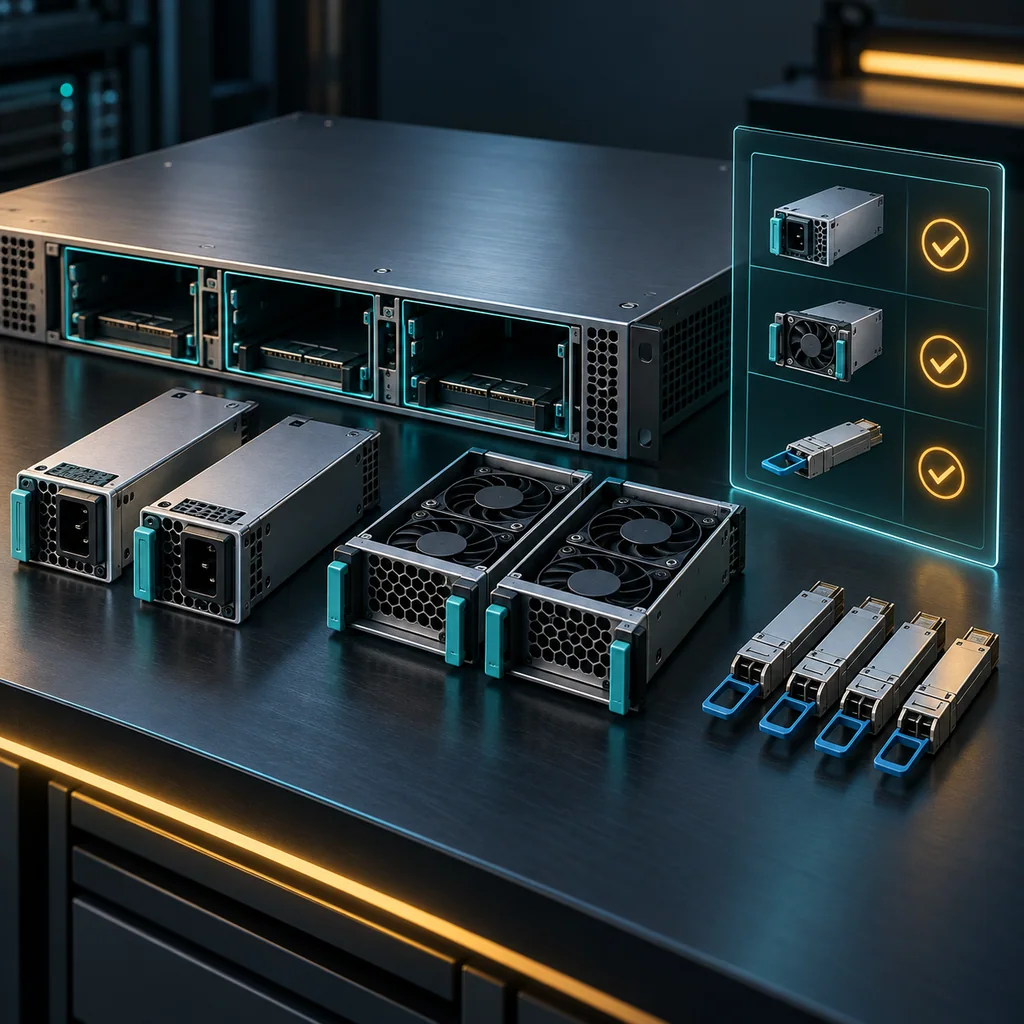
Save the complete output, not only the first system-information block. Hardware inventory can include power supplies, fan modules, port counts and transceiver sections in addition to chassis details.
The vendor's example is an illustration of output structure, not a promise that your platform contains the same slots or quantities. Use the actual supported output and the model's hardware documentation when interpreting locations.
Do not switch to a wipe or recovery command because inventory is incomplete. The purpose here is to preserve intake evidence before a separate processing decision.
Keep chassis and component identities separate
Create one chassis record and separate component records. Associate each component with its displayed slot or port and description, plus the available model, revision and identifier fields.
A power-supply serial is not the switch's chassis serial. A transceiver listed on one port belongs to that observation, not automatically to another port or the whole chassis. Keep location attached to the component when copying data into an asset system.
If a field is unavailable or marked N/A, record that condition. Do not fabricate a serial, copy a neighboring component's value or infer a manufacturing date from an unrelated label.
Reconcile without disturbing the baseline
Compare the reported components with the approved bill of materials, intake photos and physical labels that can be checked safely. Record unexpected, missing and unreadable items independently.
Do not reseat a power supply, fan or optic simply to force the output to match the record. On an operating appliance, component removal can affect power, cooling or connectivity. Physical intervention needs the model-specific procedure and an approved operational plan.
For an optical component, preserve the port association and any available manufacturer/model/revision fields. A listed optic is not proof of clean connectors, supported interoperability or error-free light levels.
Separate inventory from grading
An inventory list cannot establish power redundancy under load, fan performance, successful forwarding or storage health. Keep those tests in a separate grading checklist with explicit completion or pending status.
The same principle applies to compatibility. Reported model information helps select the correct vendor support matrix; it does not replace that matrix or establish support for a planned software release.
An absent section is an unresolved observation until the model's expected output is known. It can be a collection limitation rather than evidence of missing physical hardware.
Handle collection exceptions
If access is denied or the command is unavailable, preserve the exact exception privately and check the authorized role, EOS build and platform documentation. Do not expand access or enter configuration commands as a workaround inside an intake task.
If output differs between collections, retain both timestamps and record any authorized intervening action. An inventory change needs explanation; do not overwrite the earlier record so that the discrepancy disappears.
Verification note: criteria for inventory reconciliation
A complete intake record separates chassis identity from component identity, retains slot/port associations, records the actual model/build and collection time, and lists mismatches and missing fields. Functional grading, ownership evidence and compatibility remain distinct checks.
These are acceptance criteria, not a tested DCS model or an observed component inspection. No removal, replacement or hardware certification is claimed.
Use the general intake checklist for the wider asset record and EOS boot-image checks for the separate software preflight. Store the reconciliation in the CliDeck workspace.
Who this is for
This guide is for operations teams, incident responders, network engineers, and system administrators who need to prepare, run, verify, and document operational terminal work on SSH, serial, browser terminal, and infrastructure operations workflows.
When to use this
Use this guide when:
- Several commands or checks must be repeated safely.
- Another engineer, customer, onsite technician, or vendor may need context.
- The work should produce notes, logs, verification, or a clear handoff.
When not to use this
Do not use this guide when:
- You do not own or have authorization to work on the device.
- The device is outside your approved change, recovery, or processing scope.
- The task may expose customer data, secrets, licenses, or credentials that you are not allowed to view or store.
- The work requires vendor-specific approval, legal approval, or a customer-specific procedure that is not covered here.
Practical runbook format
A runbook does not need to be a complex script. For many operations, it can be a plain command list with notes, expected output, stop conditions, verification steps, and rollback instructions.
What to include
- Purpose
- When to use it
- When not to use it
- Target system or device
- Access path
- Read-only checks
- Change steps
- Expected output
- Stop conditions
- Rollback steps
- Verification steps
- Handoff notes
- Final summary format
Workflow
- Define the purpose, target device, access path, and approved scope.
- Run read-only checks first and record the expected healthy state.
- Execute commands from the runbook or handoff plan while watching for stop conditions.
- Verify the final state with independent checks.
- Summarize commands run, outputs reviewed, exceptions, and handoff notes.
Verification checklist
- The target device or system is correct.
- Read-only checks were captured before the work.
- Stop conditions and rollback notes were available before changes.
- Final verification checks match the expected result.
- Notes, logs, and handoff summary are stored where the team can find them.
Common mistakes
- Starting commands before confirming the target device and scope.
- Skipping read-only baseline checks.
- Copying commands without expected output, stop conditions, or rollback notes.
- Closing the work without a final verification summary.
CliDeck workflow fit
CliDeck Workspace is designed for this kind of operational workflow. Teams can keep terminals, notes, runbooks, logs, and shared sessions in one browser workspace instead of spreading work across terminal windows, chat messages, screenshots, and separate documents.
CliDeck runbooks can be plain command lists, one command per line. Operators can send commands with one click or use auto-run behavior that waits for the prompt before sending the next line where configured.
FAQ
Does a runbook need to be code?
No. A useful runbook can be a plain list of commands, checks, notes, expected output, stop conditions, and verification steps.
Why use a browser workspace for terminal work?
A browser workspace can keep terminals, notes, runbooks, logs, and shared sessions together, which helps during incidents, handoffs, maintenance windows, and remote support.
Can shared terminal sessions be safer than screen sharing?
Yes, when implemented with clear view/type permissions. The helper can see the relevant terminal context without taking over the operator’s entire desktop.
Can CliDeck help with this workflow?
Yes. CliDeck Workspace helps organize terminals, runbooks, notes, logs, and shared sessions. Console Server Go is useful when the workflow starts at a rack-side console port.
Related guides
- Arista EOS Boot Image Checks: Separate Running Software from Next Boot - Compare running EOS with the selected next-boot image, check its storage location, and keep file availability separate from boot readiness.
- Junos Commit History: Read the Timeline Without Confirming a Change - Collect the Junos commit timeline, preserve pending rollback information and distinguish recorded changes from verified service outcomes.
- Cisco EtherChannel Summary: Read Bundle and Member Flags Separately - Read EtherChannel bundle and member flags separately, retain the protocol and legend, and compare observed membership with the approved design.
- Junos System and Chassis Alarms: Capture the Baseline Before Recovery - Capture Junos system and chassis alarms separately, preserve severity and timestamps, and investigate the cause before recovery changes.
- FortiGate Backups: Encryption and Password Masking Serve Different Jobs - Keep encrypted FortiGate recovery candidates separate from masked review copies, record scope and custody, and check file integrity without claiming a restore.