
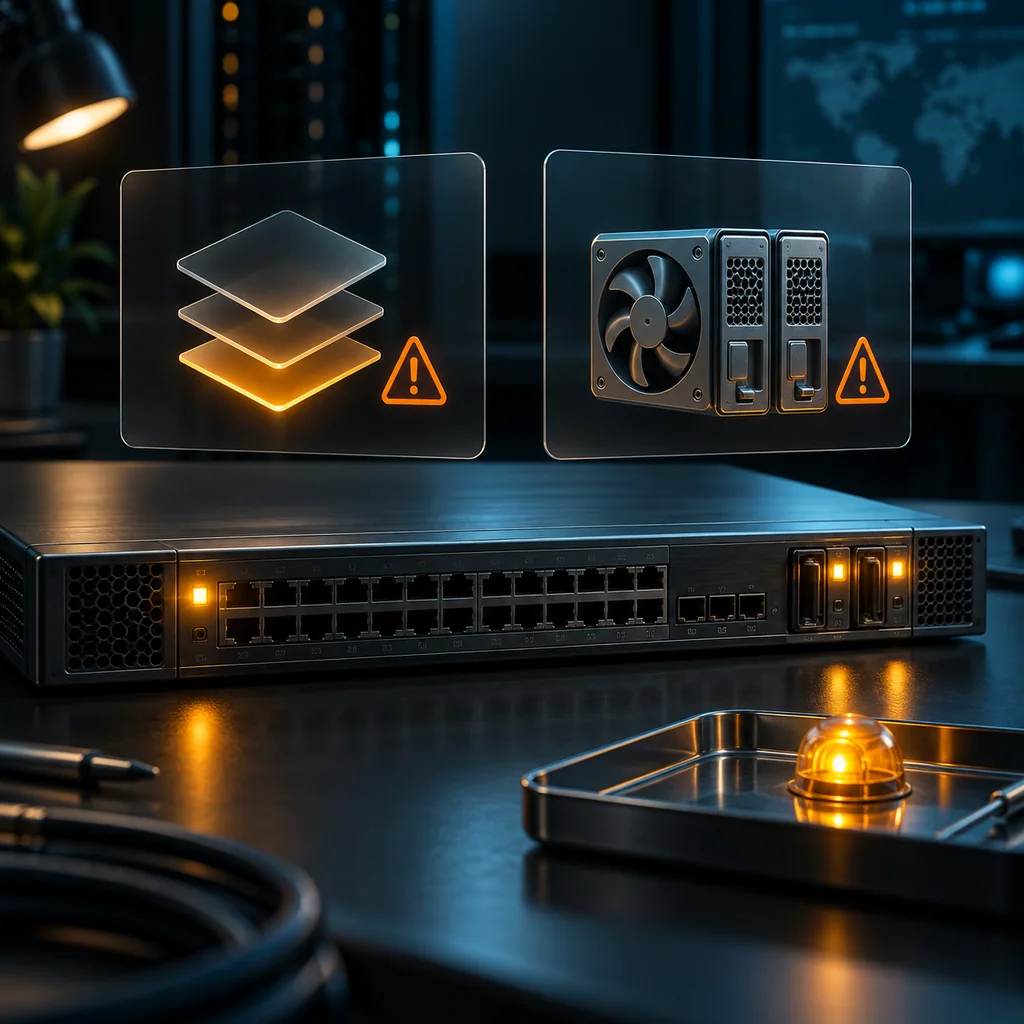
Junos System and Chassis Alarms: Capture the Baseline Before Recovery
Short answer
Capture both system and chassis alarm views before recovery, preserve each alarm's first-recorded time, severity and description, and investigate the cause in the correct platform context. An empty current alarm view is not a hardware certification or a history of the incident.
This is an authorized Junos operational inspection workflow. The commands are documented across Junos releases, but alarm families and component identifiers depend on the device and software build. Junos OS Evolved also has platform-specific behavior. Do not assume an EX, MX, QFX and SRX produce identical alarm inventories.
Establish identity and collection time
Match the device with the approved work order and record its installed build:
show version
Record your collection time independently of the device's alarm timestamps. Preserve the displayed timezone, when present. If the device clock is suspected to be wrong, document that uncertainty rather than correcting timestamps silently.
Stay in operational mode with the necessary view privilege. The procedure collects evidence; it does not authorize a reboot, reseat, configuration save or replacement.
Collect the two views independently
Run both commands and label their outputs:
show system alarms
show chassis alarms
The system view includes software or operating-system-related conditions, such as a missing rescue configuration or a relevant license condition. Chassis alarms concern the appliance and its components. Platform-specific conditions can appear in these views, so the distinction is a starting point rather than an absolute promise that hardware messages occur in only one place.
Do not discard a message because it seems to belong in the other category. Keep the original description and verify its meaning for the installed model and release.
If a command is unavailable, access is denied or output is incomplete, record that as a collection failure. It is different from an empty alarm list.
Preserve the fields that matter
For every active alarm, retain:
- Which command and device context produced it.
- The alarm time as displayed.
- The severity class, such as Minor or Major.
- The full description and component location, when supplied.
- The collection time and the next responsible operator.
Juniper describes the alarm time as when the alarm was first recorded. Do not label that field as the time you collected the output or the time of the most recent failure.
A severity label helps prioritize investigation, but a Minor alarm is not automatically harmless to the planned task. A missing recovery dependency can matter before a reboot even when it does not interrupt current traffic.
Component names and slot identifiers must be interpreted against the real chassis. Do not send remote hands to pull a module based on an assumed numbering convention.
Choose an investigation, not a cosmetic cleanup
For a rescue-configuration alarm, review the separate rescue-baseline procedure and ownership of the intended recovery configuration. Do not save the current configuration solely to remove the warning: the current state may be the state under investigation.
For a license-related alarm, preserve the exact message and determine the authorized licensing path. Do not substitute license removal or a reset for that investigation.
For a hardware condition, use the specific model's hardware guide and the approved escalation path. Active component alarms require cause-oriented investigation; silencing an external alarm device is not evidence that the condition has disappeared.
In a Virtual Chassis or multi-device arrangement, record which member or scope you inspected. Member selectors are platform dependent. An alarm-free result for one context must not be reported as an all-members result unless the supported collection actually covered them.
Compare current state with the incident record
Repeat the same supported views after a separately authorized corrective action and preserve both snapshots. Record whether each original message remained, disappeared or was replaced by another condition.
Current alarm commands are not a complete event history. A transient condition may have cleared before collection. If the incident needs historical analysis, request the authorized logs and timeline through the proper evidence source; do not invent the missing history from an empty display.
A quiet alarm LED or an empty list also does not verify forwarding, console access, redundant power under load or successful recovery. Those require their own acceptance checks.
Verification note: criteria for an alarm baseline
The baseline passes as an evidence collection when both views are preserved or their collection exceptions are explicit, the actual platform/build and scope are recorded, and each alarm retains its time, class and full description. A recovery decision must address the relevant condition and its dependencies.
These criteria are not observed EX4300 test results. No physical fault, alarm clearance or device log is claimed. Exact model-specific fields remain subject to confirmation.
Use Junos rescue configuration review for that recovery dependency. For a port complaint, keep administrative and link-state checks separate. Store the baseline and handoff in the CliDeck workspace.
Who this is for
This guide is for operations teams, incident responders, network engineers, and system administrators who need to prepare, run, verify, and document operational terminal work on SSH, serial, browser terminal, and infrastructure operations workflows.
When to use this
Use this guide when:
- Several commands or checks must be repeated safely.
- Another engineer, customer, onsite technician, or vendor may need context.
- The work should produce notes, logs, verification, or a clear handoff.
When not to use this
Do not use this guide when:
- You do not own or have authorization to work on the device.
- The device is outside your approved change, recovery, or processing scope.
- The task may expose customer data, secrets, licenses, or credentials that you are not allowed to view or store.
- The work requires vendor-specific approval, legal approval, or a customer-specific procedure that is not covered here.
Practical runbook format
A runbook does not need to be a complex script. For many operations, it can be a plain command list with notes, expected output, stop conditions, verification steps, and rollback instructions.
What to include
- Purpose
- When to use it
- When not to use it
- Target system or device
- Access path
- Read-only checks
- Change steps
- Expected output
- Stop conditions
- Rollback steps
- Verification steps
- Handoff notes
- Final summary format
Workflow
- Define the purpose, target device, access path, and approved scope.
- Run read-only checks first and record the expected healthy state.
- Execute commands from the runbook or handoff plan while watching for stop conditions.
- Verify the final state with independent checks.
- Summarize commands run, outputs reviewed, exceptions, and handoff notes.
Verification checklist
- The target device or system is correct.
- Read-only checks were captured before the work.
- Stop conditions and rollback notes were available before changes.
- Final verification checks match the expected result.
- Notes, logs, and handoff summary are stored where the team can find them.
Common mistakes
- Starting commands before confirming the target device and scope.
- Skipping read-only baseline checks.
- Copying commands without expected output, stop conditions, or rollback notes.
- Closing the work without a final verification summary.
CliDeck workflow fit
CliDeck Workspace is designed for this kind of operational workflow. Teams can keep terminals, notes, runbooks, logs, and shared sessions in one browser workspace instead of spreading work across terminal windows, chat messages, screenshots, and separate documents.
CliDeck runbooks can be plain command lists, one command per line. Operators can send commands with one click or use auto-run behavior that waits for the prompt before sending the next line where configured.
FAQ
Does a runbook need to be code?
No. A useful runbook can be a plain list of commands, checks, notes, expected output, stop conditions, and verification steps.
Why use a browser workspace for terminal work?
A browser workspace can keep terminals, notes, runbooks, logs, and shared sessions together, which helps during incidents, handoffs, maintenance windows, and remote support.
Can shared terminal sessions be safer than screen sharing?
Yes, when implemented with clear view/type permissions. The helper can see the relevant terminal context without taking over the operator’s entire desktop.
Can CliDeck help with this workflow?
Yes. CliDeck Workspace helps organize terminals, runbooks, notes, logs, and shared sessions. Console Server Go is useful when the workflow starts at a rack-side console port.
Related guides
- Junos Interface Down: Separate Admin State from Link State - Read Junos Admin and Link states separately, preserve physical interface detail, and choose the next investigation without changing the baseline.
- Junos Configuration Diff: Review the Candidate Before You Commit - Review a Junos candidate diff against the active or rollback baseline, interpret changes, and avoid accidentally confirming a pending rollback timer.
- Junos Rescue Configuration: Save, Review, and Restore a Known Baseline - Save a reviewed Junos rescue baseline, inspect its contents, load it into the candidate, review the diff, and activate it through an approved commit.
- Arista EOS Boot Image Checks: Separate Running Software from Next Boot - Compare running EOS with the selected next-boot image, check its storage location, and keep file availability separate from boot readiness.
- FortiGate Backups: Encryption and Password Masking Serve Different Jobs - Keep encrypted FortiGate recovery candidates separate from masked review copies, record scope and custody, and check file integrity without claiming a restore.