
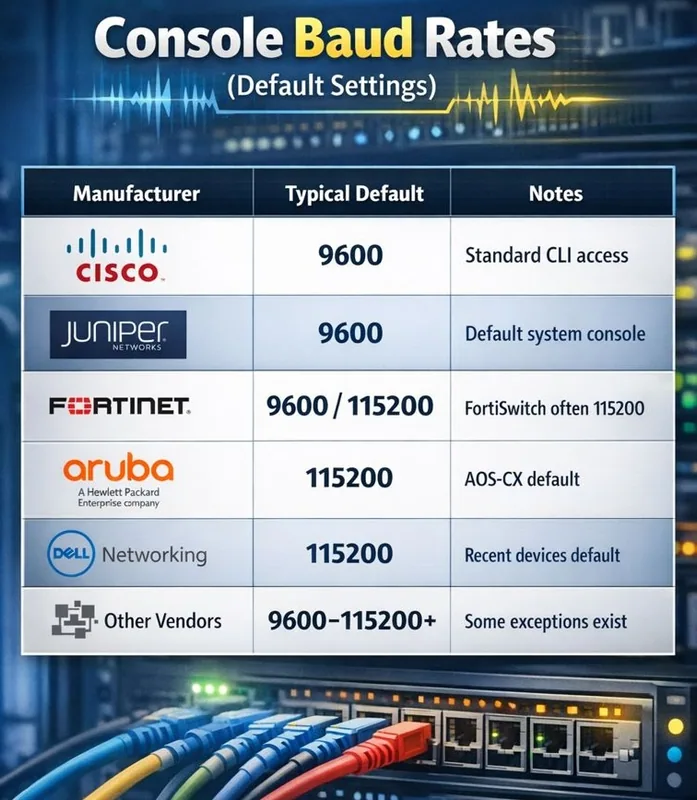
Default Console Port Speeds (Baud Rates) for Cisco, Juniper, Fortinet, Aruba, Dell, and More
Short answer
Start a network console session at 9600 8N1 unless the device-specific procedure says otherwise; many newer switches and appliances use 115200. If the output is unreadable, test the likely speed and line-setting combinations before blaming the cable or serial adapter.
Who this is for
This guide is for network engineers, field technicians, remote hands, lab engineers, and system administrators who need to connect to, troubleshoot, log, or verify a serial console session on switches, routers, firewalls, appliances, servers, and other devices with console ports.
When to use this
Use this guide when:
- You need direct console access to a switch, router, firewall, appliance, server, or lab device.
- SSH or management-plane access is unavailable, unreliable, or not yet configured.
- You need to troubleshoot a USB serial adapter, COM port, baud rate, or terminal session.
When not to use this
Do not use this guide when:
- Do not use this guide as a substitute for vendor documentation, site policy, or a verified device-specific runbook when the operation is risky.
- Do not continue if the console output suggests you are connected to the wrong device.
Quick checklist
- Identify the device and console connector
- Use the correct console cable or adapter
- Find the correct serial port or COM port
- Start with the expected baud rate and 8N1 settings
- Press Enter to confirm the prompt
- If output is unreadable, check baud rate and line settings
- If the port will not open, check permissions, drivers, and whether another program is holding the port
- Save useful session notes or logs when the work matters
Traditional cable vs CliDeck workflow
A traditional USB serial cable is still the simplest option for quick local work. CliDeck becomes useful when the console session needs browser access, notes, runbooks, sharing, logs, remote hands support, or a portable controller workflow.
Console Server Go can work like a wired USB serial adapter when connected by USB, but it also adds SSH Console on SSH-enabled firmware builds, browser Workspace, live sharing, 24h+ battery operation, OLED status, and magnetic rack mounting.
Most common default
Most network console ports use 9600 8N1, but many modern switches, appliances, and server-management interfaces use 115200. Some devices use other speeds such as 38400, 19200, 57600, or 2400.
Notable exceptions
Examples:
- FortiSwitch often uses 115200.
- HPE Aruba AOS-CX often uses 115200.
- Dell OS10 often uses 115200.
- MikroTik RouterOS commonly uses 115200.
- TP-Link JetStream examples may use 38400.
- F5 BIG-IP may use 19200.
- Some UPS serial protocols may use 2400.
How to use this table
Use the table as a starting point, then verify the setting against the device label, approved device procedure, site runbook, or known-good console output. If the terminal shows unreadable characters, test the likely baud rates before assuming the cable or port is broken.
Verify against the device-specific procedure
Do not treat a reference table as a substitute for the approved device-specific procedure, site policy, or a verified device-specific runbook when the operation is risky.
How CliDeck helps
CliDeck helps teams keep console settings, notes, runbooks, and terminal sessions organized. Console Server Go can show the current UART speed on its built-in screen. Net Controller can help teams process multiple devices with standardized workflows where configured.
Workflow
- Identify the device, connector, cable, adapter, and host operating system.
- Find the correct serial port or COM port and confirm permissions or drivers.
- Open the session with the expected baud rate and line settings, usually 8N1 unless documented otherwise.
- Press Enter and verify the prompt before running commands.
- Save notes or logs when the session supports a change, recovery, handoff, or evidence workflow.
Verification checklist
- The detected serial port or COM port matches the connected adapter.
- Baud rate, data bits, parity, stop bits, and flow control match the device expectation.
- The terminal shows a readable prompt after pressing Enter.
- No other terminal application is holding the port.
- Useful notes or logs are saved when the work matters.
Common mistakes
- Using the wrong cable or adapter for the console connector.
- Opening the wrong COM port or
/dev/cu.*device. - Assuming unreadable output means hardware failure before checking baud rate and 8N1 settings.
- Leaving another terminal application attached to the port.
CliDeck workflow fit
A traditional USB serial cable is still the simplest option for quick local work. CliDeck becomes useful when the console session needs browser access, notes, runbooks, sharing, logs, remote hands support, or a portable controller workflow.
Console Server Go can work like a wired USB serial adapter when connected by USB, but it also adds SSH Console on SSH-enabled firmware builds, browser Workspace, live sharing, 24h+ battery operation, OLED status, and magnetic rack mounting.
FAQ
Is a USB serial cable still enough?
Yes, for simple local work where one engineer is sitting next to one device. CliDeck is more useful when the console session needs sharing, runbooks, browser Workspace, remote hands support, logs, or longer operational context.
What should I check first when serial output looks like garbage?
Check the baud rate, data bits, parity, stop bits, flow control, cable type, and whether the device is actually using the expected console port.
Can CliDeck help with serial console work?
Yes. CliDeck Workspace helps organize terminal sessions, notes, runbooks, and logs. Console Server Go adds portable rack-side access, and Net Controller supports larger batch workflows.
Related guides
- Linux Serial Disconnects: Collect the Right Boot and Time Window - Collect Linux serial-disconnect evidence from a specific boot and UTC time window while preserving journal permissions, retention and kernel-only limits.
- Linux Serial Permissions: Check Identity, Groups and ACLs - Inspect Linux serial-device identity, groups, node permissions and ACL masks before changing access or opening the console port.
- Linux Console Capture Storage: Check Blocks and Inodes - Check the actual Linux console capture filesystem for available blocks and inodes, and keep directory usage separate from capture completion.
- Console Capture Times: UTC Without False Precision - Record console capture times in UTC with the clock source and uncertainty; keep device events separate and avoid unsupported precise ordering.
- Linux Serial Settings: Inspect stty Without Guessing the Console Profile - Inspect GNU stty settings for an identified serial adapter, compare framing and flow control, and account for device-open effects and session ownership.