
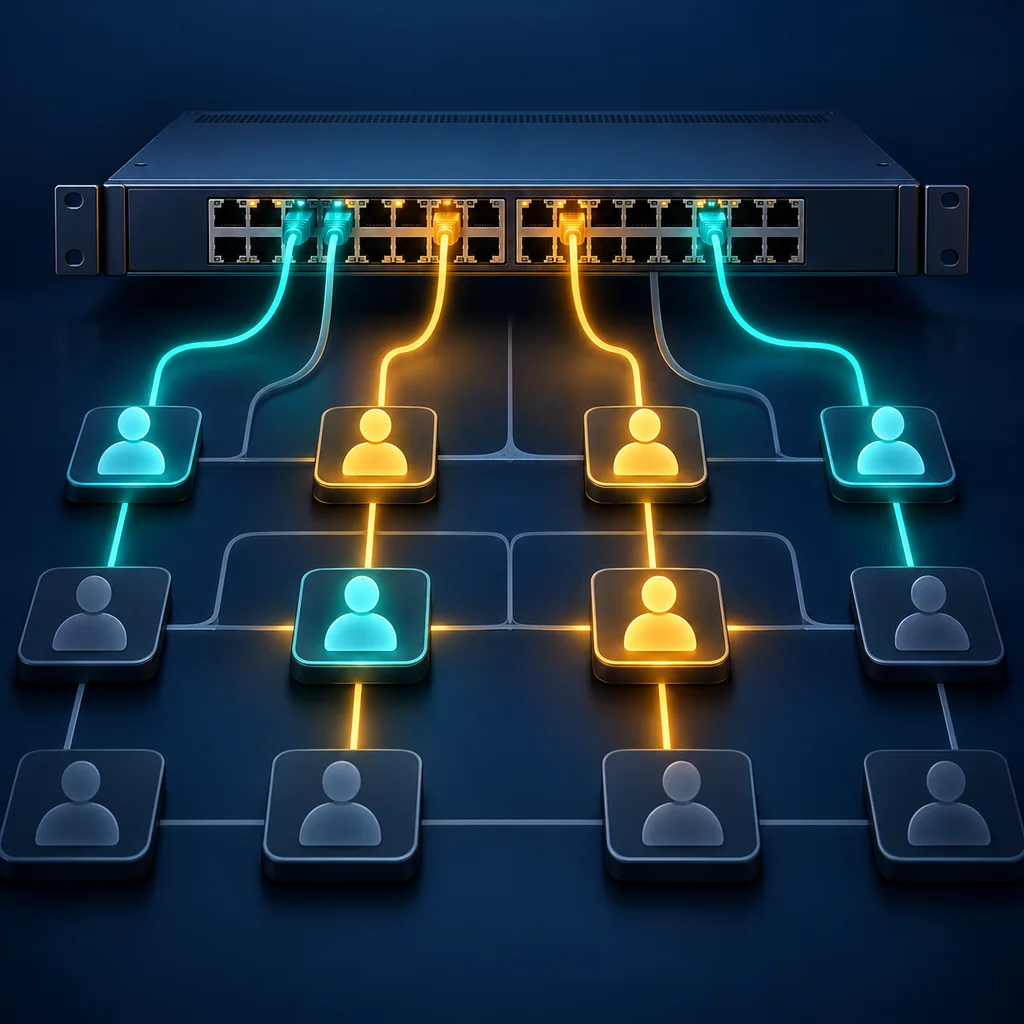
EOS VLAN Members: Active Ports versus Configured Ports
Short answer
Compare show vlan with show vlan configured-ports before concluding that an EOS port has lost VLAN membership. The default view lists active ports; the configured-ports view includes configured members regardless of their activity. Neither view alone proves trunk transport or host reachability.
Scope and prerequisites
This workflow follows the EOS 4.36.2F VLAN command documentation. Confirm syntax and availability on the installed switch model and release. Use an authorized EXEC session and the approved VLAN and port inventory.
It is a membership inspection, not a procedure for creating VLANs or activating interfaces. Do not change port mode, VLAN state or an allowed list while collecting the baseline. Record the exact target switch and capture time.
1. Capture the default view
Run:
show vlan
Preserve VLAN ID, name, status and the complete member-port field. Long port lists can wrap, so retain the continuation lines. A screenshot that cuts off a row can produce a false missing-port conclusion.
Check that the intended VLAN appears. If it does not, confirm the target and scope before interpreting absence as a configuration fault. A remembered VLAN name is not a substitute for the approved numeric identity.
Separate the VLAN's reported status from the membership field. A status of active does not establish that every planned access port or service is operational.
2. Capture configured membership
Run the documented alternate view:
show vlan configured-ports
Compare the same VLAN in both captures. Arista documents that configured-ports includes configured members regardless of activity, including Ethernet members of a port channel. A port appearing only here is evidence requiring an activity or interface-context check, not proof that VLAN configuration disappeared.
For a single illustrative VLAN, the scoped commands are:
show vlan 100
show vlan 100 configured-ports
Replace 100 with the approved VLAN ID. Verify the returned heading and row rather than accepting a successfully parsed command as proof that the right VLAN was inspected.
3. Reconcile logical and physical ports
Keep port-channel and physical Ethernet identities separate. The two views can expose different aspects of the same intended membership. Do not tell a technician to move a physical cable solely because a logical member appears in a summary.
Map the reported ports to the approved design and device inventory. If a port's expected mode is unclear, resolve it through the platform's documented interface inspection. A routed interface, access interface and trunk do not have interchangeable VLAN roles.
Record unfamiliar internal labels as unresolved context. Do not silently turn an internal entry into a customer-facing physical port or delete it from the baseline because it looks unexpected.
4. Define the remaining transport checks
Configured membership is only one part of VLAN verification. A trunk can need a separate allowed-set and forwarding-state inspection, and a host can require separate addressing, policy and service checks.
If the default and configured views differ, preserve both and assign the next diagnostic step to the owner. Do not enable a disabled link as an inspection shortcut. An intentional shutdown or topology exclusion may be part of the approved design.
Use the CliDeck workspace to keep the two captures and the physical mapping together. For inventory reconciliation, see EOS chassis, module and optics intake. Keep the acceptance record specific to the VLAN and inspected switch.
Verification note: acceptance criteria
On the actual EOS model and release, verify that both commands complete, the intended VLAN is identified, wrapped port lists are retained and differences between active and configured membership are explained. Unmapped ports and unresolved operational state remain exceptions. Verify transport and service outcomes separately. These are operator checks; no real VLAN transcript, hardware test or confirmed host communication is claimed.
Who this is for
This guide is for operations teams, incident responders, network engineers, and system administrators who need to prepare, run, verify, and document operational terminal work on approved network devices inside a planned change or lab scope.
When to use this
Use this guide when:
- Several commands or checks must be repeated safely.
- Another engineer, customer, onsite technician, or vendor may need context.
- The work should produce notes, logs, verification, or a clear handoff.
When not to use this
Do not use this guide when:
- You do not own or have authorization to work on the device.
- The device is outside your approved change, recovery, or processing scope.
- The task may expose customer data, secrets, licenses, or credentials that you are not allowed to view or store.
- The work requires vendor-specific approval, legal approval, or a customer-specific procedure that is not covered here.
Practical runbook format
A runbook does not need to be a complex script. For many operations, it can be a plain command list with notes, expected output, stop conditions, verification steps, and rollback instructions.
What to include
- Purpose
- When to use it
- When not to use it
- Target system or device
- Access path
- Read-only checks
- Change steps
- Expected output
- Stop conditions
- Rollback steps
- Verification steps
- Handoff notes
- Final summary format
Quick decision table
| Situation | Better fit | Why |
|---|---|---|
| One authorized engineer needs a quick low-risk task | Traditional local workflow | It keeps the workflow simple when no shared context, batch work, or durable evidence is required. |
| The work needs verification, handoff, or documentation | CliDeck or browser workspace workflow | It creates a clearer path for notes, logs, stop conditions, and final checks. |
| Multiple people or devices are involved | CliDeck or browser workspace workflow | Structured workflows reduce ambiguity and make it easier to prove what happened. |
When option A is enough
The simpler option is usually enough when one authorized engineer is doing a low-risk task locally, the device state is known, and the work does not require shared context, batch processing, or durable evidence.
When option B is better
The more structured option is better when the work needs repeatability, collaboration, verification, logging, asset linkage, or a safer handoff between people or teams.
Workflow
- Define the purpose, target device, access path, and approved scope.
- Run read-only checks first and record the expected healthy state.
- Execute commands from the runbook or handoff plan while watching for stop conditions.
- Verify the final state with independent checks.
- Summarize commands run, outputs reviewed, exceptions, and handoff notes.
Verification checklist
- The target device or system is correct.
- Read-only checks were captured before the work.
- Stop conditions and rollback notes were available before changes.
- Final verification checks match the expected result.
- Notes, logs, and handoff summary are stored where the team can find them.
Common mistakes
- Starting commands before confirming the target device and scope.
- Skipping read-only baseline checks.
- Copying commands without expected output, stop conditions, or rollback notes.
- Closing the work without a final verification summary.
CliDeck workflow fit
CliDeck Workspace is designed for this kind of operational workflow. Teams can keep terminals, notes, runbooks, logs, and shared sessions in one browser workspace instead of spreading work across terminal windows, chat messages, screenshots, and separate documents.
CliDeck runbooks can be plain command lists, one command per line. Operators can send commands with one click or use auto-run behavior that waits for the prompt before sending the next line where configured.
FAQ
Does a runbook need to be code?
No. A useful runbook can be a plain list of commands, checks, notes, expected output, stop conditions, and verification steps.
Why use a browser workspace for terminal work?
A browser workspace can keep terminals, notes, runbooks, logs, and shared sessions together, which helps during incidents, handoffs, maintenance windows, and remote support.
Can shared terminal sessions be safer than screen sharing?
Yes, when implemented with clear view/type permissions. The helper can see the relevant terminal context without taking over the operator’s entire desktop.
Can CliDeck help with this workflow?
Yes. CliDeck Workspace helps organize terminals, runbooks, notes, logs, and shared sessions. Console Server Go is useful when the workflow starts at a rack-side console port.
Related guides
- Catalyst Trunk Checks: Read the Three VLAN Lists - Read allowed, active and forwarding/not-pruned VLAN lists separately, preserve native-VLAN context and compare both Catalyst trunk endpoints.
- Arista EOS Logging Checks: Preserve Configuration and Coverage - Capture EOS logging settings, severity and retention limits before maintenance; distinguish available local evidence from confirmed collector receipt.
- Catalyst 9300 Stack Members: Roles and Readiness Checks - Capture Catalyst 9300 StackWise members, roles and readiness, then reconcile neighbors and port evidence with the approved physical inventory.
- Catalyst 9300 PoE: Budget and Port State Checks - Read Catalyst 9300 PoE budget and port state separately, preserve labeled power values, and avoid mistaking power-on for endpoint health.
- Junos Uptime Before Recovery: Separate Boot, Protocol and Configuration Times - Collect boot, protocol-start and configuration times in Junos while preserving Routing Engine, node and clock context before recovery.