
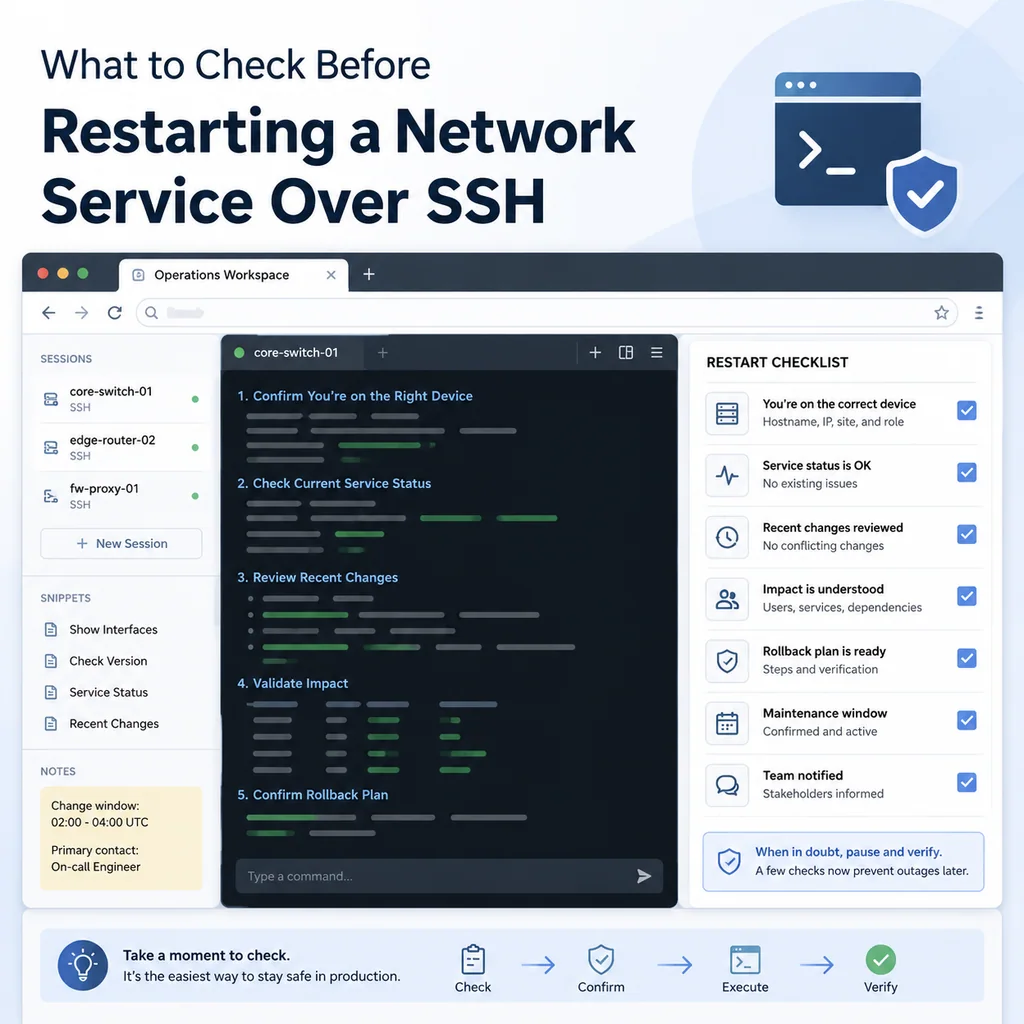
What to Check Before Restarting a Network Service Over SSH
Short answer
Before restarting a network service over SSH, confirm the failure mode, exact target, service name, impact, fallback access, current health, and verification plan. The command is usually simple; avoiding the wrong restart or a lost connection is the real work.
Confirm the target and scope
Before restarting anything, confirm the host, service, access path, and business impact. A restart on a lab service is different from a restart on a production routing, firewall, VPN, DNS, DHCP, authentication, or management service.
At minimum, confirm:
- Hostname and IP address
- Service name and role
- Maintenance ticket or approved incident scope
- Who is affected if the service restarts badly
- Whether a secondary path or console path exists
- Who can approve rollback or escalation
Capture the current state
Run read-only checks before restarting the service. The exact commands depend on the platform, but the goal is consistent: know what healthy or unhealthy looked like before the change.
Useful checks often include:
hostname
uptime
who
systemctl status SERVICE_NAME
journalctl -u SERVICE_NAME --since "15 minutes ago"
ss -tulpn
ip route
Use platform-specific equivalents where appropriate. Do not paste commands blindly on appliances or managed systems that use device-specific shells.
Check access risk
If the service is related to SSH, routing, firewall policy, VPN, DNS, DHCP, authentication, or management reachability, assume the restart may affect your own session. Prepare a second access path before touching it.
Safer options include:
- A second SSH session
- Serial console access
- Out-of-band management
- A remote hands technician
- A rollback command prepared but not blindly pasted
- A clear escalation contact
Restart with a rollback plan
Use the narrowest restart that solves the problem. Restarting one service is usually safer than rebooting the entire host, but only if the dependencies are understood.
Document the exact command before running it. After running the command, wait for the service to settle before issuing more commands.
Example pattern:
sudo systemctl restart SERVICE_NAME
sudo systemctl status SERVICE_NAME
journalctl -u SERVICE_NAME --since "5 minutes ago"
Replace SERVICE_NAME with the approved service name. On network appliances, use the approved operational command instead of generic Linux commands.
Verify the result
A successful restart is not enough. Verify that the service is reachable and that dependent systems behave as expected.
Verification may include local status, logs, listening ports, client tests, routing checks, monitoring status, and confirmation from the affected team.
Record the outcome
Close the work with a short summary: what was restarted, why, who approved it, what changed, what was verified, and whether any follow-up is needed.
Do not include passwords, tokens, private keys, customer secrets, or sensitive configuration snippets in shared notes or public examples.
Who this is for
This guide is for operations teams, incident responders, network engineers, and system administrators who need to prepare, run, verify, and document operational terminal work on approved network devices inside a planned change or lab scope.
When to use this
Use this guide when:
- Several commands or checks must be repeated safely.
- Another engineer, customer, onsite technician, or vendor may need context.
- The work should produce notes, logs, verification, or a clear handoff.
When not to use this
Do not use this guide when:
- You do not own or have authorization to work on the device.
- The device is outside your approved change, recovery, or processing scope.
- The task may expose customer data, secrets, licenses, or credentials that you are not allowed to view or store.
- The work requires vendor-specific approval, legal approval, or a customer-specific procedure that is not covered here.
Practical runbook format
A runbook does not need to be a complex script. For many operations, it can be a plain command list with notes, expected output, stop conditions, verification steps, and rollback instructions.
What to include
- Purpose
- When to use it
- When not to use it
- Target system or device
- Access path
- Read-only checks
- Change steps
- Expected output
- Stop conditions
- Rollback steps
- Verification steps
- Handoff notes
- Final summary format
Workflow
- Define the purpose, target device, access path, and approved scope.
- Run read-only checks first and record the expected healthy state.
- Execute commands from the runbook or handoff plan while watching for stop conditions.
- Verify the final state with independent checks.
- Summarize commands run, outputs reviewed, exceptions, and handoff notes.
Verification checklist
- The target device or system is correct.
- Read-only checks were captured before the work.
- Stop conditions and rollback notes were available before changes.
- Final verification checks match the expected result.
- Notes, logs, and handoff summary are stored where the team can find them.
Common mistakes
- Starting commands before confirming the target device and scope.
- Skipping read-only baseline checks.
- Copying commands without expected output, stop conditions, or rollback notes.
- Closing the work without a final verification summary.
CliDeck workflow fit
CliDeck Workspace is designed for this kind of operational workflow. Teams can keep terminals, notes, runbooks, logs, and shared sessions in one browser workspace instead of spreading work across terminal windows, chat messages, screenshots, and separate documents.
CliDeck runbooks can be plain command lists, one command per line. Operators can send commands with one click or use auto-run behavior that waits for the prompt before sending the next line where configured.
FAQ
Does a runbook need to be code?
No. A useful runbook can be a plain list of commands, checks, notes, expected output, stop conditions, and verification steps.
Why use a browser workspace for terminal work?
A browser workspace can keep terminals, notes, runbooks, logs, and shared sessions together, which helps during incidents, handoffs, maintenance windows, and remote support.
Can shared terminal sessions be safer than screen sharing?
Yes, when implemented with clear view/type permissions. The helper can see the relevant terminal context without taking over the operator’s entire desktop.
Can CliDeck help with this workflow?
Yes. CliDeck Workspace helps organize terminals, runbooks, notes, logs, and shared sessions. Console Server Go is useful when the workflow starts at a rack-side console port.
Related guides
- Catalyst 9300 Boot Checks: Running Image versus Next Reload - Compare Catalyst 9300 running software with current and next-reload boot variables, preserving manual-boot context before maintenance.
- Catalyst Err-Disabled Ports: Cause, Detection and Recovery - Collect Catalyst err-disabled state, detection settings and recovery information separately before approving a port retry.
- EOS VLAN Members: Active Ports versus Configured Ports - Compare EOS active and configured VLAN membership before declaring a port missing; keep logical ports and transport verification separate.
- Catalyst Trunk Checks: Read the Three VLAN Lists - Read allowed, active and forwarding/not-pruned VLAN lists separately, preserve native-VLAN context and compare both Catalyst trunk endpoints.
- Arista EOS Logging Checks: Preserve Configuration and Coverage - Capture EOS logging settings, severity and retention limits before maintenance; distinguish available local evidence from confirmed collector receipt.