
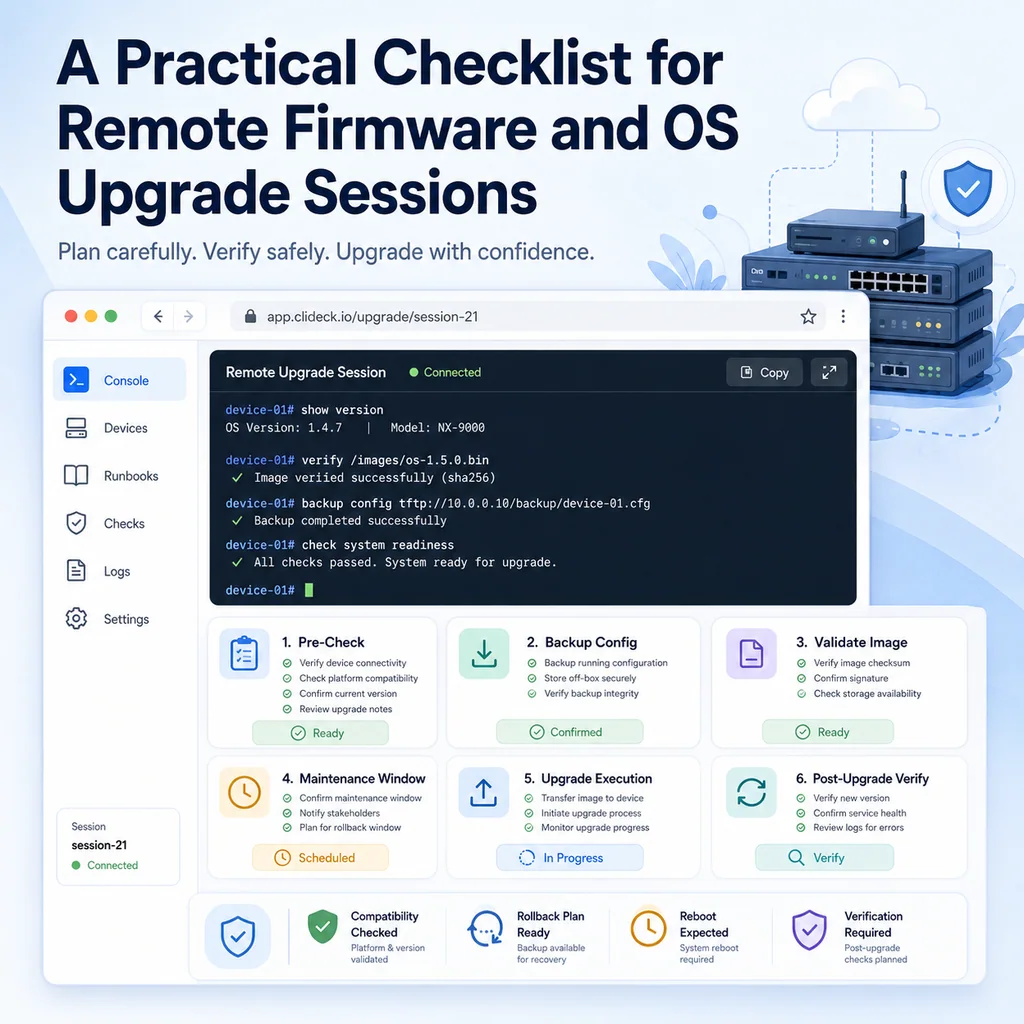
A Practical Checklist for Remote Firmware and OS Upgrade Sessions
Short answer
A remote firmware or OS upgrade should start with preparation, not the upgrade command: confirm access, backups, console recovery, approval, power, image integrity, versions, rollback, and session ownership. Proceed only when the team can verify success and recover if the normal path fails.
Why remote upgrades are risky
Firmware and OS upgrades are normal maintenance tasks, but remote upgrades carry extra risk because you may lose the very access path you are using.
During an upgrade, a device may:
- Reboot unexpectedly
- Drop SSH access
- Change interface behavior
- Reset management services
- Take longer than expected to boot
- Fail image validation
- Boot into recovery mode
- Lose compatibility with a driver, module, or configuration line
- Require a manual confirmation from console
- Come back online with a different prompt, service state, or management path
That does not mean remote upgrades are unsafe. It means they need a checklist.
A good checklist prevents the common failure pattern: someone starts the upgrade, loses access, and only then realizes there is no console path, no rollback plan, and no verified baseline.
Confirm the exact target before anything else
Before preparing the upgrade, prove that you are working on the correct system.
For Linux or Unix-like systems:
hostname
hostname -f
whoami
pwd
date
ip addr show
ip route
For network devices, useful checks may include:
show version
show running-config | include hostname
show inventory
show clock
show users
show ip interface brief
Write down:
Target device:
Environment:
Current version:
Target version:
Access method:
Maintenance window:
Approved by:
Rollback owner:
Example:
Target device: edge-fw-02
Environment: production
Current version: 9.1.x
Target version: 9.1.y
Access method: SSH plus serial console fallback
Maintenance window: 22:00-23:30 local
Approved by: network lead
Rollback owner: on-call engineer
If the hostname, inventory record, rack label, ticket, or console path does not match, stop.
For a deeper prevention workflow, see How to Avoid Working on the Wrong Server or Network Device.
Confirm the maintenance window and impact
Do not treat “remote” as “low impact.” A remote firmware or OS upgrade can still affect users, applications, routing, firewalling, storage, wireless, VPN, or monitoring.
Before starting, confirm:
- Start time
- End time
- Expected downtime
- Services affected
- Business owner or technical owner
- Approval status
- Communication channel
- Rollback decision deadline
- Who has authority to pause or abort
A simple note:
Maintenance window:
Start: 22:00
End: 23:30
Expected impact: management plane downtime and one device reboot
User impact: expected none because redundant peer remains active
Abort deadline: 22:45 if device does not return
Decision owner: network lead
This matters because upgrade problems often become worse when nobody knows who can make the next decision.
Confirm access paths
Remote upgrades should have more than one access path whenever possible.
Check:
- Primary SSH access
- Browser terminal or workspace access
- Serial console access
- Out-of-band management
- BMC, iLO, iDRAC, IPMI, or vendor management access
- VPN or jump host access
- Remote hands availability if the device is in a rack
- Power control path if safe and approved
A safe access note:
Primary access: SSH from jump-01
Fallback access: serial console through rack controller port 8
Remote hands: available during window
Power cycle: not approved unless incident lead approves
If you only have one path and that path depends on the device staying healthy, be very cautious. For network devices, serial console access is often the difference between a controlled recovery and a long outage.
For rack and console preparation, see Serial Console Runbook for First-Time Rack Access.
Capture the current baseline
Before the upgrade, capture the current state. The baseline helps you compare before and after.
For servers:
hostname -f
date
uptime
uname -a
df -h
ip addr show
ip route
systemctl --failed
For package-based Linux systems, also capture the current package or OS state using the tools appropriate for that distribution.
For network devices:
show clock
show version
show inventory
show running-config
show startup-config
show interfaces status
show ip interface brief
show logging | last 50
For switching or routing devices, also consider:
show vlan brief
show interfaces trunk
show ip route
show arp
show lldp neighbors
show cdp neighbors
Do not rely only on memory. Save the baseline in the ticket, runbook, session notes, or an approved internal location.
Back up configuration before upgrading
A firmware or OS upgrade may not intentionally change your configuration, but that does not mean you should skip backups.
Before starting, confirm that you have:
- Current running configuration
- Startup or saved configuration
- License details if needed
- Boot settings
- Interface state
- Routing or service configuration
- Important application configuration
- Any device-specific backup file required for restore
For network devices, document whether the running configuration and saved configuration match.
Example note:
Backup status:
Running configuration captured.
Startup configuration captured.
Running config has no unsaved intended changes.
Backup stored in approved internal location.
If there are unsaved changes, decide whether they should be saved, reverted, or explicitly carried into the upgrade.
Verify image, package, and storage readiness
Before transferring or installing an image, confirm that the device has enough free space and that the image is the intended one.
For Linux systems:
df -h
free -h
lsblk
For network devices, platform commands vary, but the goal is the same:
dir
show file systems
show boot
show version
Check:
- Correct image name
- Correct version
- Correct platform
- Correct architecture
- Enough storage space
- Complete transfer
- Checksum or image validation if available
- Boot variable or boot order if required
- Whether old images need to remain for rollback
A useful pre-upgrade note:
Image:
Target version confirmed.
Image file present on device.
Free storage checked.
Checksum verified where supported.
Old image retained for rollback.
Boot setting not changed yet.
Never delete the known-good image unless you have a clear, approved reason and a recovery path.
Read the risky parts of the release notes
You do not need to memorize the entire release document during the maintenance window, but you should review the parts that affect your environment.
Look for:
- Required intermediate versions
- Unsupported direct upgrade paths
- Known boot issues
- Configuration syntax changes
- Driver or firmware compatibility
- Feature deprecations
- License changes
- Management access changes
- Default behavior changes
- Required post-upgrade migrations
- Expected reboot count
- Expected upgrade duration
If an upgrade requires an intermediate step, do not skip it. If the target version changes management behavior, plan for that before starting.
Prepare rollback before the upgrade
Rollback planning must happen before the upgrade, not after the device fails.
Write down:
- How to return to the previous version
- Whether rollback is supported
- Whether the previous image remains on device
- Whether configuration downgrade is safe
- Whether a backup can be restored
- Whether a reboot is required
- How long rollback should take
- Who decides to roll back
- When the rollback decision must be made
Example:
Rollback plan:
Previous image remains on local storage.
Configuration backup captured before upgrade.
If device does not return within 20 minutes after reboot, use console to inspect boot state.
Rollback decision deadline: 22:45.
Rollback requires network lead approval.
Some upgrades are not easily reversible. In that case, say so clearly.
Rollback warning:
This upgrade may include database or configuration migrations.
Full rollback may require restore from backup, not only booting old software.
Assign roles before starting
For small teams, one person may do everything. For higher-risk upgrades, separate roles help.
Useful roles:
- Operator: runs commands
- Observer: watches output and checks timing
- Approver: decides continue, pause, or rollback
- Communicator: updates the team or ticket
- Remote hands: available at the rack if needed
A simple role note:
Operator: Alex
Observer: Priya
Decision owner: Morgan
Remote hands: available until 23:30
Primary chat: maintenance bridge
If one person is both operator and decision owner, make that explicit.
Use a command plan
Do not build the upgrade command sequence from memory during the maintenance window. Prepare the commands in advance, then review them before execution.
A command plan should include:
- Pre-check commands
- Transfer or image verification commands
- Install or upgrade command
- Reboot or reload command if required
- Console monitoring steps
- Post-upgrade checks
- Rollback commands or recovery entry points
Example structure:
1. Confirm target identity.
2. Confirm current version.
3. Confirm backup exists.
4. Confirm image exists and storage is sufficient.
5. Run upgrade command.
6. Watch console output.
7. Wait for reboot.
8. Confirm new version.
9. Confirm interfaces and services.
10. Confirm remote access.
11. Document result.
Read every command before running it. A correct command on the wrong device is still a serious mistake.
Run the upgrade carefully
When the window opens and pre-checks pass, run the upgrade using the approved command for that platform.
During the upgrade:
- Do not close the terminal session.
- Do not paste unrelated commands.
- Do not reboot manually unless the process requires it.
- Do not interrupt boot unless that is the approved recovery action.
- Watch for prompts that require confirmation.
- Capture important output.
- Track timestamps.
- Keep the communication channel updated.
A useful live note:
22:03 upgrade command started.
22:08 image validation passed.
22:11 device rebooted automatically.
22:17 console shows normal boot.
22:20 login prompt returned.
This helps the team know whether the process is within expected timing.
Watch the reboot and boot state
Many upgrade failures are visible on console before they are visible from SSH or monitoring.
Watch for:
- Bootloader prompt
- Image load error
- Filesystem error
- Kernel panic
- Repeated reboot loop
- License warning
- Configuration migration prompt
- Password or login prompt
- Normal service startup
If the device returns to a bootloader, ROMMON, recovery shell, or unexpected prompt, stop and follow the recovery plan. Do not improvise destructive commands.
For Cisco console boot interruption and recovery context, see Cisco Console: How to Reliably Interrupt Boot and Enter ROMMON or the Bootloader.
Verify after the upgrade
After the device comes back, verify from both the local session and the network side.
For servers:
hostname -f
date
uptime
uname -a
ip addr show
ip route
systemctl --failed
journalctl -p warning --since "30 minutes ago"
Also verify the application or service that matters for the device.
For network devices:
show version
show clock
show interfaces status
show ip interface brief
show logging | last 50
Depending on the role, also check:
show vlan brief
show interfaces trunk
show ip route
show arp
show lldp neighbors
show cdp neighbors
From outside the device, confirm:
- SSH works
- Monitoring recovers
- Expected services respond
- Interfaces are up
- Routing or switching behavior looks normal
- Logs do not show repeated critical errors
- Users or dependent systems are not reporting failures
Do not call the upgrade complete just because the login prompt returned.
Compare before and after
Use the baseline you captured earlier.
Compare:
- Version before and after
- Uptime and reboot time
- Interface status
- IP addresses
- Routes
- Services
- Error logs
- Configuration state
- Monitoring status
A short comparison note:
Post-upgrade result:
Version changed from old target to approved target.
SSH restored.
Console prompt normal.
Critical interfaces up.
No failed systemd services.
Monitoring recovered.
No rollback needed.
For network devices:
Post-upgrade result:
Version confirmed with show version.
Management IP reachable from jump host.
Expected trunk interfaces up.
Routing table present.
No repeated critical logs after boot.
Configuration not changed except upgrade-related state.
Decide whether to save configuration
Some platforms may change boot variables, package state, or startup configuration during the upgrade. Others require you to save manually.
Before saving anything, confirm:
- The device booted the expected version.
- Management access works.
- Critical interfaces and services are healthy.
- The running state is the desired state.
- The change owner approves saving.
- Rollback implications are understood.
Do not save a broken state just because the upgrade command finished.
Document the final state
A good upgrade record should be clear enough for someone else to understand later.
Include:
- Target device
- Starting version
- Final version
- Maintenance window
- Operator
- Access method
- Backup location or backup confirmation
- Upgrade image or package name
- Start time
- Reboot time
- Recovery time
- Post-check result
- Whether rollback was needed
- Follow-up items
Example:
Upgrade complete:
Device: edge-fw-02
Start version: 9.1.x
Final version: 9.1.y
Access: SSH plus serial console fallback
Backup: completed before upgrade
Upgrade started: 22:03
Device reachable again: 22:20
Post-checks: management access, interfaces, routing, and logs verified
Rollback: not needed
Follow-up: monitor logs for 24 hours
This documentation is useful for maintenance history, incident review, and future upgrades.
Remote upgrade checklist
Use this checklist before and during the session.
[ ] Confirm exact target device.
[ ] Confirm current version.
[ ] Confirm approved target version.
[ ] Confirm maintenance window.
[ ] Confirm expected impact.
[ ] Confirm primary access path.
[ ] Confirm fallback access path.
[ ] Confirm console or recovery access.
[ ] Confirm remote hands if needed.
[ ] Capture baseline state.
[ ] Back up configuration.
[ ] Confirm image or package name.
[ ] Confirm enough storage space.
[ ] Verify image integrity where supported.
[ ] Review release notes for upgrade path and known risks.
[ ] Confirm rollback plan.
[ ] Assign operator, observer, and decision owner.
[ ] Prepare command plan.
[ ] Run pre-checks immediately before starting.
[ ] Start upgrade only after all blockers are cleared.
[ ] Watch console or terminal output during upgrade.
[ ] Track timestamps.
[ ] Verify device after reboot.
[ ] Verify access from outside the device.
[ ] Compare before and after state.
[ ] Save configuration only if appropriate.
[ ] Document final result.
Common mistakes to avoid
Starting without console recovery
If the upgrade breaks SSH, you need another way in. Confirm the console or out-of-band path before the upgrade starts.
Deleting the old image too early
Freeing storage is sometimes necessary, but deleting the known-good image can remove your easiest rollback path.
Trusting only the prompt
A prompt can be misleading. Confirm hostname, version, IP, inventory, and access path.
Skipping the baseline
Without a baseline, it is harder to know whether a post-upgrade issue is new or pre-existing.
Saving too soon
Do not save configuration until you know the upgraded system is healthy and the running state is correct.
Declaring success too early
A device that accepts login is not necessarily healthy. Check services, interfaces, routing, logs, and monitoring.
Where CliDeck fits
CliDeck is a browser-based workspace for SSH, serial console, runbooks, shared terminal workflows, controller management, and remote operations.
For remote firmware and OS upgrades, the operational need is context. The terminal session, upgrade plan, notes, fallback path, and handoff details should stay close together so the team can see what happened and what still needs verification.
CliDeck does not replace upgrade planning, approved device-specific procedure, or recovery discipline. But a clear browser-based workspace can help keep the session organized while operators move through the checklist.
For related workflows, see Command Handoffs: How to Pass Terminal Work to Another Engineer Safely and Console Access During a Network Outage: A Practical Recovery Checklist.
Final thought
Remote upgrades are safest when they are boring. That means the target is verified, the access path is tested, the backup exists, the rollback plan is clear, and the post-upgrade checks are written before the first upgrade command runs.
Do the slow thinking before the maintenance window. During the session, follow the checklist.
Who this is for
This guide is for operations teams, incident responders, network engineers, and system administrators who need to prepare, run, verify, and document operational terminal work on SSH, serial, browser terminal, and infrastructure operations workflows.
When to use this
Use this guide when:
- Several commands or checks must be repeated safely.
- Another engineer, customer, onsite technician, or vendor may need context.
- The work should produce notes, logs, verification, or a clear handoff.
When not to use this
Do not use this guide when:
- You do not own or have authorization to work on the device.
- The device is outside your approved change, recovery, or processing scope.
- The task may expose customer data, secrets, licenses, or credentials that you are not allowed to view or store.
- The work requires vendor-specific approval, legal approval, or a customer-specific procedure that is not covered here.
Practical runbook format
A runbook does not need to be a complex script. For many operations, it can be a plain command list with notes, expected output, stop conditions, verification steps, and rollback instructions.
What to include
- Purpose
- When to use it
- When not to use it
- Target system or device
- Access path
- Read-only checks
- Change steps
- Expected output
- Stop conditions
- Rollback steps
- Verification steps
- Handoff notes
- Final summary format
Workflow
- Define the purpose, target device, access path, and approved scope.
- Run read-only checks first and record the expected healthy state.
- Execute commands from the runbook or handoff plan while watching for stop conditions.
- Verify the final state with independent checks.
- Summarize commands run, outputs reviewed, exceptions, and handoff notes.
Verification checklist
- The target device or system is correct.
- Read-only checks were captured before the work.
- Stop conditions and rollback notes were available before changes.
- Final verification checks match the expected result.
- Notes, logs, and handoff summary are stored where the team can find them.
Common mistakes
- Starting commands before confirming the target device and scope.
- Skipping read-only baseline checks.
- Copying commands without expected output, stop conditions, or rollback notes.
- Closing the work without a final verification summary.
CliDeck workflow fit
CliDeck Workspace is designed for this kind of operational workflow. Teams can keep terminals, notes, runbooks, logs, and shared sessions in one browser workspace instead of spreading work across terminal windows, chat messages, screenshots, and separate documents.
CliDeck runbooks can be plain command lists, one command per line. Operators can send commands with one click or use auto-run behavior that waits for the prompt before sending the next line where configured.
FAQ
Does a runbook need to be code?
No. A useful runbook can be a plain list of commands, checks, notes, expected output, stop conditions, and verification steps.
Why use a browser workspace for terminal work?
A browser workspace can keep terminals, notes, runbooks, logs, and shared sessions together, which helps during incidents, handoffs, maintenance windows, and remote support.
Can shared terminal sessions be safer than screen sharing?
Yes, when implemented with clear view/type permissions. The helper can see the relevant terminal context without taking over the operator’s entire desktop.
Can CliDeck help with this workflow?
Yes. CliDeck Workspace helps organize terminals, runbooks, notes, logs, and shared sessions. Console Server Go is useful when the workflow starts at a rack-side console port.
Related guides
- Junos NTP Checks: Peers, Reach and Synchronization State - Capture Junos NTP peer selection, octal reach and system synchronization status before correlating device timestamps or starting maintenance.
- Catalyst 9300 Boot Checks: Running Image versus Next Reload - Compare Catalyst 9300 running software with current and next-reload boot variables, preserving manual-boot context before maintenance.
- Junos Optical Diagnostics: Power, Thresholds and Missing Data - Read Junos optical power, module thresholds and alarm flags without treating missing telemetry as zero or certifying an entire optical path.
- Catalyst Err-Disabled Ports: Cause, Detection and Recovery - Collect Catalyst err-disabled state, detection settings and recovery information separately before approving a port retry.
- Linux Transcript Inspection: Reveal Control Characters - Reveal control characters in Linux console transcripts with an escaped GNU sed view while preserving originals and reviewing sensitive content separately.