
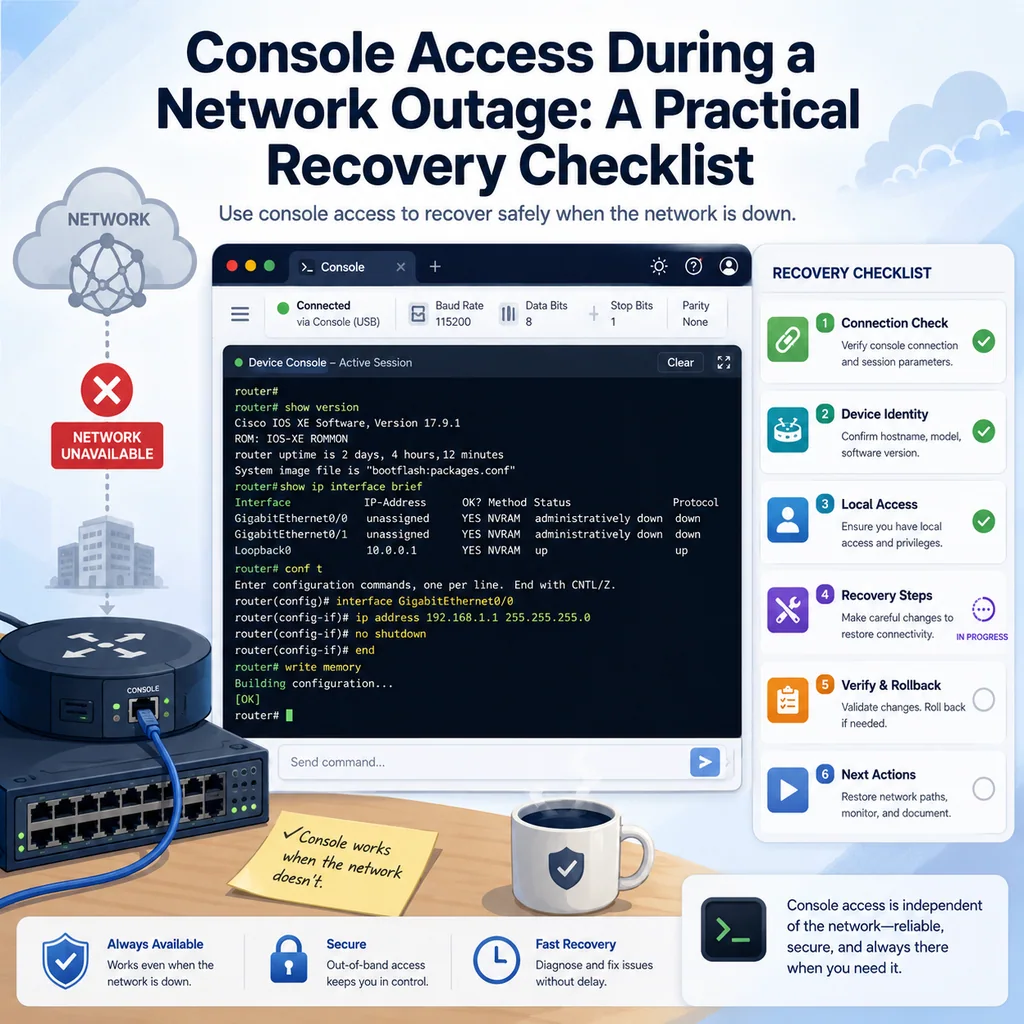
Console Access During a Network Outage: A Practical Recovery Checklist
Short answer
When network management access is unavailable, use the console as a controlled recovery path: confirm the exact device, capture its current state, make the smallest necessary change, verify from outside the device, and document the outcome. Console access is powerful precisely because it should not invite random changes.
Why console access matters during a network outage
Most remote management depends on the network working.
SSH, web management, VPN, monitoring, jump hosts, and automation tools may all fail when routing, VLANs, firewall rules, DNS, or management interfaces break.
Console access is different. A serial console or out-of-band console path can still reach the device when the normal network path is unavailable.
That makes console access useful when:
- SSH to a switch or router fails
- A management VLAN is unreachable
- A firewall change blocked admin access
- A device booted but never returned to the network
- A trunk change isolated a rack
- A route or default gateway was removed
- A VPN or jump host path is down
- A remote site has power, but no management connectivity
- A firmware or OS upgrade left the device in an unexpected state
Console access does not automatically solve the outage. It gives you a reliable place to observe, verify, and recover.
Confirm the exact device first
During an outage, the pressure to “get in and fix it” is high. Resist that pressure until you know exactly where you are.
Before running commands, confirm:
- Device hostname
- Rack label or asset tag
- Console controller port
- Device model
- Serial number if available
- Site or rack location
- Prompt name
- Current mode
- Expected device role
Useful network device checks may include:
show version
show running-config | include hostname
show inventory
show clock
show users
show ip interface brief
If you are on a Linux-based appliance or server console:
hostname
hostname -f
whoami
pwd
date
ip addr show
ip route
Document the console path:
Console path:
Rack controller port 4 -> core-sw-02

Observed prompt:
core-sw-02#

Current mode:
Privileged EXEC, not configuration mode
If the label, prompt, ticket, or expected device role does not match, stop.
For target-verification habits, see How to Avoid Working on the Wrong Server or Network Device.
Identify the current state before changing anything
A network outage can have many causes. Console access gives you visibility, but it also gives you the power to make things worse.
Start by observing.
Capture:
- Current prompt or shell
- Current time
- Active users
- Interface status
- Management IP
- Routes
- VLAN and trunk state if relevant
- Recent logs
- Whether configuration was recently changed
- Whether the device is in normal OS, bootloader, recovery shell, or crash loop
For network devices:
show clock
show users
show version
show ip interface brief
show interfaces status
show logging | last 50
For switches:
show vlan brief
show interfaces trunk
show spanning-tree summary
show interfaces description
For routers or Layer 3 devices:
show ip route
show arp
show lldp neighbors
show cdp neighbors
For Linux-based systems:
uptime
ip addr show
ip route
ss -tulpn
systemctl --failed
journalctl -p warning --since "30 minutes ago" --no-pager
Write a short baseline note:
Baseline:
Console access works.
SSH from jump-01 fails.
Management interface appears up.
Default route is missing.
No changes made yet.
That note helps the next person understand the starting point.
Do not start with a reboot
A reboot is tempting during an outage. It feels like action.
But rebooting too early can make recovery harder.
Before rebooting, ask:
- Is the device actually hung?
- Is the OS still responding on console?
- Is the management issue caused by routing, VLANs, firewall rules, or services?
- Is there an unsaved running configuration?
- Will a reboot discard a temporary fix?
- Will a reboot trigger a long boot, bootloader issue, or upgrade recovery?
- Is there approval to reboot?
- Is console access stable enough to watch the boot process?
A safer note:
Reboot status:
Not approved.
Console responds normally.
Investigating management VLAN and route state first.
Reboot only when it is part of the approved recovery path or when the device state justifies it.
Check whether the outage is local to management access
Sometimes the device is working normally for traffic, but the management path is broken.
Check:
- Management interface state
- Management VLAN
- Management IP address
- Default gateway
- Routes back to jump host or VPN
- Access control lists
- SSH or management service status
- Firewall rules
- AAA or authentication path
Useful checks:
show ip interface brief
show interfaces status
show interfaces description
show ip route
show logging | last 50
For Linux-based systems:
ip addr show
ip route
ss -tulpn | grep ':22'
systemctl status ssh --no-pager
A good finding note:
Finding:
Device is forwarding traffic, but management IP is unreachable from jump-01.
Console confirms management VLAN interface is up.
Default route is missing.
This kind of note separates a management outage from a full device outage.
Check Layer 1 and Layer 2 first when switching is involved
If the problem involves switches, racks, uplinks, or VLANs, start with physical and Layer 2 checks.
Look for:
- Interface down
- Interface administratively shut down
- Err-disabled port
- Wrong interface description
- Missing VLAN
- VLAN not allowed on trunk
- Native VLAN mismatch
- Spanning tree blocking
- Flapping link
- High error counters
Useful commands:
show interfaces status
show interfaces description
show interfaces counters errors
show vlan brief
show interfaces trunk
show spanning-tree summary
A common outage pattern:
Finding:
Management VLAN 40 exists locally.
VLAN 40 is missing from allowed list on uplink trunk Gi1/0/24.
If that is the issue, the safest change may be narrow:
Add VLAN 40 back to the affected trunk.
Do not replace the full allowed VLAN list from memory.
For VLAN-specific workflows, see Cisco: How to Add a VLAN to a Trunk (IOS/IOS XE) — Fast Fix + Verification.
Check Layer 3 and routing
If Layer 2 looks healthy, check IP addressing and routing.
Look for:
- Missing management IP
- Wrong subnet mask
- Missing default gateway
- Missing static route
- Wrong next hop
- ARP failure
- Routing process down
- Return path missing
- ACL or firewall blocking the path
Useful commands:
show ip interface brief
show ip route
show arp
ping 10.0.0.1
traceroute 10.0.0.1
For Linux:
ip addr show
ip route
ping -c 3 10.0.0.1
Document the result:
Finding:
Management interface has correct IP.
Default route points to 10.20.40.1.
ARP for gateway is present.
Ping to gateway succeeds.
SSH from jump host still fails.
Next check: access rules or SSH service.
The goal is to narrow the outage instead of changing multiple things at once.
Check firewall and access rules carefully
A console session may be the only way to fix an accidental firewall or access-list lockout.
Before changing rules, capture the current state.
For Linux firewalls, depending on the system:
sudo iptables-save
sudo nft list ruleset
sudo firewall-cmd --list-all
For network devices, use the platform’s show commands for access lists, management-plane policies, and interface assignments.
Write down:
Firewall/access state:
Current rules captured.
Suspected rule blocks SSH from jump-01.
No changes made yet.
Rollback plan required before editing.
Be careful with broad changes. Do not flush firewall rules or remove entire policies unless that is the approved recovery procedure.
A safer approach is narrow:
Identify the specific rule blocking management access.
Apply the smallest temporary correction.
Verify SSH from the approved source.
Document whether the change should be saved.
Check SSH or management services
If the network path is healthy but access still fails, check the service itself.
For Linux systems:
systemctl status ssh --no-pager
systemctl status sshd --no-pager
ss -tulpn | grep ':22'
journalctl -u ssh --since "30 minutes ago" --no-pager
journalctl -u sshd --since "30 minutes ago" --no-pager
Before restarting SSH, validate configuration when possible:
sudo sshd -t
If the test fails, do not restart SSH.
For network devices, check whether SSH is enabled, whether management access is restricted, and whether authentication is available.
A good note:
Finding:
SSH service is running locally.
Device listens on port 22.
Console login works.
SSH from jump-01 still fails.
Next check: ACL or routing return path.
For service restart safety, see What to Check Before Restarting a Network Service Over SSH.
Make the smallest safe change
Once you find a likely cause, make the smallest change that can restore access.
Good examples:
- Add one missing VLAN to one trunk
- Restore one missing default route
- Bring up one accidentally shut interface
- Restart one failed management service after validation
- Remove or correct one blocking access rule
- Restore one known-good config file
Riskier examples:
- Reboot the device without diagnosis
- Replace a full interface configuration from memory
- Flush firewall rules
- Rewrite routing broadly
- Save configuration before verifying
- Delete old files during recovery
- Change multiple devices at once
A good change note:
Planned change:
Add VLAN 40 to trunk Gi1/0/24.

Expected result:
Management SSH from jump-01 returns.

Rollback:
Remove VLAN 40 from trunk if unexpected impact appears.

Save:
Do not save until verification and approval.
Verify from outside the device
Do not trust local console output alone. Verify from the path that was broken.
Examples:
- Ping from the jump host
- SSH from the management network
- Monitoring recovery
- VPN access test
- Peer device route check
- Interface state from the far side
- User-side application or service check
Example outside checks:
ping -c 3 target-host
ssh user@target-host
nc -vz target-host 22
A good verification note:
Verification:
Console shows VLAN 40 allowed on Gi1/0/24.
Ping from jump-01 to management IP works.
SSH from jump-01 works.
Monitoring recovered at 14:35.
The outage is not resolved until the affected path is verified from outside.
Decide whether to save configuration
During recovery, a temporary change may restore access. That does not automatically mean it should become permanent.
Before saving, ask:
- Did the change actually fix the problem?
- Was the change narrow and intentional?
- Was the affected path verified from outside?
- Could the change have side effects?
- Does the incident lead or change owner approve saving?
- Is the running configuration now the desired long-term state?
Document the save decision:
Save status:
Running config changed.
Startup config not updated.
Save decision pending.
After approval:
Save status:
Running config saved to startup config after verification and approval.
If the device reloads before saving, the fix may disappear. If you save too early, a temporary workaround may become permanent. Make the decision deliberately.
Keep console access open until stable
Do not close the console session as soon as SSH returns.
Keep it open until:
- SSH works from the expected path
- Monitoring recovers
- Logs are stable
- No reboot or reload is pending
- Save or rollback decision is complete
- Another engineer has accepted handoff if needed
A useful warning note:
Do not close console yet.
SSH has returned, but running config is not saved.
Monitoring still needs confirmation.
The console session is your recovery line. Close it only when the team agrees it is no longer needed.
Document the recovery
A recovery record should be short but complete.
Use this format:
RECOVERY SUMMARY

Device:
Access path:
Problem:
Initial state:
Commands run:
Finding:
Change made:
Verification:
Save status:
Rollback:
Follow-up:
Example:
RECOVERY SUMMARY

Device: core-sw-02
Access path: serial console through rack controller port 4
Problem: management SSH unreachable from jump-01
Initial state: console worked, SSH failed, VLAN 40 missing from trunk
Commands run: show interfaces trunk, show vlan brief, show logging | last 50
Finding: VLAN 40 missing from Gi1/0/24 allowed trunk list
Change made: added VLAN 40 back to trunk Gi1/0/24
Verification: ping and SSH from jump-01 restored, monitoring recovered
Save status: running config changed, startup config not updated
Rollback: remove VLAN 40 if unexpected impact appears
Follow-up: incident lead to decide whether to save
For note structure, see Terminal Notes That Actually Help During Troubleshooting.
Console outage recovery checklist
Use this checklist when normal management access is unavailable.
[ ] Exact device confirmed.
[ ] Console path documented.
[ ] Current prompt and mode recorded.
[ ] Boot state checked.
[ ] Current state captured before changes.
[ ] Active users checked.
[ ] Recent logs reviewed.
[ ] Interface status checked.
[ ] Management IP checked.
[ ] VLAN and trunk state checked if switching is involved.
[ ] Routes and gateway checked if Layer 3 is involved.
[ ] Firewall or access rules checked if management path is blocked.
[ ] SSH or management service checked.
[ ] Smallest safe change identified.
[ ] Rollback plan written before change.
[ ] Change applied narrowly.
[ ] Recovery verified from outside the device.
[ ] Save decision documented.
[ ] Console session kept open until stable.
[ ] Recovery summary written.
Common mistakes to avoid
Working on the wrong device
A rack label, tab title, or memory is not enough. Confirm prompt, model, console path, and ticket details.
Rebooting too early
A reboot can hide the original state, discard temporary changes, or create a longer outage.
Making broad changes
Change one thing at a time. Restore the broken path, then verify.
Saving before verification
Do not save a recovery change until the team confirms it is correct.
Closing console too soon
The console is often the only reliable path during a network outage. Keep it open until the device is stable.
Trusting only local output
The device may look healthy from its own console while still being unreachable from the management network.
Forgetting to document unsaved changes
If running configuration changed but startup configuration did not, write that clearly.
Where CliDeck fits
CliDeck is a browser-based workspace for SSH, serial console, runbooks, shared terminal workflows, controller management, and remote operations.
During a network outage, the practical need is a reliable recovery path plus clear context. The team needs to know which device is connected, what the console shows, what commands were run, what changed, what remains unsaved, and what should be verified next.
CliDeck does not replace network fundamentals or device-specific recovery procedures. But a browser-based workspace can help keep console access, notes, session context, and handoff details close together while the team works through the outage.
For related workflows, see Browser-Based Serial Console vs Traditional Terminal Apps: Practical Tradeoffs and How to Prepare a Remote Device Before a Risky Network Change.
Final thought
Console access is the path you count on when the normal network path fails. Treat it like a recovery tool, not a place to improvise.
Confirm the device, capture the state, change as little as possible, verify from outside, and document the result. That is how console access turns a network outage into a controlled recovery instead of a second incident.
Who this is for
This guide is for network engineers, field technicians, remote hands, lab engineers, and system administrators who need to connect to, troubleshoot, log, or verify a serial console session on switches, routers, firewalls, appliances, servers, and other devices with console ports.
When to use this
Use this guide when:
- You need direct console access to a switch, router, firewall, appliance, server, or lab device.
- SSH or management-plane access is unavailable, unreliable, or not yet configured.
- You need to troubleshoot a USB serial adapter, COM port, baud rate, or terminal session.
When not to use this
Do not use this guide when:
- Do not use this guide as a substitute for vendor documentation, site policy, or a verified device-specific runbook when the operation is risky.
- Do not continue if the console output suggests you are connected to the wrong device.
Quick checklist
- Identify the device and console connector
- Use the correct console cable or adapter
- Find the correct serial port or COM port
- Start with the expected baud rate and 8N1 settings
- Press Enter to confirm the prompt
- If output is unreadable, check baud rate and line settings
- If the port will not open, check permissions, drivers, and whether another program is holding the port
- Save useful session notes or logs when the work matters
Traditional cable vs CliDeck workflow
A traditional USB serial cable is still the simplest option for quick local work. CliDeck becomes useful when the console session needs browser access, notes, runbooks, sharing, logs, remote hands support, or a portable controller workflow.
Console Server Go can work like a wired USB serial adapter when connected by USB, but it also adds SSH Console on SSH-enabled firmware builds, browser Workspace, live sharing, 24h+ battery operation, OLED status, and magnetic rack mounting.
Practical runbook format
A runbook does not need to be a complex script. For many operations, it can be a plain command list with notes, expected output, stop conditions, verification steps, and rollback instructions.
What to include
- Purpose
- When to use it
- When not to use it
- Target system or device
- Access path
- Read-only checks
- Change steps
- Expected output
- Stop conditions
- Rollback steps
- Verification steps
- Handoff notes
- Final summary format
Workflow
- Identify the device, connector, cable, adapter, and host operating system.
- Find the correct serial port or COM port and confirm permissions or drivers.
- Open the session with the expected baud rate and line settings, usually 8N1 unless documented otherwise.
- Press Enter and verify the prompt before running commands.
- Save notes or logs when the session supports a change, recovery, handoff, or evidence workflow.
Verification checklist
- The detected serial port or COM port matches the connected adapter.
- Baud rate, data bits, parity, stop bits, and flow control match the device expectation.
- The terminal shows a readable prompt after pressing Enter.
- No other terminal application is holding the port.
- Useful notes or logs are saved when the work matters.
Common mistakes
- Using the wrong cable or adapter for the console connector.
- Opening the wrong COM port or
/dev/cu.*device. - Assuming unreadable output means hardware failure before checking baud rate and 8N1 settings.
- Leaving another terminal application attached to the port.
CliDeck workflow fit
A traditional USB serial cable is still the simplest option for quick local work. CliDeck becomes useful when the console session needs browser access, notes, runbooks, sharing, logs, remote hands support, or a portable controller workflow.
Console Server Go can work like a wired USB serial adapter when connected by USB, but it also adds SSH Console on SSH-enabled firmware builds, browser Workspace, live sharing, 24h+ battery operation, OLED status, and magnetic rack mounting.
FAQ
Is a USB serial cable still enough?
Yes, for simple local work where one engineer is sitting next to one device. CliDeck is more useful when the console session needs sharing, runbooks, browser Workspace, remote hands support, logs, or longer operational context.
What should I check first when serial output looks like garbage?
Check the baud rate, data bits, parity, stop bits, flow control, cable type, and whether the device is actually using the expected console port.
Can CliDeck help with serial console work?
Yes. CliDeck Workspace helps organize terminal sessions, notes, runbooks, and logs. Console Server Go adds portable rack-side access, and Net Controller supports larger batch workflows.
Related guides
- Linux Serial Disconnects: Collect the Right Boot and Time Window - Collect Linux serial-disconnect evidence from a specific boot and UTC time window while preserving journal permissions, retention and kernel-only limits.
- Linux Serial Permissions: Check Identity, Groups and ACLs - Inspect Linux serial-device identity, groups, node permissions and ACL masks before changing access or opening the console port.
- Linux Console Capture Storage: Check Blocks and Inodes - Check the actual Linux console capture filesystem for available blocks and inodes, and keep directory usage separate from capture completion.
- Console Capture Times: UTC Without False Precision - Record console capture times in UTC with the clock source and uncertainty; keep device events separate and avoid unsupported precise ordering.
- Linux Serial Settings: Inspect stty Without Guessing the Console Profile - Inspect GNU stty settings for an identified serial adapter, compare framing and flow control, and account for device-open effects and session ownership.