
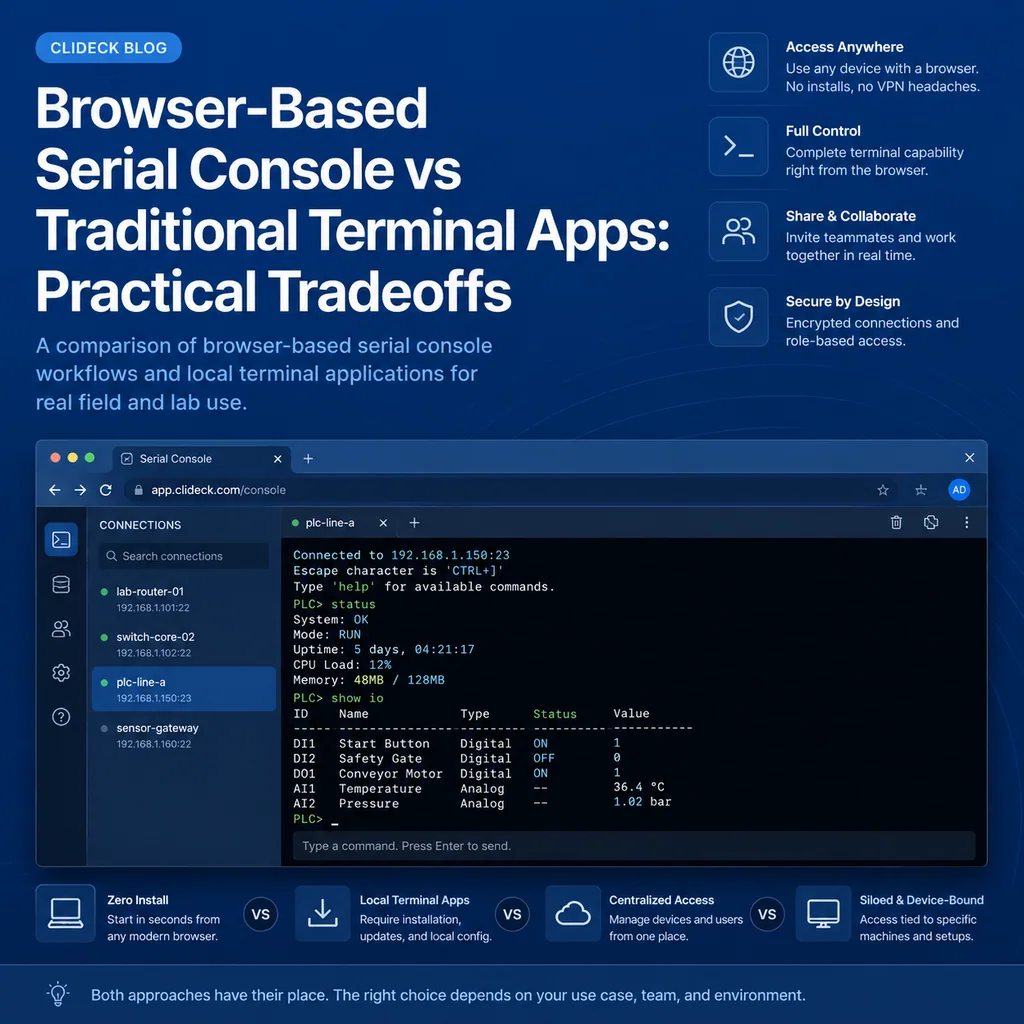
Browser-Based Serial Console vs Traditional Terminal Apps: Practical Tradeoffs
Short answer
Use a traditional terminal app for simple local serial work; use a browser-based serial workflow when the session needs shared context, remote access, runbooks, notes, handoffs, or controller management. The right choice depends on the operational workflow around the console, not just the cable.
What “traditional terminal app” means
A traditional terminal app is a local tool that connects directly to a serial port from your computer.
Common examples include:
screencu- PuTTY
- Tera Term
- minicom
- picocom
- device-specific serial tools
- built-in terminal utilities
The usual workflow is simple:
- Plug a USB-serial adapter into your laptop.
- Find the serial port name or COM port.
- Choose speed and line settings, often 9600 8N1.
- Open the session.
- Work directly in the terminal.
For many field and lab tasks, this is still the fastest path.
What “browser-based serial console” means
A browser-based serial console workflow moves the terminal session into a browser workspace.
That can mean different things depending on the setup:
- Connecting to equipment through a browser-based serial interface
- Using a remote console controller
- Keeping serial console sessions near notes and runbooks
- Sharing session context with another engineer
- Managing multiple device sessions from one workspace
- Combining SSH and serial console work in the same operational view
The important idea is not that the browser is magic. The important idea is that the terminal session can become part of a larger workflow instead of being isolated in a local terminal window.
CliDeck is built around that kind of browser-based workspace for SSH, serial console, runbooks, shared terminal workflows, controller management, and remote operations.
When traditional terminal apps are the better fit
Traditional terminal apps are often the best option when the task is local, simple, and short.
They work well when:
- You are physically next to the device.
- You have a known-good USB-serial adapter.
- You only need one session.
- You do not need to share the session.
- You do not need structured notes or handoff context.
- The network is unavailable or irrelevant.
- You are doing a quick check, not a coordinated operation.
- You already know the correct port and baud rate.
Example:
Task:
Connect to a lab switch for five minutes and confirm the boot prompt.

Good fit:
Traditional terminal app.
Another example:
Task:
Use a laptop at the rack to check a console login prompt on one device.

Good fit:
Traditional terminal app.
For these tasks, a local terminal app is direct and efficient.
When browser-based serial console workflows are the better fit
A browser-based workflow becomes more useful when the serial console is only one part of the job.
It can help when:
- Multiple people are involved.
- A remote engineer needs to guide someone at the rack.
- The session needs notes, runbook steps, or timestamps.
- You are handling several devices.
- The work happens during a maintenance window.
- You need a handoff between engineers.
- Serial console is a recovery path during a network outage.
- You want terminal context and documentation close together.
- You need to switch between SSH, serial console, and operational notes.
Example:
Task:
A remote engineer and an onsite technician need to recover a switch during a network outage.

Better fit:
Browser-based workspace with serial console context, notes, and handoff details.
Another example:
Task:
Firmware upgrade requires SSH, serial console fallback, pre-checks, rollback notes, and post-upgrade verification.

Better fit:
Browser-based workspace.
For related maintenance workflows, see Browser Terminal Workspaces for Maintenance Windows.
Tradeoff 1: Speed vs context
Traditional terminal apps are fast to start when everything is local and familiar.
A quick workflow might be:
screen /dev/cu.usbserial-110 9600
or, on another system:
Open COM port in terminal app.
Set 9600 8N1.
Press Enter.
That is hard to beat for speed.
The downside is context. The terminal window usually does not know:
- Which ticket this belongs to
- Which rack device you intended to reach
- What the rollback plan is
- Who approved the change
- What commands were already run
- Whether this session is observe-only or change-capable
- What another engineer needs to know during handoff
A browser workspace can make that context easier to keep near the session.
Use this rule:
If the task is short and local, speed matters most.
If the task is risky or shared, context matters more.
Tradeoff 2: Local reliability vs remote reach
Traditional serial tools are excellent when you are physically present. They do not require a web workspace, remote controller, or shared session.
That is valuable in a lab, at a rack, or during offline work.
But local-only access can be limiting when:
- The expert is not onsite.
- The technician at the rack is not the person making decisions.
- The team needs to see what the console shows.
- A device is in a remote location.
- A maintenance window needs multiple observers.
- Someone needs to continue the work after the onsite person leaves.
Browser-based serial console workflows are strongest when the serial path needs to support remote operations, not just local access.
For first-time physical access, see Serial Console Runbook for First-Time Rack Access.
Tradeoff 3: One-device simplicity vs multi-device organization
A traditional terminal window is clean when you have one device.
It becomes harder when you have:
- Several switches
- A firewall
- A jump host
- A server
- A console fallback session
- A monitoring or log session
- Multiple engineers joining and leaving
At that point, terminal organization becomes an operational problem.
A simple session map helps:
SESSION MAP

core-sw-01:
Access: SSH
Purpose: observe trunk state
Owner: Alex
Change status: observe only

core-sw-02:
Access: serial console
Purpose: recovery path
Owner: Priya
Change status: changes require approval

fw-01:
Access: SSH
Purpose: check firewall logs
Owner: Morgan
Change status: observe only
A browser workspace can make this easier because the sessions, notes, and purpose can live together.
For a deeper workflow, see How to Organize Multiple Device Sessions During an Incident.
Tradeoff 4: Familiar tools vs shared workflows
Traditional terminal apps are familiar. Engineers know their shortcuts, configuration, logging behavior, and quirks.
That familiarity matters.
But local tools are often personal. One engineer’s terminal window may not be easy for another engineer to review, continue, or understand.
Shared workflows need more than a terminal prompt. They need:
- Current state
- Commands already run
- Findings
- Risks
- Pending commands
- Do-not-do warnings
- Rollback notes
- Next verification step
Example handoff note:
HANDOFF

Device: core-sw-02
Access: serial console through rack controller port 4
Current mode: privileged EXEC, not config mode
Problem: management VLAN unreachable
Finding: VLAN 40 missing from trunk Gi1/0/24
Changes made: none
Next step: confirm approval before adding VLAN 40
Do not do: do not reload
Browser-based workflows can make this kind of handoff easier to keep attached to the session.
For a complete handoff guide, see Command Handoffs: How to Pass Terminal Work to Another Engineer Safely.
Tradeoff 5: Offline use vs connected operations
Traditional terminal apps are ideal when you need to work offline.
Examples:
- Bench testing a device with no network
- Recovering equipment in a disconnected lab
- Working from a laptop with only a USB-serial adapter
- Accessing a bootloader before the network is configured
- Troubleshooting a device before any management IP exists
Browser-based workflows are better when the operation itself is connected:
- Remote support
- Maintenance windows
- Team troubleshooting
- Shared notes
- Runbook-driven work
- Multi-device incident response
- Remote hands coordination
A practical rule:
Offline and alone: traditional terminal app is often enough.
Remote, shared, or documented: browser workspace can be stronger.
Tradeoff 6: Logging and notes
Traditional terminal apps can log sessions, but the logs are often separate from the operational story.
A raw session log may show every character, but not explain:
- Why a command was run
- Whether it changed anything
- Whether the output was expected
- What should happen next
- What risk remains
- Whether the change was approved
Good troubleshooting notes are structured:
TROUBLESHOOTING NOTE

Target:
Access path:
Problem:
Commands run:
Findings:
Changes made:
Risks:
Next step:
A browser workspace can keep terminal output and structured notes closer together.
For note-taking structure, see Terminal Notes That Actually Help During Troubleshooting.
Tradeoff 7: Security habits
Neither traditional terminal apps nor browser-based workflows automatically make terminal work safe.
You still need good habits:
- Verify the target before typing.
- Confirm the current mode.
- Avoid pasting commands blindly.
- Protect secrets.
- Keep production sessions clearly labeled.
- Avoid shared accounts where possible.
- Remove temporary access after work.
- Document changes.
- Use least privilege where possible.
Traditional terminal apps keep work local, which can be good for simple direct access. Browser-based workflows can improve visibility and collaboration, but they also need clear access control and disciplined session management.
For small-team access habits, see Least-Privilege Terminal Access: Simple Rules for Small Teams.
Practical comparison table
| Situation | Traditional terminal app | Browser-based serial console workflow |
|---|---|---|
| Quick local lab check | Strong fit | Usually not necessary |
| One laptop, one device | Strong fit | Useful only if notes or sharing matter |
| No network available | Strong fit | Depends on local/browser setup |
| Remote engineer guiding onsite tech | Limited | Strong fit |
| Maintenance window | Possible | Strong fit |
| Multi-device incident | Harder to organize | Strong fit |
| Handoff between engineers | Manual | Strong fit |
| Runbook-driven work | Manual | Strong fit |
| Serial console as recovery path | Good if local | Strong if shared or remote |
| Structured notes and timestamps | Manual | Strong fit |
| Fast personal workflow | Strong fit | Depends on setup |
The table is not about replacing one tool with another. It is about choosing the workflow that matches the risk and coordination level.
A practical decision checklist
Use this checklist before deciding how to connect.
[ ] Am I physically next to the device?
[ ] Is this one device or several?
[ ] Is anyone else involved?
[ ] Does the session need to be shared?
[ ] Is this a maintenance window?
[ ] Is this incident response?
[ ] Do I need structured notes?
[ ] Will another engineer take over later?
[ ] Is serial console the recovery path if SSH fails?
[ ] Do I need runbook steps next to the terminal?
[ ] Is the network available and trusted for this workflow?
[ ] Are there secrets or sensitive data in the session?
[ ] Is the task read-only or change-capable?
[ ] How will I document what happened?
If most answers point to “local, simple, one person,” a traditional terminal app is probably enough.
If most answers point to “shared, risky, remote, documented, or multi-device,” a browser-based workspace may be the better fit.
Example: local bench test
Scenario:
You are on a workbench with a single lab switch.
You need to confirm that the console port works and check the boot prompt.
No one else is involved.
No change will be made.
A traditional terminal app is a good fit.
Your workflow:
1. Connect USB-serial adapter.
2. Find the serial port.
3. Open 9600 8N1.
4. Press Enter.
5. Confirm the prompt.
6. Close the session.
Simple, direct, done.
Example: remote rack recovery
Scenario:
A remote site switch lost management access.
An onsite technician can connect the console cable.
A remote engineer needs to guide recovery.
The team needs notes and handoff context.
A browser-based workflow is a better fit.
Your workspace should include:
Target device:
Console path:
Current prompt:
Problem:
Commands run:
Findings:
Changes made:
Do-not-do warnings:
Rollback:
Next verification:
This keeps the remote engineer, onsite technician, and incident notes aligned.
Example: maintenance window with fallback console
Scenario:
A firewall firmware upgrade will happen remotely.
SSH is primary access.
Serial console is fallback access.
The device will reboot.
Another engineer is watching the console.
A browser terminal workspace can help organize:
- SSH session
- Serial console session
- Upgrade checklist
- Rollback plan
- Live timestamps
- Verification steps
- Final summary
This is not just a terminal problem. It is an operations workflow.
Common mistakes to avoid
Treating browser-based serial as only a terminal replacement
The value is not only the terminal. The value is the workspace around the terminal: notes, runbooks, access paths, handoffs, and context.
Treating traditional terminal apps as outdated
They are not outdated. They are still excellent for fast local serial work.
Using the wrong workflow for the risk level
A quick lab check does not need a heavy workflow. A risky remote recovery should not depend on one unlabeled local terminal window.
Forgetting serial settings still matter
Browser-based or traditional, you still need the correct serial settings: speed, data bits, parity, stop bits, and flow control.
Forgetting target verification
No workflow protects you if you type into the wrong device. Always verify the target.
Ignoring handoff context
If another engineer may continue the work, document the current state before leaving.
Where CliDeck fits
CliDeck is a browser-based workspace for SSH, serial console, runbooks, shared terminal workflows, controller management, and remote operations.
For serial console work, CliDeck’s practical role is to help keep the session connected to the operational context: which device it is, why you are there, what has been checked, what risks remain, and what should happen next.
CliDeck does not replace basic serial knowledge. You still need to understand console cables, USB-serial adapters, baud rates, prompts, device modes, and safe command habits. But when serial console work becomes shared, remote, or part of a maintenance workflow, a browser-based workspace can make the process easier to manage.
For related guides, see How to Connect to Equipment Over USB Directly From Your Browser and Default Console Port Speeds (Baud Rates) for Cisco, Juniper, Fortinet, Aruba, Dell, and More.
Final thought
Traditional terminal apps are excellent when the job is direct and local. Browser-based serial console workflows are strongest when the job needs context, coordination, notes, runbooks, or handoffs.
The best choice is not about fashion. It is about risk. Use the simplest tool that gives you enough control for the work in front of you.
Who this is for
This guide is for network engineers, field technicians, remote hands, lab engineers, and system administrators who need to connect to, troubleshoot, log, or verify a serial console session on switches, routers, firewalls, appliances, servers, and other devices with console ports.
When to use this
Use this guide when:
- You need direct console access to a switch, router, firewall, appliance, server, or lab device.
- SSH or management-plane access is unavailable, unreliable, or not yet configured.
- You need to troubleshoot a USB serial adapter, COM port, baud rate, or terminal session.
When not to use this
Do not use this guide when:
- Do not use this guide as a substitute for vendor documentation, site policy, or a verified device-specific runbook when the operation is risky.
- Do not continue if the console output suggests you are connected to the wrong device.
Quick checklist
- Identify the device and console connector
- Use the correct console cable or adapter
- Find the correct serial port or COM port
- Start with the expected baud rate and 8N1 settings
- Press Enter to confirm the prompt
- If output is unreadable, check baud rate and line settings
- If the port will not open, check permissions, drivers, and whether another program is holding the port
- Save useful session notes or logs when the work matters
Traditional cable vs CliDeck workflow
A traditional USB serial cable is still the simplest option for quick local work. CliDeck becomes useful when the console session needs browser access, notes, runbooks, sharing, logs, remote hands support, or a portable controller workflow.
Console Server Go can work like a wired USB serial adapter when connected by USB, but it also adds SSH Console on SSH-enabled firmware builds, browser Workspace, live sharing, 24h+ battery operation, OLED status, and magnetic rack mounting.
Practical runbook format
A runbook does not need to be a complex script. For many operations, it can be a plain command list with notes, expected output, stop conditions, verification steps, and rollback instructions.
What to include
- Purpose
- When to use it
- When not to use it
- Target system or device
- Access path
- Read-only checks
- Change steps
- Expected output
- Stop conditions
- Rollback steps
- Verification steps
- Handoff notes
- Final summary format
Quick decision table
| Situation | Better fit | Why |
|---|---|---|
| One authorized engineer needs a quick low-risk task | Traditional local workflow | It keeps the workflow simple when no shared context, batch work, or durable evidence is required. |
| The work needs verification, handoff, or documentation | CliDeck or browser workspace workflow | It creates a clearer path for notes, logs, stop conditions, and final checks. |
| Multiple people or devices are involved | CliDeck or browser workspace workflow | Structured workflows reduce ambiguity and make it easier to prove what happened. |
When option A is enough
The simpler option is usually enough when one authorized engineer is doing a low-risk task locally, the device state is known, and the work does not require shared context, batch processing, or durable evidence.
When option B is better
The more structured option is better when the work needs repeatability, collaboration, verification, logging, asset linkage, or a safer handoff between people or teams.
Workflow
- Identify the device, connector, cable, adapter, and host operating system.
- Find the correct serial port or COM port and confirm permissions or drivers.
- Open the session with the expected baud rate and line settings, usually 8N1 unless documented otherwise.
- Press Enter and verify the prompt before running commands.
- Save notes or logs when the session supports a change, recovery, handoff, or evidence workflow.
Verification checklist
- The detected serial port or COM port matches the connected adapter.
- Baud rate, data bits, parity, stop bits, and flow control match the device expectation.
- The terminal shows a readable prompt after pressing Enter.
- No other terminal application is holding the port.
- Useful notes or logs are saved when the work matters.
Common mistakes
- Using the wrong cable or adapter for the console connector.
- Opening the wrong COM port or
/dev/cu.*device. - Assuming unreadable output means hardware failure before checking baud rate and 8N1 settings.
- Leaving another terminal application attached to the port.
CliDeck workflow fit
A traditional USB serial cable is still the simplest option for quick local work. CliDeck becomes useful when the console session needs browser access, notes, runbooks, sharing, logs, remote hands support, or a portable controller workflow.
Console Server Go can work like a wired USB serial adapter when connected by USB, but it also adds SSH Console on SSH-enabled firmware builds, browser Workspace, live sharing, 24h+ battery operation, OLED status, and magnetic rack mounting.
FAQ
Is a USB serial cable still enough?
Yes, for simple local work where one engineer is sitting next to one device. CliDeck is more useful when the console session needs sharing, runbooks, browser Workspace, remote hands support, logs, or longer operational context.
What should I check first when serial output looks like garbage?
Check the baud rate, data bits, parity, stop bits, flow control, cable type, and whether the device is actually using the expected console port.
Can CliDeck help with serial console work?
Yes. CliDeck Workspace helps organize terminal sessions, notes, runbooks, and logs. Console Server Go adds portable rack-side access, and Net Controller supports larger batch workflows.
Related guides
- How to Connect to Equipment Over USB Directly From Your Browser - A practical guide on connecting to networking and server equipment through USB-Serial (RS-232) directly in the browser using CliDeck. Covers hardware setup,...
- Linux Serial Disconnects: Collect the Right Boot and Time Window - Collect Linux serial-disconnect evidence from a specific boot and UTC time window while preserving journal permissions, retention and kernel-only limits.
- Linux Serial Permissions: Check Identity, Groups and ACLs - Inspect Linux serial-device identity, groups, node permissions and ACL masks before changing access or opening the console port.
- Linux Console Capture Storage: Check Blocks and Inodes - Check the actual Linux console capture filesystem for available blocks and inodes, and keep directory usage separate from capture completion.
- Console Capture Times: UTC Without False Precision - Record console capture times in UTC with the clock source and uncertainty; keep device events separate and avoid unsupported precise ordering.