
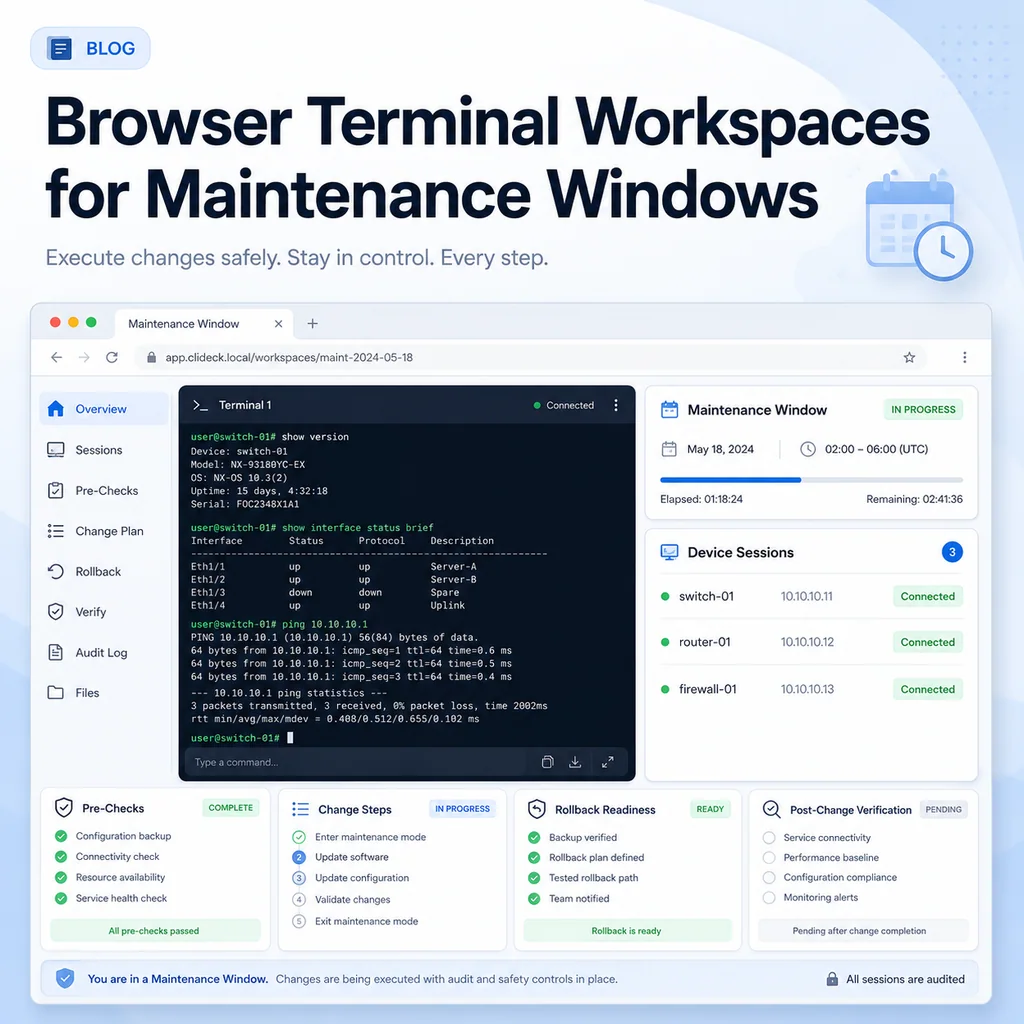
Browser Terminal Workspaces for Maintenance Windows
Short answer
A browser terminal workspace makes maintenance windows easier to run by keeping SSH, serial access, notes, runbooks, logs, and shared context in one place. Prepare that workspace before the change so operators can focus on verification and recovery rather than switching among disconnected tools.
Plan the workspace before the window
Create the workspace before the approved change window starts. Add the devices, terminals, notes, runbooks, and references that the operator will need during the work.
Useful preparation steps include:
- Name the workspace after the change, customer, site, or maintenance ticket.
- Open one terminal per device or management endpoint.
- Keep read-only verification commands separate from change commands.
- Add notes for expected output, rollback triggers, and escalation contacts.
- Confirm who is allowed to view, type, or approve commands.
- Save the expected final state before the first change command runs.
Organize terminal sessions
Use clear terminal names instead of generic labels. Good terminal names include the site, device role, hostname, and access path. For example, use labels such as core-switch-1 SSH, edge-firewall console, or access-stack-3 serial.
Before running changes, verify that each terminal points to the correct device. A quick hostname, serial number, interface summary, or prompt check can prevent a costly wrong-device mistake.
Keep runbooks close to the terminal
A maintenance runbook should be short enough to use under pressure and specific enough to prevent improvisation. It should include read-only checks, change steps, expected output, stop conditions, rollback steps, and final verification.
Avoid using a runbook as a blind paste buffer. Operators should understand each command, confirm the target device, and stop when output differs from the expected state.
Capture logs and notes
Maintenance windows often fail later because the team cannot reconstruct what happened. Capture the useful parts of the session: pre-checks, commands run, unusual output, errors, rollbacks, and final verification.
Do not store secrets, passwords, private keys, customer identifiers, or raw sensitive configuration data in shared notes unless your policy explicitly allows it.
Handoff and escalation
If another engineer joins during the window, give them the relevant terminal context, current state, commands already run, and stop conditions. Shared terminal sessions are useful when the helper needs to see the live terminal without taking over the operator’s entire desktop.
Use view/type permissions carefully. Watching a terminal and typing into a terminal are different levels of access.
Close the window
Before closing the maintenance window, confirm the final state and record exceptions. The final summary should say what changed, what was verified, what failed, what was rolled back, and what still needs follow-up.
A good closure note includes:
- Change ticket or maintenance window ID
- Devices touched
- Commands or runbooks used
- Verification commands and results
- Any alarms, errors, or exceptions
- Rollback status if used
- Final owner and next action
Who this is for
This guide is for operations teams, incident responders, network engineers, and system administrators who need to prepare, run, verify, and document operational terminal work on SSH, serial, browser terminal, and infrastructure operations workflows.
When to use this
Use this guide when:
- Several commands or checks must be repeated safely.
- Another engineer, customer, onsite technician, or vendor may need context.
- The work should produce notes, logs, verification, or a clear handoff.
When not to use this
Do not use this guide when:
- You do not own or have authorization to work on the device.
- The device is outside your approved change, recovery, or processing scope.
- The task may expose customer data, secrets, licenses, or credentials that you are not allowed to view or store.
- The work requires vendor-specific approval, legal approval, or a customer-specific procedure that is not covered here.
Practical runbook format
A runbook does not need to be a complex script. For many operations, it can be a plain command list with notes, expected output, stop conditions, verification steps, and rollback instructions.
What to include
- Purpose
- When to use it
- When not to use it
- Target system or device
- Access path
- Read-only checks
- Change steps
- Expected output
- Stop conditions
- Rollback steps
- Verification steps
- Handoff notes
- Final summary format
Workflow
- Define the purpose, target device, access path, and approved scope.
- Run read-only checks first and record the expected healthy state.
- Execute commands from the runbook or handoff plan while watching for stop conditions.
- Verify the final state with independent checks.
- Summarize commands run, outputs reviewed, exceptions, and handoff notes.
Verification checklist
- The target device or system is correct.
- Read-only checks were captured before the work.
- Stop conditions and rollback notes were available before changes.
- Final verification checks match the expected result.
- Notes, logs, and handoff summary are stored where the team can find them.
Common mistakes
- Starting commands before confirming the target device and scope.
- Skipping read-only baseline checks.
- Copying commands without expected output, stop conditions, or rollback notes.
- Closing the work without a final verification summary.
CliDeck workflow fit
CliDeck Workspace is designed for this kind of operational workflow. Teams can keep terminals, notes, runbooks, logs, and shared sessions in one browser workspace instead of spreading work across terminal windows, chat messages, screenshots, and separate documents.
CliDeck runbooks can be plain command lists, one command per line. Operators can send commands with one click or use auto-run behavior that waits for the prompt before sending the next line where configured.
FAQ
Does a runbook need to be code?
No. A useful runbook can be a plain list of commands, checks, notes, expected output, stop conditions, and verification steps.
Why use a browser workspace for terminal work?
A browser workspace can keep terminals, notes, runbooks, logs, and shared sessions together, which helps during incidents, handoffs, maintenance windows, and remote support.
Can shared terminal sessions be safer than screen sharing?
Yes, when implemented with clear view/type permissions. The helper can see the relevant terminal context without taking over the operator’s entire desktop.
Can CliDeck help with this workflow?
Yes. CliDeck Workspace helps organize terminals, runbooks, notes, logs, and shared sessions. Console Server Go is useful when the workflow starts at a rack-side console port.
Related guides
- SSH From a Browser: When It Makes Sense and When It Does Not - A practical guide to browser-based SSH: when it helps teams work faster and safer, when a local terminal is better, and what to check before using it.
- Runbooks for Real Incidents: What to Write Before Something Breaks - A practical guide to writing incident runbooks before outages happen: define symptoms, checks, commands, owners, rollback steps, escalation paths, and recovery notes.
- Shared Terminal Sessions: How to Collaborate Without Losing Control - A practical guide to shared terminal sessions for SSH and console work: define roles, control input, document commands, prevent mistakes, and hand off safely.
- What to Check Before Restarting a Network Service Over SSH - A practical pre-restart checklist for network services over SSH, including scope, impact, rollback, verification, and safe terminal workflow.
- Junos NTP Checks: Peers, Reach and Synchronization State - Capture Junos NTP peer selection, octal reach and system synchronization status before correlating device timestamps or starting maintenance.