
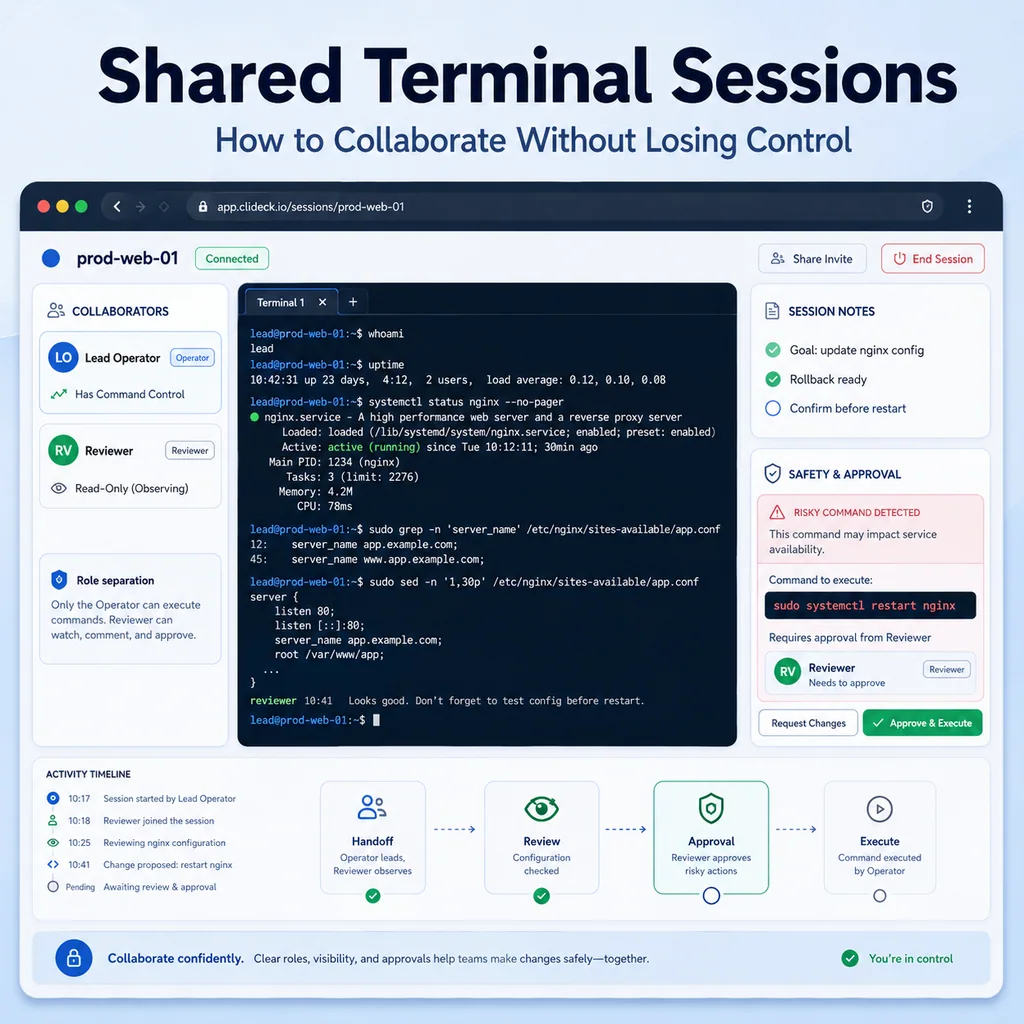
Shared Terminal Sessions: How to Collaborate Without Losing Control
Short answer
Shared terminal sessions work well when several people must troubleshoot or guide the same task, provided control is explicit. Identify the device, assign who may type, agree on approved commands and stop conditions, and record the result so collaboration does not create avoidable risk.
Why shared terminal sessions need structure
Shared terminal work is common during:
- Production incidents
- Maintenance windows
- SSH troubleshooting
- Serial console recovery
- Contractor or vendor support
- Training
- Pair debugging
- Remote hands coordination
- Firmware or OS upgrades
- Network changes
- Service restarts
The benefit is clear: multiple people can see the same context.
But without rules, shared sessions create new risks:
- Two people think the other person is in control.
- Someone pastes a command too quickly.
- An observer becomes an operator without approval.
- The team forgets which device is connected.
- A risky command runs without review.
- A terminal is left open after the work is done.
- Notes and terminal output drift apart.
- A handoff happens with no current-state summary.
Shared sessions are safest when the team treats them like an operational workspace, not just a screen everyone can see.
Start by naming the session
A shared terminal session should have a clear name before work begins.
Bad session names:
ssh
console
server
switch
prod
debug
Better session names:
prod-app-03-nginx-reload
core-sw-02-console-recovery
edge-fw-02-upgrade-watch
jump-01-access-only
A good name should tell the team:
- Environment
- Device or server
- Access type
- Purpose
Example:
prod-core-sw-02-console-recovery
That is much safer than:
switch console
If the purpose changes, update the session name or write a note. Do not let old labels mislead the team.
Confirm the target before sharing control
Before anyone types, confirm the exact system.
For Linux or Unix-like systems:
hostname
hostname -f
whoami
pwd
date
ip addr show
For network devices:
show running-config | include hostname
show version
show clock
show users
show ip interface brief
For serial console sessions, also document the access path:
Access path: serial console through rack controller port 4
Prompt: core-sw-02#
Rack label: core-sw-02
Record the target in the shared notes:
SESSION TARGET

Device / host:
Environment:
Access path:
Current user / privilege:
Current directory / CLI mode:
Purpose:
Example:
SESSION TARGET

Device / host: core-sw-02
Environment: production
Access path: serial console through rack controller port 4
Current user / privilege: privileged EXEC
Current directory / CLI mode: core-sw-02#, not config mode
Purpose: recover management access during outage
If the prompt, hostname, rack label, or ticket does not match, stop before typing.
For a deeper target-verification workflow, see How to Avoid Working on the Wrong Server or Network Device.
Define roles before commands start
A shared terminal should have clear roles.
Use simple roles:
Operator:
The person allowed to type or paste commands.

Observer:
The person watching output and checking for mistakes.

Approver:
The person who approves risky commands.

Recorder:
The person writing notes, timestamps, and findings.

Handoff owner:
The person responsible for summarizing state before someone leaves.
In a small team, one person may fill more than one role. That is fine, but write it down.
Example:
ROLES

Operator: Alex
Observer: Priya
Approver: Morgan
Recorder: Sam
For a two-person session:
ROLES

Operator: Alex
Observer / recorder: Priya
Approval: required before changes
The important part is knowing who controls the keyboard.
Use one active operator at a time
A shared session should have one active operator.
Even if multiple people can technically type, only one person should control input at a time.
Before changing operators, write it down:
CONTROL CHANGE

Previous operator:
New operator:
Time:
Current target:
Current mode:
Last command:
Next intended action:
Example:
CONTROL CHANGE

Previous operator: Alex
New operator: Priya
Time: 14:35 local
Current target: core-sw-02
Current mode: privileged EXEC, not config mode
Last command: show interfaces trunk
Next intended action: confirm approval before adding VLAN 40
This prevents the common mistake where one person thinks they are only observing while another assumes they are ready to type.
Mark the session mode: observe-only or change-capable
Every shared terminal session should have a change status.
Use labels:
OBSERVE ONLY:
Read-only commands, logs, status checks, show commands.

CHANGE CAPABLE:
Approved commands may modify configuration, restart services, reload devices, or change state.
Example:
Session mode: OBSERVE ONLY
Purpose: check logs and interface state
Changes approved: no
or:
Session mode: CHANGE CAPABLE
Purpose: restore management VLAN
Changes require incident lead approval
If a session begins as observe-only and later needs changes, pause and update the note:
Mode change:
Session moved from OBSERVE ONLY to CHANGE CAPABLE at 14:42.
Reason: incident lead approved VLAN correction.
Operator: Priya.
This makes risk visible to everyone.
Keep a command plan visible
Before running risky commands, write the plan.
Use this format:
COMMAND PLAN

Target:
Purpose:
Pre-check:
Command:
Expected result:
Verification:
Rollback:
Approval:
Example:
COMMAND PLAN

Target: core-sw-02
Purpose: restore management VLAN on uplink trunk
Pre-check: show interfaces trunk and show vlan brief
Command: switchport trunk allowed vlan add 40
Expected result: VLAN 40 appears on Gi1/0/24 allowed list
Verification: SSH from jump-01 returns and monitoring recovers
Rollback: remove VLAN 40 if unexpected trunk impact appears
Approval: incident lead required before command
This gives observers something specific to review before the operator types.
For risky remote-change preparation, see How to Prepare a Remote Device Before a Risky Network Change.
Announce before risky commands
Before any command that changes state, the operator should announce it.
A useful announcement:
About to run:
sudo systemctl reload nginx

Target:
app-03 production

Reason:
Apply certificate path correction after nginx -t passed

Verification:
systemctl status nginx and external HTTPS check

Rollback:
restore app.conf backup and reload
For a network device:
About to run:
switchport trunk allowed vlan add 40

Target:
core-sw-02, interface Gi1/0/24

Reason:
restore management VLAN on trunk

Save:
do not write memory until verification and approval
This pause gives the observer or approver a chance to catch the wrong target, wrong mode, wrong command, or missing rollback.
Be careful with copy and paste
Copy-paste can be useful, but in shared sessions it is especially risky.
Before pasting:
- Confirm the active target.
- Confirm the current mode.
- Read the full command.
- Check for hidden newlines.
- Paste one command at a time when possible.
- Avoid pasting secrets.
- Avoid pasting multi-line config blocks unless reviewed.
- Watch the echoed command before pressing Enter if the terminal does not auto-execute.
High-risk commands include:
rm
dd
mkfs
reboot
shutdown
reload
delete
erase
configure terminal
write memory
systemctl restart
iptables
nft
firewall-cmd
A shared session should make copy-paste slower, not faster.
For deeper guidance, see Safe Copy-Paste Habits for SSH and Serial Console Work.
Keep notes beside the terminal
A shared terminal session should have live notes.
Use a simple format:
LIVE NOTES

Time:
Command:
Finding:
Change:
Verification:
Next step:
Example:
LIVE NOTES

14:10 - opened console to core-sw-02
14:12 - confirmed hostname and prompt
14:15 - show interfaces trunk: VLAN 40 missing from Gi1/0/24
14:18 - no changes made yet
14:20 - waiting for incident lead approval
After a change:
14:28 - added VLAN 40 to trunk Gi1/0/24
14:30 - SSH from jump-01 restored
14:32 - monitoring recovered
14:33 - running config changed, not saved
This prevents the session from becoming a mystery after the incident.
For practical note structure, see Terminal Notes That Actually Help During Troubleshooting.
Protect secrets in shared sessions
Assume anything visible in a shared session may be observed, logged, copied, or referenced later.
Avoid displaying or pasting:
- Passwords
- Private keys
- API tokens
- Session cookies
- Database URLs with credentials
- Cloud access keys
- Recovery codes
- Customer personal data
- Secret environment variables
- Unredacted config files containing secrets
If a secret is needed, use the approved secret-handling process for your team.
A safe note:
Credential required:
Use approved vault entry.
Do not paste secret into shared terminal or notes.
If a secret appears accidentally, treat the session record as sensitive and follow your team’s cleanup or rotation process.
Use shared sessions for review, not just execution
A shared session is valuable because another person can catch mistakes before they happen.
Observers should actively check:
- Is this the correct target?
- Is the prompt in the expected mode?
- Is the command safe for this system?
- Is there approval?
- Is rollback written?
- Is the command being pasted into the right session?
- Is the result what we expected?
- Did the notes get updated?
Observer comment example:
Pause. Prompt shows core-sw-01, but command plan says core-sw-02.
Do not run command yet.
That is exactly the kind of interruption shared sessions should enable.
Avoid “everyone drives” mode
A shared terminal session should not become a group keyboard.
Problems happen when:
- Multiple people paste commands
- Someone types while another person is explaining
- Observers run “quick checks” without announcing
- A contractor or vendor changes state without approval
- Nobody knows who ran the last command
Use a clear rule:
Only the active operator types.
Everyone else comments, reviews, or requests changes through notes or voice/chat.
If someone else needs to type, transfer control first.
Keep recovery sessions open
During network incidents, firmware upgrades, or risky maintenance, a shared serial console may be the recovery path.
Do not close it casually.
Write warnings clearly:
Do not close this console session.
SSH is unstable.
Running config is not saved.
Recovery decision still pending.
Keep the recovery session open until:
- Primary access is stable
- Verification is complete
- Rollback decision is closed
- Save/finalize decision is complete
- Another engineer has accepted handoff if needed
For console outage workflows, see Console Access During a Network Outage: A Practical Recovery Checklist.
Prepare handoff before people leave
A shared session may continue after someone leaves. Do not rely on memory.
Use this handoff format:
HANDOFF

Current operator:
New operator:
Target:
Access path:
Current mode:
Last command:
Last verified result:
Changes made:
Unsaved changes:
Still running:
Do not do:
Next step:
Rollback:
Example:
HANDOFF

Current operator: Priya
New operator: Alex
Target: core-sw-02
Access path: serial console through rack controller port 4
Current mode: privileged EXEC, not config mode
Last command: show interfaces trunk
Last verified result: VLAN 40 allowed on Gi1/0/24, SSH restored from jump-01
Changes made: VLAN 40 added to trunk Gi1/0/24
Unsaved changes: running config changed, startup config not updated
Still running: nothing
Do not do: do not reload before save decision
Next step: incident lead decides whether to save config
Rollback: remove VLAN 40 if unexpected impact appears
For more detail, see Command Handoffs: How to Pass Terminal Work to Another Engineer Safely.
Close the session deliberately
When work is done, do not just abandon the shared terminal.
Before closing:
- Confirm the task is complete.
- Confirm no command is still running.
- Confirm no unsaved change is being ignored.
- Confirm recovery access is no longer needed.
- Confirm secrets were not exposed.
- Confirm notes are complete.
- Confirm final verification passed.
- Confirm any temporary access is removed or assigned for cleanup.
A closeout note:
SESSION CLOSEOUT

Target: app-03
Task: nginx reload after certificate update
Final state: nginx active, external HTTPS check passed
Changes made: app.conf updated, nginx reloaded
Rollback: not needed
Temporary access: none
Follow-up: monitor logs for 30 minutes
Session closed: 22:20 local
Shared terminal session checklist
Use this checklist before and during shared terminal work.
[ ] Session has a clear name.
[ ] Target device or host is confirmed.
[ ] Environment is identified.
[ ] Access path is documented.
[ ] Current user, privilege, directory, or CLI mode is recorded.
[ ] Session owner is assigned.
[ ] Active operator is clear.
[ ] Observers are identified.
[ ] Session is marked observe-only or change-capable.
[ ] Command plan is visible for risky work.
[ ] Approval is required for risky commands.
[ ] Copy-paste rules are clear.
[ ] Secrets will not be pasted into shared terminal or notes.
[ ] Live notes are kept with timestamps.
[ ] Recovery sessions are not closed casually.
[ ] Handoff format is ready if ownership changes.
[ ] Session closeout is documented.
Common shared-session mistakes
Not defining who can type
If everyone can type, nobody truly controls the session.
Sharing a terminal with no notes
Shared visibility is helpful, but notes explain what mattered.
Letting observers become operators silently
Transfer control explicitly before someone else types.
Running commands without announcing them
A short announcement gives others a chance to catch mistakes.
Leaving config mode during handoff
If possible, exit to a safer mode before handoff. If not, state the current mode clearly.
Closing the recovery console too early
During outages, the console may be the only stable path.
Pasting secrets into a shared terminal
Assume shared sessions may be logged or reviewed later.
Where CliDeck fits
CliDeck is a browser-based workspace for SSH, serial console, runbooks, shared terminal workflows, controller management, and remote operations.
For shared terminal sessions, the practical need is control plus context. Teams need to know who is operating, who is observing, what target is connected, what commands are planned, what changed, and what should happen next.
CliDeck does not replace approval rules, access policy, or engineering judgment. But a clear browser-based workspace can help keep terminal sessions, notes, runbook steps, and handoff details closer together during collaborative work.
For related workflows, see Least-Privilege Terminal Access: Simple Rules for Small Teams and Browser Terminal Workspaces for Maintenance Windows.
Final thought
Shared terminal sessions are powerful because they let people collaborate on the same operational reality. They are risky for the same reason.
The safest shared terminal has one operator, clear observers, visible notes, explicit approvals, and a clean handoff path. Collaboration should make terminal work calmer, not less controlled.
Who this is for
This guide is for remote hands teams, senior engineers, data center teams, vendor support, and operations teams who need to share terminal context, coordinate onsite work, or hand off command-line work safely on live terminal sessions, onsite devices, and remote support workflows.
When to use this
Use this guide when:
- Several commands or checks must be repeated safely.
- Another engineer, customer, onsite technician, or vendor may need context.
- The work should produce notes, logs, verification, or a clear handoff.
When not to use this
Do not use this guide when:
- You do not own or have authorization to work on the device.
- The device is outside your approved change, recovery, or processing scope.
- The task may expose customer data, secrets, licenses, or credentials that you are not allowed to view or store.
- The work requires vendor-specific approval, legal approval, or a customer-specific procedure that is not covered here.
Practical runbook format
A runbook does not need to be a complex script. For many operations, it can be a plain command list with notes, expected output, stop conditions, verification steps, and rollback instructions.
What to include
- Purpose
- When to use it
- When not to use it
- Target system or device
- Access path
- Read-only checks
- Change steps
- Expected output
- Stop conditions
- Rollback steps
- Verification steps
- Handoff notes
- Final summary format
Workflow
- Define the purpose, target device, access path, and approved scope.
- Run read-only checks first and record the expected healthy state.
- Execute commands from the runbook or handoff plan while watching for stop conditions.
- Verify the final state with independent checks.
- Summarize commands run, outputs reviewed, exceptions, and handoff notes.
Verification checklist
- The target device or system is correct.
- Read-only checks were captured before the work.
- Stop conditions and rollback notes were available before changes.
- Final verification checks match the expected result.
- Notes, logs, and handoff summary are stored where the team can find them.
Common mistakes
- Starting commands before confirming the target device and scope.
- Skipping read-only baseline checks.
- Copying commands without expected output, stop conditions, or rollback notes.
- Closing the work without a final verification summary.
CliDeck workflow fit
CliDeck Workspace is designed for this kind of operational workflow. Teams can keep terminals, notes, runbooks, logs, and shared sessions in one browser workspace instead of spreading work across terminal windows, chat messages, screenshots, and separate documents.
CliDeck runbooks can be plain command lists, one command per line. Operators can send commands with one click or use auto-run behavior that waits for the prompt before sending the next line where configured.
Shared terminal sessions let another authorized engineer watch the live terminal and, when permitted, type commands without taking over the operator’s entire desktop.
FAQ
Does a runbook need to be code?
No. A useful runbook can be a plain list of commands, checks, notes, expected output, stop conditions, and verification steps.
Why use a browser workspace for terminal work?
A browser workspace can keep terminals, notes, runbooks, logs, and shared sessions together, which helps during incidents, handoffs, maintenance windows, and remote support.
Can shared terminal sessions be safer than screen sharing?
Yes, when implemented with clear view/type permissions. The helper can see the relevant terminal context without taking over the operator’s entire desktop.
Can CliDeck help with this workflow?
Yes. CliDeck Workspace helps organize terminals, runbooks, notes, logs, and shared sessions. Console Server Go is useful when the workflow starts at a rack-side console port.
Related guides
- Catalyst CDP Checks: Map Neighbor Ports Before Remote Hands - Capture Catalyst CDP neighbors, local and remote port orientation, discovery scope and holdtime before a remote-hands cable change.
- Transcript Handoff with SHA-256: Verify the File, Preserve the Limits - Generate and check a SHA-256 manifest for a finalized transcript copy, handle mismatches and preserve the limits of file-integrity evidence.
- Cisco Catalyst LLDP: Confirm Both Cable Ends Before Remote Hands - Use LLDP discovery, physical labels and a dated endpoint record to confirm the intended Catalyst cable before a remote hands task.
- Command Handoffs: How to Pass Terminal Work to Another Engineer Safely - A practical guide to safe terminal handoffs: document current state, commands already run, pending actions, risks, rollback steps, and next verification befo...
- Browser Terminal Workspaces for Maintenance Windows - How to organize browser terminal workspaces for maintenance windows with sessions, notes, runbooks, logs, handoffs, and verification checks.