
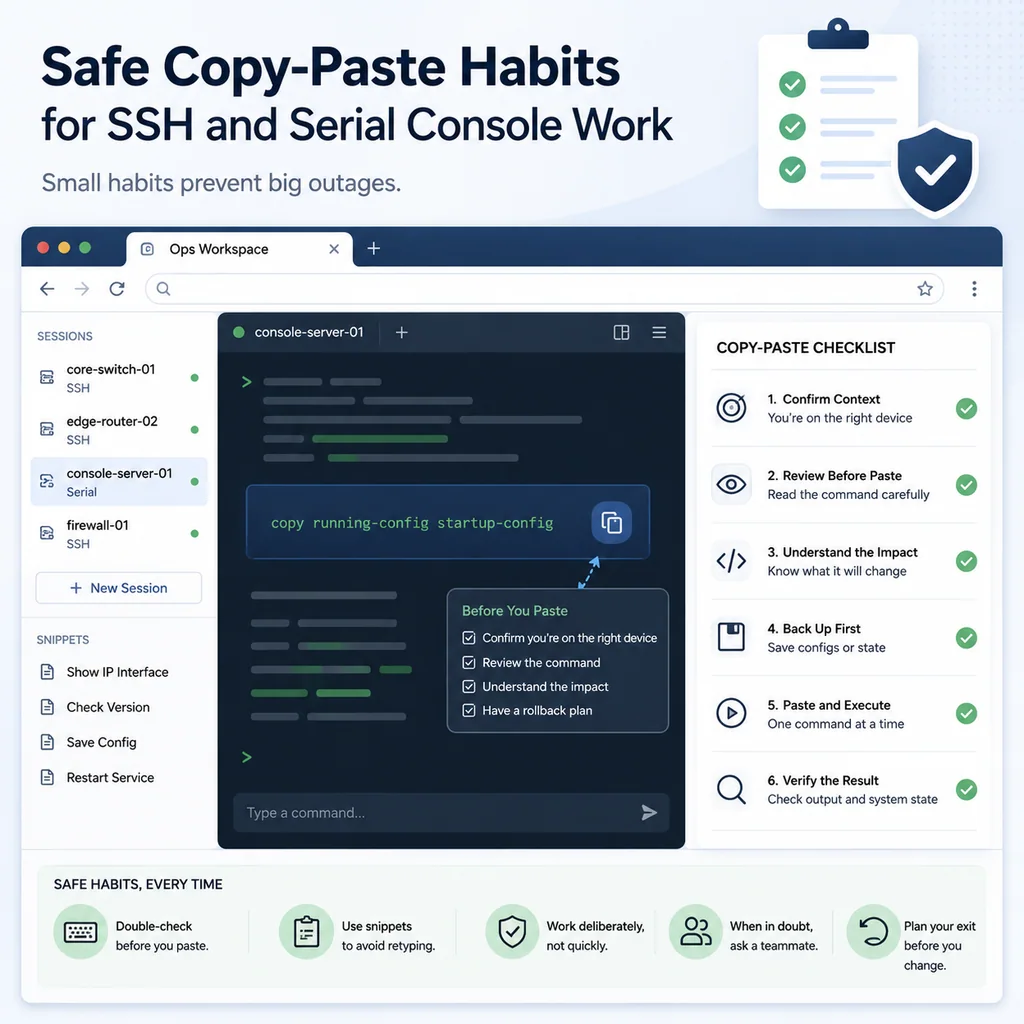
Safe Copy-Paste Habits for SSH and Serial Console Work
Short answer
Before pasting into an SSH or serial session, verify the target device, current mode, command text, and expected effect. Paste in small, reviewable steps when the command can change state, then confirm the output before continuing.
Why copy-paste can be risky
Copy-paste feels safe because it avoids typing mistakes. In many cases, it does. But it also creates a different kind of risk: it lets you send a lot of text into the wrong place very quickly.
That matters during:
- SSH maintenance
- Serial console recovery
- Router and switch configuration
- Firewall rule changes
- Server restarts
- OS and firmware upgrades
- Incident response
- Remote hands work
- Shared terminal sessions
- Work through jump hosts or bastion systems
A pasted command can run immediately. A pasted block can enter configuration mode, change several lines, save state, restart a service, delete files, or disconnect the session before you realize what happened.
Copy-paste is not bad. Unchecked copy-paste is bad.
Confirm the target before every paste
Before pasting into any terminal, prove where you are.
For Linux or Unix-like systems:
hostname
hostname -f
whoami
pwd
date
ip addr show
For network devices:
show running-config | include hostname
show version
show clock
show users
show ip interface brief
For serial console sessions, also confirm the physical or controller path:
Console path: rack controller port 4 -> core-sw-02
Prompt: core-sw-02#
Rack label: core-sw-02
A safe pre-paste note:
Target: core-sw-02
Access: serial console
Current mode: privileged EXEC
Task: check trunk state
Paste type: read-only show command
Changes approved: no
If the target does not match the ticket, runbook, label, or prompt, do not paste.
For a full target-verification workflow, see How to Avoid Working on the Wrong Server or Network Device.
Know whether paste will execute immediately
Some terminals paste text and wait. Others paste text with a newline at the end, which may execute the command immediately.
Before pasting a risky command, check the behavior in a safe way.
Paste a harmless command first:
pwd
or:
date
For a network device:
show clock
Watch what happens:
- Does the command execute immediately?
- Does the terminal wait for Enter?
- Are characters dropped?
- Does the console echo every character?
- Does line wrapping change the command?
- Does the device respond slowly?
If paste behavior is unpredictable, slow down. Type manually or paste shorter commands.
Read the command before pasting
Do not copy a command from a ticket, chat, document, website, or old note and paste it directly into production.
Read it first.
Check:
- Is this the correct command for this system?
- Is the hostname or interface name correct?
- Is the file path correct?
- Is the service name correct?
- Is there a hidden newline at the end?
- Does it include destructive flags?
- Does it include variables that were not replaced?
- Does it contain quotes that may behave differently in the shell?
- Does it assume a different operating system or vendor CLI?
Risky signs include:
rm -rf
dd
mkfs
format
delete
erase
reload
reboot
shutdown
write memory
copy running-config startup-config
configure terminal
systemctl restart
iptables
nft
firewall-cmd
Not every command in that list is wrong. But every command in that list deserves a pause.
Paste one command at a time
The safest default is to paste one command, wait for the prompt, check the output, and then continue.
Better:
hostname
Then:
systemctl status nginx --no-pager
Then:
sudo nginx -t
Riskier:
hostname
systemctl status nginx --no-pager
sudo nginx -t
sudo systemctl reload nginx
A multi-line paste can be appropriate in a prepared, reviewed maintenance window. But during troubleshooting or first-time access, it is usually safer to move one line at a time.
This is especially true on serial console sessions, where slow links, buffering, flow control, or terminal behavior can cause missed characters or command overlap.
Be careful with multi-line network configuration
Network devices often have modes. A pasted block can move through modes quickly:
configure terminal
interface Gi1/0/24
description uplink-to-core
switchport mode trunk
switchport trunk allowed vlan add 40
end
write memory
That may be correct in a controlled change. It may also be dangerous if:
- You are on the wrong switch.
- The interface name is wrong.
- The port is not the port you think it is.
- The current config is different from the assumed config.
- The device is slow and drops part of the paste.
- The block includes
write memorybefore verification. - The block was copied from a different platform.
A safer approach:
- Confirm the device.
- Confirm the interface.
- Show the current config.
- Enter configuration mode deliberately.
- Paste or type one change at a time.
- Exit configuration mode.
- Verify the result.
- Save only after approval.
Example:
show interfaces description
show running-config interface Gi1/0/24
Then decide whether the configuration block still applies.
Watch the prompt and mode
Before pasting, look at the prompt.
Network device prompts often show mode:
switch>
switch#
switch(config)#
switch(config-if)#
A command pasted into the wrong mode may fail, or worse, do something different than expected.
For Linux systems, check the directory and user:
whoami
pwd
A command in /tmp may be harmless. The same command in /etc, /boot, an application directory, or a mounted production volume may be dangerous.
A safe mode note:
Current mode: switch#
Not in configuration mode.
Next paste: read-only show command.
or:
Current user: deploy
Current directory: /opt/app/current
Next paste: config test only, no restart.
Do not paste secrets into shared sessions
Avoid pasting sensitive values into terminals that are logged, shared, recorded, or visible to others.
Sensitive values include:
- Passwords
- API tokens
- Private keys
- Session cookies
- Database URLs with credentials
- Cloud access keys
- Recovery codes
- Customer personal data
- Internal secrets copied from a vault
If a secret is required, use the approved secret-management workflow for your environment. Do not paste it into chat, ticket comments, shared notes, or terminal logs.
A safe note:
Credential required:
Use approved team vault entry for database read-only account.
Do not paste credential into incident notes or shared terminal log.
Avoid paste from untrusted sources
Do not paste commands from random pages, chat messages, or copied documents without reviewing them.
A copied command may include:
- Hidden newline characters
- Smart quotes
- Non-breaking spaces
- Invisible control characters
- Wrong dash characters
- Shell expansions you did not intend
- Environment-specific assumptions
- Dangerous flags hidden in a long line
When in doubt, paste into a plain text editor or scratch note first. Inspect the command. Then copy only the part you intend to run.
This is especially important for long shell pipelines.
Riskier:
curl something | sh
Safer:
Download or inspect the script first, review what it does, then decide whether to run it under the approved procedure.
Use a command plan for risky work
For risky operations, do not copy commands directly from memory or chat into the terminal. Build a command plan first.
A command plan should include:
Target:
Purpose:
Pre-check command:
Change command:
Expected output:
Verification command:
Rollback command:
Approval:
Example:
Target: app-03
Purpose: reload nginx after certificate path update
Pre-check: sudo nginx -t
Change command: sudo systemctl reload nginx
Expected output: command returns without error
Verification: systemctl status nginx --no-pager and external HTTPS check
Rollback: restore previous config file and reload nginx
Approval: maintenance lead approved
This turns copy-paste from an impulse into a controlled step.
For service restart workflows, see What to Check Before Restarting a Network Service Over SSH.
Keep one active target when making changes
If you have many sessions open, copy-paste risk increases.
Before a change:
- Close unrelated sessions.
- Move read-only sessions away from the active terminal.
- Make the active target visually obvious.
- Rename the session clearly.
- Confirm the prompt immediately before paste.
Bad active-session setup:
ssh
ssh
console
server
prod?
Better active-session setup:
prod-core-sw-02-console-change
prod-fw-01-readonly-logs
jump-01-access-only
During an incident, maintain a session map so the team knows which terminal is used for what.
For multi-session workflows, see How to Organize Multiple Device Sessions During an Incident.
Be careful with commands that include wildcards
Wildcards can expand differently depending on the directory.
Risky:
rm *.log
Safer:
pwd
ls -lh *.log
Then decide whether removal is appropriate.
Risky:
cp config/* /etc/app/
Safer:
ls -lh config/
ls -ld /etc/app/
Then copy only what you intend.
Before using wildcards, confirm:
- Current directory
- File list
- Destination path
- Backup or rollback
- Whether the command affects hidden files
- Whether the shell expands the pattern as expected
Be careful with commands that wrap lines
Long commands can wrap visually in a terminal. That does not always mean the command has a newline, but it can make review harder.
Before pressing Enter, check:
- Did the command paste as one line?
- Did any quote remain open?
- Did the command break unexpectedly?
- Did the prompt change to a continuation prompt?
- Did the command include the full intended path?
Shell continuation prompts may look like this:
>
or:
quote>
If you see an unexpected continuation prompt, stop. Do not keep pasting. Use Ctrl+C if appropriate, then rebuild the command carefully.
Do not paste while output is still moving
If the terminal is still printing logs, boot messages, or command output, wait.
Pasting during moving output can cause confusion:
- You may not see what you pasted.
- The command may mix visually with logs.
- The device may not be ready for input.
- Serial sessions may buffer or drop characters.
- You may miss a prompt asking for confirmation.
Wait for a stable prompt.
For serial console sessions, this is especially important during boot, firmware upgrade, crash recovery, and password recovery workflows.
Confirm before pressing Enter on pasted text
If your terminal does not execute immediately after paste, use that pause.
Before pressing Enter, read the line again:
- Correct target?
- Correct command?
- Correct file?
- Correct interface?
- Correct service?
- Correct mode?
- Correct environment?
If anything looks wrong, clear the line instead of pressing Enter.
Common ways to clear a line depend on the shell or terminal, but often include:
Ctrl+C
Ctrl+U
Backspace
Use the method that is safe for your environment and current CLI mode.
Avoid saving configuration inside a pasted block
For network devices, avoid ending a pasted change block with a save command unless that is explicitly approved.
Risky:
configure terminal
interface Gi1/0/24
switchport trunk allowed vlan add 40
end
write memory
Safer:
configure terminal
interface Gi1/0/24
switchport trunk allowed vlan add 40
end
show interfaces trunk
Then document:
Running config changed.
Startup config not updated.
Save decision pending.
Saving should be a separate decision after verification.
For outage workflows, see Console Access During a Network Outage: A Practical Recovery Checklist.
Know what to do after a bad paste
If you paste something into the wrong session or paste the wrong command, do not panic.
If the command has not executed:
- Do not press Enter.
- Clear the line.
- Confirm the target and prompt.
- Rebuild the command safely.
If the command already executed:
- Stop typing.
- Capture the exact command.
- Capture the output.
- Notify the incident lead or responsible engineer.
- Do not improvise a fix unless you know the rollback.
- Follow the recovery or rollback plan.
- Document the timeline.
A fast, honest report is better than a quiet mistake that grows.
Example note:
Bad paste report:
Target should have been app-03, but command was pasted into app-04.
Command executed: sudo systemctl restart nginx
Immediate result: service restarted successfully
Current state: nginx active
Next step: notifying service owner and checking impact
Safe copy-paste checklist
Use this before pasting into SSH or serial console sessions.
[ ] I confirmed the target hostname or device prompt.
[ ] I confirmed the access path: SSH, serial console, jump host, or local shell.
[ ] I confirmed the environment: production, staging, lab, or unknown.
[ ] I confirmed the current user, directory, privilege, or CLI mode.
[ ] I read the command before pasting.
[ ] I checked whether paste executes immediately.
[ ] I removed unintended trailing newlines if needed.
[ ] I confirmed the command does not include secrets.
[ ] I confirmed the command matches this exact device or server.
[ ] I am pasting one command at a time unless a block is reviewed and approved.
[ ] I know how to verify the result.
[ ] I know how to roll back if the command changes state.
[ ] I am not pasting into a terminal that is still printing output.
[ ] For risky commands, another person verified the target and command.
Common copy-paste mistakes
Pasting into the wrong tab
Multiple terminals look similar under pressure. Use clear names and verify the prompt before every paste.
Pasting a command with a trailing newline
A trailing newline can execute the command immediately. Know how your terminal behaves.
Pasting multi-line config too quickly
Serial consoles and network devices may not handle fast pasted blocks well. Slow down and verify one step at a time.
Pasting secrets into logged sessions
If a session is logged or shared, assume pasted secrets may be recorded.
Pasting from old notes
Old commands may contain old interface names, hostnames, paths, or assumptions. Re-check before use.
Saving before verifying
Do not include permanent save commands in pasted blocks unless the save is part of the approved plan.
Where CliDeck fits
CliDeck is a browser-based workspace for SSH, serial console, runbooks, shared terminal workflows, controller management, and remote operations.
For copy-paste safety, the important need is context. Operators should be able to keep the terminal session, target identity, notes, command plan, and verification steps close together.
CliDeck does not make every pasted command safe. You still need to read the command, verify the target, and understand the effect. But a clear browser-based workspace can help reduce context loss while working across SSH, serial console, runbooks, and shared sessions.
For related practical workflows, see Terminal Notes That Actually Help During Troubleshooting and Shared Terminal Sessions: How to Collaborate Without Losing Control.
Final thought
Copy-paste should make terminal work more accurate, not more dangerous.
The safe habit is simple: verify the target, read the command, paste slowly, watch the result, and document anything that changes. When the session is production, remote, shared, or serial console, slow is smooth — and smooth is safe.
Who this is for
This guide is for network engineers, field technicians, remote hands, lab engineers, and system administrators who need to connect to, troubleshoot, log, or verify a serial console session on switches, routers, firewalls, appliances, servers, and other devices with console ports.
When to use this
Use this guide when:
- You need direct console access to a switch, router, firewall, appliance, server, or lab device.
- SSH or management-plane access is unavailable, unreliable, or not yet configured.
- You need to troubleshoot a USB serial adapter, COM port, baud rate, or terminal session.
When not to use this
Do not use this guide when:
- Do not use this guide as a substitute for vendor documentation, site policy, or a verified device-specific runbook when the operation is risky.
- Do not continue if the console output suggests you are connected to the wrong device.
Quick checklist
- Identify the device and console connector
- Use the correct console cable or adapter
- Find the correct serial port or COM port
- Start with the expected baud rate and 8N1 settings
- Press Enter to confirm the prompt
- If output is unreadable, check baud rate and line settings
- If the port will not open, check permissions, drivers, and whether another program is holding the port
- Save useful session notes or logs when the work matters
Traditional cable vs CliDeck workflow
A traditional USB serial cable is still the simplest option for quick local work. CliDeck becomes useful when the console session needs browser access, notes, runbooks, sharing, logs, remote hands support, or a portable controller workflow.
Console Server Go can work like a wired USB serial adapter when connected by USB, but it also adds SSH Console on SSH-enabled firmware builds, browser Workspace, live sharing, 24h+ battery operation, OLED status, and magnetic rack mounting.
Practical runbook format
A runbook does not need to be a complex script. For many operations, it can be a plain command list with notes, expected output, stop conditions, verification steps, and rollback instructions.
What to include
- Purpose
- When to use it
- When not to use it
- Target system or device
- Access path
- Read-only checks
- Change steps
- Expected output
- Stop conditions
- Rollback steps
- Verification steps
- Handoff notes
- Final summary format
Workflow
- Identify the device, connector, cable, adapter, and host operating system.
- Find the correct serial port or COM port and confirm permissions or drivers.
- Open the session with the expected baud rate and line settings, usually 8N1 unless documented otherwise.
- Press Enter and verify the prompt before running commands.
- Save notes or logs when the session supports a change, recovery, handoff, or evidence workflow.
Verification checklist
- The detected serial port or COM port matches the connected adapter.
- Baud rate, data bits, parity, stop bits, and flow control match the device expectation.
- The terminal shows a readable prompt after pressing Enter.
- No other terminal application is holding the port.
- Useful notes or logs are saved when the work matters.
Common mistakes
- Using the wrong cable or adapter for the console connector.
- Opening the wrong COM port or
/dev/cu.*device. - Assuming unreadable output means hardware failure before checking baud rate and 8N1 settings.
- Leaving another terminal application attached to the port.
CliDeck workflow fit
A traditional USB serial cable is still the simplest option for quick local work. CliDeck becomes useful when the console session needs browser access, notes, runbooks, sharing, logs, remote hands support, or a portable controller workflow.
Console Server Go can work like a wired USB serial adapter when connected by USB, but it also adds SSH Console on SSH-enabled firmware builds, browser Workspace, live sharing, 24h+ battery operation, OLED status, and magnetic rack mounting.
FAQ
Is a USB serial cable still enough?
Yes, for simple local work where one engineer is sitting next to one device. CliDeck is more useful when the console session needs sharing, runbooks, browser Workspace, remote hands support, logs, or longer operational context.
What should I check first when serial output looks like garbage?
Check the baud rate, data bits, parity, stop bits, flow control, cable type, and whether the device is actually using the expected console port.
Can CliDeck help with serial console work?
Yes. CliDeck Workspace helps organize terminal sessions, notes, runbooks, and logs. Console Server Go adds portable rack-side access, and Net Controller supports larger batch workflows.
Related guides
- Linux Serial Disconnects: Collect the Right Boot and Time Window - Collect Linux serial-disconnect evidence from a specific boot and UTC time window while preserving journal permissions, retention and kernel-only limits.
- Linux Serial Permissions: Check Identity, Groups and ACLs - Inspect Linux serial-device identity, groups, node permissions and ACL masks before changing access or opening the console port.
- Linux Console Capture Storage: Check Blocks and Inodes - Check the actual Linux console capture filesystem for available blocks and inodes, and keep directory usage separate from capture completion.
- Console Capture Times: UTC Without False Precision - Record console capture times in UTC with the clock source and uncertainty; keep device events separate and avoid unsupported precise ordering.
- Linux Serial Settings: Inspect stty Without Guessing the Console Profile - Inspect GNU stty settings for an identified serial adapter, compare framing and flow control, and account for device-open effects and session ownership.