
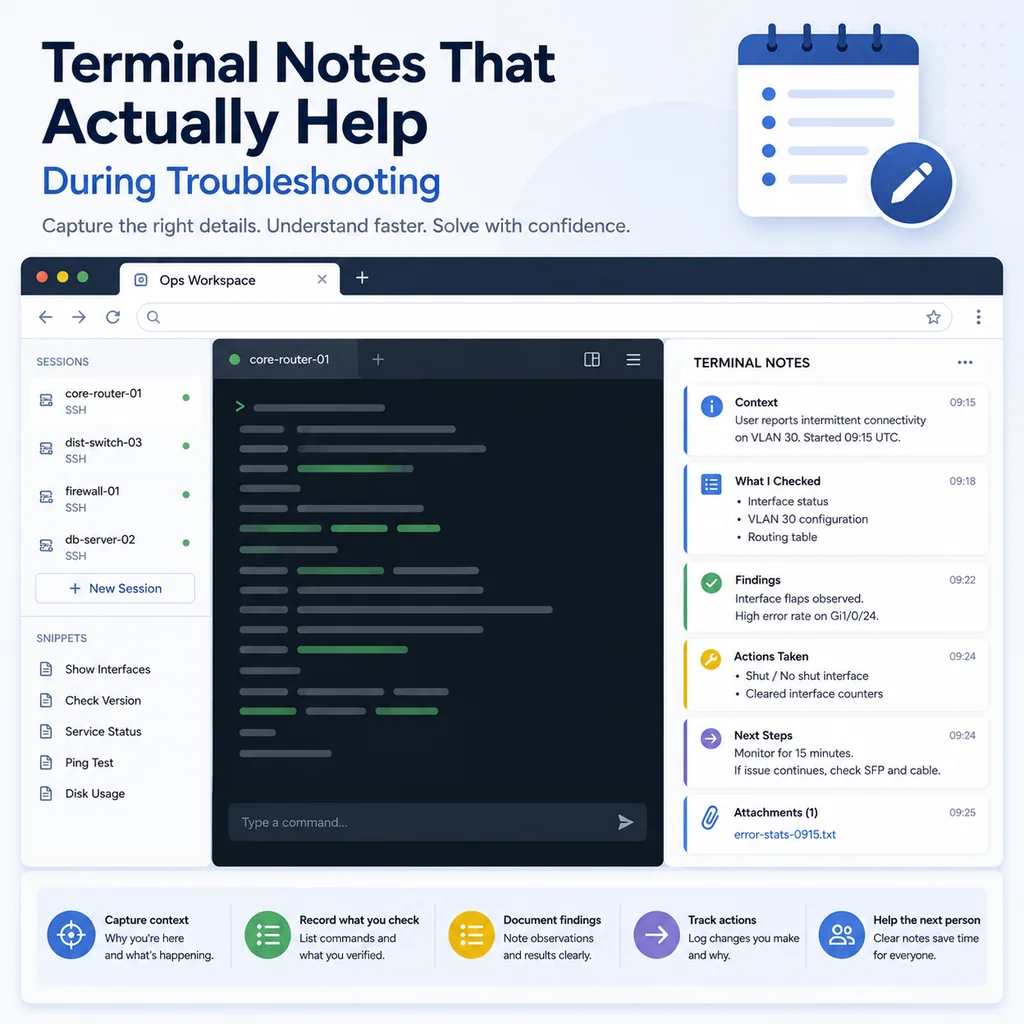
Terminal Notes That Actually Help During Troubleshooting
Short answer
Useful terminal notes record the target, observed state, changes made, failures, open checks, and boundaries for the next engineer. They are a concise operational handoff, not an unstructured transcript of everything the terminal displayed.
Why terminal notes matter
Troubleshooting often starts clean and becomes messy quickly.
At first, you may only have one terminal and one question:
Why is this service down?
Then the session expands:
- You check logs.
- You restart a service.
- You compare routes.
- You open a second SSH session.
- Someone else joins.
- A serial console becomes involved.
- A command fails.
- A workaround restores partial service.
- The original problem changes.
Without notes, important context disappears into scrollback, chat messages, memory, and guesses.
Terminal notes help prevent that. They make the session understandable while it is happening and useful after it is over.
What bad terminal notes look like
Bad notes are vague, incomplete, or too noisy.
Examples:
Checked server.
Looks broken.
Restarted stuff.
Maybe DNS?
It works now.
These notes do not help the next person. They do not say what was checked, what command was run, what output mattered, or whether anything changed.
Too much raw output can also be bad. A giant pasted log dump without explanation is hard to use.
Better notes summarize the useful finding and point to where the full output can be found if needed.
Use a simple troubleshooting note format
A practical format is better than a long paragraph.
Use this:
TROUBLESHOOTING NOTE

Time:
Owner:
Device / host:
Environment:
Access path:
Current user / mode:
Problem:
Current state:
Commands run:
Findings:
Changes made:
Risks / warnings:
Next step:
Example:
TROUBLESHOOTING NOTE

Time: 14:20 local
Owner: Alex
Device / host: app-03
Environment: production
Access path: SSH through jump-01
Current user / mode: deploy user, /opt/app/current
Problem: HTTPS checks failing after certificate renewal
Current state: nginx is active, but external HTTPS check fails
Commands run:
- systemctl status nginx --no-pager
- sudo nginx -t
- journalctl -u nginx --since "30 minutes ago" --no-pager
Findings:
- nginx config test passes
- logs show certificate path error before reload
- no current restart loop
Changes made:
- none yet
Risks / warnings:
- do not reload until app owner confirms traffic drain
Next step:
- confirm certificate path and reload during approved window
This is short, but it gives the next engineer real context.
Start with identity and access path
Every troubleshooting note should identify the target.
For servers, capture:
hostname
hostname -f
whoami
pwd
date
ip addr show
For network devices, useful checks may include:
show running-config | include hostname
show version
show clock
show users
show ip interface brief
For serial console work, also document the physical or controller path:
Access path: serial console through rack controller port 4
Cable label: core-sw-02 console
Prompt: core-sw-02#
A note without identity is risky. If someone later reads “restarted nginx,” they need to know where that happened.
For a deeper workflow on avoiding wrong-device mistakes, see How to Avoid Working on the Wrong Server or Network Device.
Write the problem in one clear sentence
Before listing commands, state the problem.
Good examples:
Problem: SSH to core-sw-02 fails from the management jump host.
Problem: app-03 returns HTTP 502 after deployment.
Problem: VLAN 40 is not reachable from the monitoring network.
Problem: serial console shows bootloader prompt instead of normal OS login.
Avoid vague problem statements:
Network broken.
Server issue.
Switch problem.
A clear problem statement keeps troubleshooting focused.
Separate commands from findings
Do not mix every command and every thought into one paragraph.
Use two sections:
Commands run:
- ...

Findings:
- ...
Example:
Commands run:
- systemctl status nginx --no-pager
- sudo nginx -t
- journalctl -u nginx --since "30 minutes ago" --no-pager

Findings:
- nginx is active
- config test passes
- logs show previous certificate path error
- no restart loop seen after 14:12
This lets someone quickly understand both what you did and what it showed.
Record “no change” checks
A useful note should include things you checked that were not the cause.
Example:
Checked:
- DNS resolves correctly from jump host
- default route exists
- nginx config test passes
- disk is not full
- no failed systemd services unrelated to nginx
This prevents duplicate work. It also shows that the investigation moved logically.
“No issue found” is useful when it is tied to a specific check.
Weak:
DNS fine.
Better:
DNS check:
dig app.example from jump host returns expected IP.
No DNS change made.
Mark changes clearly
Troubleshooting notes must make a clear distinction between observing and changing.
Use labels:
Observation:
Change:
Verification:
Example:
Observation:
nginx config test failed because ssl_certificate path pointed to old file.

Change:
Updated /etc/nginx/sites-enabled/app.conf to use renewed certificate path.

Verification:
sudo nginx -t passed.
nginx reload not run yet.
If you changed nothing, say that too:
Changes made: none
This is especially useful during handoffs and incident review.
Include exact commands for important actions
For meaningful changes, include the exact command.
Example:
Command run:
sudo systemctl reload nginx
For network equipment:
Command run:
switchport trunk allowed vlan add 40
For file changes:
File changed:
/etc/nginx/sites-enabled/app.conf

Backup created:
/etc/nginx/sites-enabled/app.conf.bak-2026-05-21
Do not write only “fixed config.” That does not tell anyone what changed.
Use timestamps
Timestamps make notes much more useful.
They help correlate:
- Logs
- Alerts
- Reboots
- Interface flaps
- User reports
- Command output
- Service restarts
- Configuration changes
Example:
14:03 - opened SSH session to app-03
14:05 - confirmed nginx active
14:08 - nginx -t failed due to old certificate path
14:12 - updated app.conf
14:14 - nginx -t passed
14:16 - reload delayed pending traffic drain approval
If device time is wrong, note it:
Device clock appears 12 minutes behind local time.
Using local incident timestamps in notes.
Capture current state before changing anything
Before a restart, reload, upgrade, route change, firewall change, VLAN change, or recovery action, capture baseline state.
For servers:
hostname -f
date
uptime
df -h
ip addr show
ip route
systemctl --failed
For service troubleshooting:
systemctl status SERVICE_NAME --no-pager
journalctl -u SERVICE_NAME --since "30 minutes ago" --no-pager
For network devices:
show clock
show version
show users
show ip interface brief
show interfaces status
show logging | last 50
Then write a short baseline summary:
Baseline:
Host app-03 reachable over SSH.
nginx active before changes.
Disk not full.
No failed systemd services except app-worker.
A baseline helps you know whether a later problem is new or pre-existing.
Keep notes short but specific
Good troubleshooting notes are concise, but not vague.
Too short:
Restarted service. Looks OK.
Better:
15:10 - reloaded nginx after config test passed.
Post-check: nginx active, local curl OK, external HTTPS check OK.
Rollback not needed.
Too much:
Hundreds of lines of raw logs pasted without explanation.
Better:
Log finding:
journalctl -u nginx shows repeated certificate path errors from 14:02 to 14:07.
No new certificate errors after reload at 15:10.
Summarize the meaning. Keep full logs somewhere appropriate if needed.
Do not paste secrets into notes
Troubleshooting notes may be shared, indexed, logged, or copied into tickets. Do not include secrets.
Avoid recording:
- Passwords
- API tokens
- Private keys
- Session cookies
- Database URLs with credentials
- Cloud access keys
- Recovery codes
- Customer personal data
- Full command lines that include secrets
Safer note:
Credential required:
Used approved vault entry for database read-only account.
Secret not pasted into notes or terminal log.
If a command includes a secret, redact it before saving the note.
Document risky commands before running them
Before risky commands, write the command, expected result, and rollback.
Example:
Planned command:
sudo systemctl restart nginx

Expected result:
nginx restarts cleanly and serves updated certificate config.

Verification:
systemctl status nginx, local curl, external HTTPS check.

Rollback:
restore app.conf backup and reload nginx.
For network devices:
Planned command:
switchport trunk allowed vlan add 40

Expected result:
management VLAN restored on trunk.

Verification:
show interfaces trunk and ping from jump host.

Save status:
do not write memory until incident lead approves.
This gives you a pause before action and a better record after action.
For safe paste behavior, see Safe Copy-Paste Habits for SSH and Serial Console Work.
Add “do not do” warnings
Sometimes the most useful note is a warning.
Examples:
Do not close this console session. SSH is unstable.
Do not save running config yet. Temporary change is still under review.
Do not restart NetworkManager over SSH. No console fallback confirmed.
Do not reboot. Device is still copying image to local storage.
Warnings are especially important when multiple engineers are involved.
Make handoffs easy
If another engineer may continue the work, your notes should support a clean handoff.
A handoff-ready note includes:
Current state:
Last command:
Last verified output:
Changes made:
Unsaved changes:
Still running:
Do not do:
Next step:
Rollback:
Example:
HANDOFF

Device: core-sw-02
Access: serial console through rack controller port 4
Current mode: privileged EXEC, not config mode
Last command: show interfaces trunk
Last verified output: VLAN 40 now allowed on Gi1/0/24
Changes made: VLAN 40 added to trunk Gi1/0/24
Unsaved changes: running config changed, startup config not updated
Still running: nothing
Do not do: do not reload until save decision is made
Next step: incident lead decides whether to save config
Rollback: remove VLAN 40 from trunk if unexpected impact appears
For a deeper handoff workflow, see Command Handoffs: How to Pass Terminal Work to Another Engineer Safely.
Use notes to control multiple sessions
When several sessions are open, notes should show which session is doing what.
Example:
SESSION MAP

core-sw-01:
Owner: Alex
Purpose: check trunk state
Mode: observe only

core-sw-02:
Owner: Priya
Purpose: console recovery
Mode: changes allowed with approval

fw-01:
Owner: Morgan
Purpose: check firewall logs
Mode: observe only

jump-01:
Owner: Sam
Purpose: access path only
Mode: no changes
This prevents duplicate work and wrong-terminal mistakes.
For multi-session incident workflows, see How to Organize Multiple Device Sessions During an Incident.
Keep final notes useful after the incident
At the end of troubleshooting, write a final summary.
Use this format:
FINAL SUMMARY

Problem:
Root cause or likely cause:
Systems affected:
Commands run:
Changes made:
Verification:
Rollback used:
Follow-up:
Example:
FINAL SUMMARY

Problem:
app-03 returned HTTP 502 after certificate renewal.

Likely cause:
nginx config pointed to old certificate path.

Systems affected:
app-03 only.

Commands run:
nginx -t, journalctl, systemctl reload nginx, local and external HTTPS checks.

Changes made:
Updated certificate path in /etc/nginx/sites-enabled/app.conf.
Reloaded nginx after config test passed.

Verification:
nginx active, local curl OK, external HTTPS check OK.

Rollback used:
not needed.

Follow-up:
monitor nginx error log for 24 hours.
This final note is what people will want later.
Troubleshooting note checklist
Use this checklist during active terminal work.
[ ] Device or host identified.
[ ] Access path recorded.
[ ] Environment recorded.
[ ] Current user, directory, or CLI mode recorded.
[ ] Problem stated clearly.
[ ] Commands run are listed.
[ ] Findings are summarized.
[ ] “No issue found” checks are documented.
[ ] Changes are clearly marked.
[ ] Exact risky commands are recorded.
[ ] Timestamps are included.
[ ] Secrets are not pasted into notes.
[ ] Risks and “do not do” warnings are visible.
[ ] Next step is clear.
[ ] Rollback is documented where relevant.
[ ] Handoff state is clear if another engineer continues.
Common note-taking mistakes
Writing only conclusions
“Fixed” is not enough. Write what was fixed, how, and how you verified it.
Pasting too much raw output
Raw output is useful only when someone can understand why it matters. Summarize the finding.
Not recording failed checks
A failed idea is still useful if it prevents someone from repeating the same check.
Mixing guesses with facts
Separate what you know from what you suspect.
Example:
Fact: nginx -t fails with certificate path error.
Suspected cause: renewed certificate path not updated in app.conf.
Forgetting unsaved changes
For network devices, always say whether running configuration was saved.
Leaving no next step
A troubleshooting note should make the next action obvious.
Where CliDeck fits
CliDeck is a browser-based workspace for SSH, serial console, runbooks, shared terminal workflows, controller management, and remote operations.
For troubleshooting notes, the important idea is context. Terminal output is more useful when it stays connected to the device identity, access path, command history, findings, risks, and next steps.
CliDeck does not replace engineering judgment or platform-specific documentation. But a clear workspace can help operators keep terminal sessions, notes, and runbook context closer together during troubleshooting.
For related workflows, see Remote Hands Troubleshooting: What to Capture Before You Touch the Device and Runbooks for Real Incidents: What to Write Before Something Breaks.
Final thought
Good terminal notes do not need to be long. They need to be useful.
Write notes that answer four questions: where are we, what did we check, what changed, and what should happen next?
If another engineer can continue safely from your notes, they are doing their job.
Who this is for
This guide is for operations teams, incident responders, network engineers, and system administrators who need to prepare, run, verify, and document operational terminal work on SSH, serial, browser terminal, and infrastructure operations workflows.
When to use this
Use this guide when:
- Several commands or checks must be repeated safely.
- Another engineer, customer, onsite technician, or vendor may need context.
- The work should produce notes, logs, verification, or a clear handoff.
When not to use this
Do not use this guide when:
- You do not own or have authorization to work on the device.
- The device is outside your approved change, recovery, or processing scope.
- The task may expose customer data, secrets, licenses, or credentials that you are not allowed to view or store.
- The work requires vendor-specific approval, legal approval, or a customer-specific procedure that is not covered here.
Practical runbook format
A runbook does not need to be a complex script. For many operations, it can be a plain command list with notes, expected output, stop conditions, verification steps, and rollback instructions.
What to include
- Purpose
- When to use it
- When not to use it
- Target system or device
- Access path
- Read-only checks
- Change steps
- Expected output
- Stop conditions
- Rollback steps
- Verification steps
- Handoff notes
- Final summary format
Workflow
- Define the purpose, target device, access path, and approved scope.
- Run read-only checks first and record the expected healthy state.
- Execute commands from the runbook or handoff plan while watching for stop conditions.
- Verify the final state with independent checks.
- Summarize commands run, outputs reviewed, exceptions, and handoff notes.
Verification checklist
- The target device or system is correct.
- Read-only checks were captured before the work.
- Stop conditions and rollback notes were available before changes.
- Final verification checks match the expected result.
- Notes, logs, and handoff summary are stored where the team can find them.
Common mistakes
- Starting commands before confirming the target device and scope.
- Skipping read-only baseline checks.
- Copying commands without expected output, stop conditions, or rollback notes.
- Closing the work without a final verification summary.
CliDeck workflow fit
CliDeck Workspace is designed for this kind of operational workflow. Teams can keep terminals, notes, runbooks, logs, and shared sessions in one browser workspace instead of spreading work across terminal windows, chat messages, screenshots, and separate documents.
CliDeck runbooks can be plain command lists, one command per line. Operators can send commands with one click or use auto-run behavior that waits for the prompt before sending the next line where configured.
FAQ
Does a runbook need to be code?
No. A useful runbook can be a plain list of commands, checks, notes, expected output, stop conditions, and verification steps.
Why use a browser workspace for terminal work?
A browser workspace can keep terminals, notes, runbooks, logs, and shared sessions together, which helps during incidents, handoffs, maintenance windows, and remote support.
Can shared terminal sessions be safer than screen sharing?
Yes, when implemented with clear view/type permissions. The helper can see the relevant terminal context without taking over the operator’s entire desktop.
Can CliDeck help with this workflow?
Yes. CliDeck Workspace helps organize terminals, runbooks, notes, logs, and shared sessions. Console Server Go is useful when the workflow starts at a rack-side console port.
Related guides
- Junos NTP Checks: Peers, Reach and Synchronization State - Capture Junos NTP peer selection, octal reach and system synchronization status before correlating device timestamps or starting maintenance.
- Catalyst 9300 Boot Checks: Running Image versus Next Reload - Compare Catalyst 9300 running software with current and next-reload boot variables, preserving manual-boot context before maintenance.
- Junos Optical Diagnostics: Power, Thresholds and Missing Data - Read Junos optical power, module thresholds and alarm flags without treating missing telemetry as zero or certifying an entire optical path.
- Catalyst Err-Disabled Ports: Cause, Detection and Recovery - Collect Catalyst err-disabled state, detection settings and recovery information separately before approving a port retry.
- Linux Transcript Inspection: Reveal Control Characters - Reveal control characters in Linux console transcripts with an escaped GNU sed view while preserving originals and reviewing sensitive content separately.