
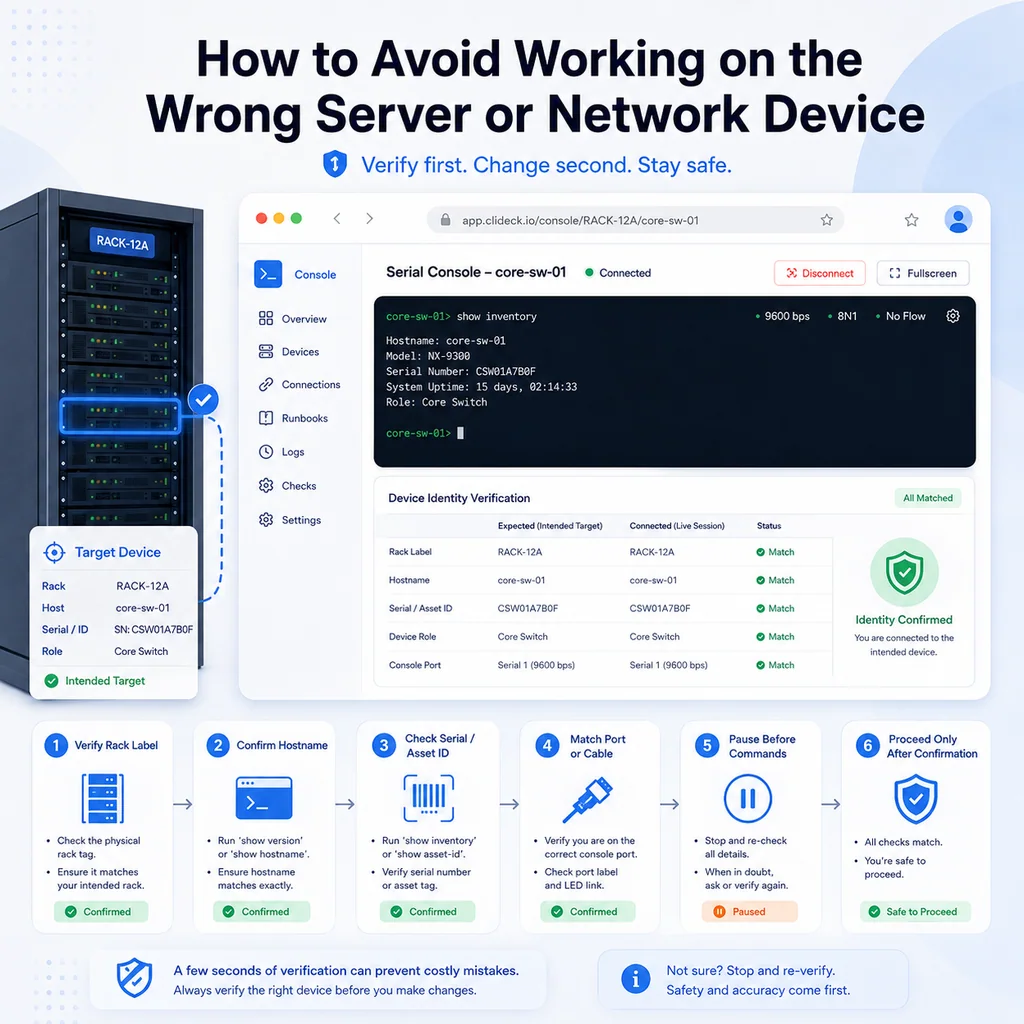
How to Avoid Working on the Wrong Server or Network Device
Short answer
Before any command that can change state, prove that you are on the correct system by checking its hostname, address, role, environment, prompt, user, physical label, access path, and work record. If any identifier conflicts, stop and resolve it before proceeding.
Why wrong-device mistakes happen
Working on the wrong server or network device is one of the most painful operational mistakes because it often happens during normal work, not reckless work.
Usually, the problem is not that someone is careless. The problem is that the environment is confusing.
Common causes include:
- Multiple terminal tabs open at the same time
- Similar hostnames
- Similar IP addresses
- Reused rack labels
- Old documentation
- Jump hosts and bastion sessions
- Serial console ports mapped incorrectly
- Copy-pasted commands from the wrong ticket
- Production and staging systems that look almost identical
- Long troubleshooting sessions where context gets lost
- A remote person giving instructions while someone else is at the rack
The terminal prompt only shows part of the truth. A safe workflow makes you verify the rest.
The rule: identify first, change second
Before any change command, ask one question:
Am I absolutely sure this is the correct system?
If the answer is not yes, do not continue.
This applies before commands like:
reboot
shutdown
rm
mv
dd
mkfs
systemctl restart
firewall-cmd
iptables
nft
write memory
copy running-config startup-config
reload
delete
erase
configure terminal
It also applies before “small” changes. A small command on the wrong device is still a wrong change.
Use at least three identity checks
Do not trust only the terminal title, browser tab name, or prompt. Use multiple checks.
For servers, confirm:
- Hostname
- Fully qualified hostname
- IP address
- Current user
- Environment
- Application role
- Cloud instance name, asset tag, or inventory record if available
Useful commands:
hostname
hostname -f
whoami
pwd
date
ip addr show
ip route
For Linux systems using systemd, this can also help:
hostnamectl
For network devices, confirm:
- Prompt hostname
- Device model
- Serial number
- Software version
- Management IP
- Interface descriptions
- Neighbor information
- Current CLI mode
Useful commands may include:
show version
show running-config | include hostname
show inventory
show clock
show users
show ip interface brief
show interfaces description
show lldp neighbors
show cdp neighbors
For serial console access, also confirm the physical or controller path:
Console path: rack console controller port 7 -> core-sw-02
Cable label: core-sw-02 console
Prompt: core-sw-02#
If the console path says one thing and the prompt says another, stop.
Build a pre-command pause
A pre-command pause is a short habit before pressing Enter on anything risky.
Use this mental checklist:
Device:
Environment:
User / privilege:
Current mode:
Command:
Expected result:
Rollback:
Example:
Device: app-db-02
Environment: production
User / privilege: admin with sudo
Current mode: shell, /etc/postgresql
Command: sudo systemctl restart postgresql
Expected result: database restart during approved maintenance window
Rollback: escalate if service does not return within the approved window
That pause may take 15 seconds. It can save hours.
Make your terminal prompt safer
A clear prompt helps prevent mistakes, but it should not be your only safety mechanism.
For Linux and Unix-like systems, a useful prompt can show:
- Username
- Hostname
- Current directory
- Environment marker
Example concept:
[prod] admin@app-03:/etc/nginx$
The environment marker is especially useful when switching between production, staging, and lab systems.
Avoid prompts that are too clever or too long. The best prompt is one you can read quickly under pressure.
For network equipment, the prompt often shows the hostname and mode. Pay attention to mode changes:
switch>
switch#
switch(config)#
switch(config-if)#
A command entered in configuration mode can have a very different impact than a command entered in normal exec mode.
Use color and naming carefully
Colors, tab names, and labels help, but they can also create false confidence.
Helpful habits:
- Use different visual labels for production and lab sessions.
- Rename terminal tabs with the actual hostname.
- Keep only relevant sessions open during risky work.
- Close old sessions when the task is finished.
- Do not reuse a tab for a different system without renaming it.
- Keep production sessions visually distinct from test sessions.
Bad tab names:
server
switch
ssh
console
prod?
Better tab names:
prod-app-03
staging-fw-01
core-sw-02-console
lab-router-01
If you use a browser-based workspace, apply the same discipline: clear names, current notes, and one active context per task.
Be extra careful with jump hosts
Jump hosts and bastion systems add another layer where confusion can happen.
You may think you are on the target system when you are still on the jump host. Or you may have several nested SSH sessions open.
Check where you are after every connection step:
hostname
whoami
pwd
If you use nested SSH, document the path:
laptop -> jump-01 -> app-03
When handing work to another engineer, include that path. It is not enough to say “I’m connected.”
A better note:
Connected from jump-01 to app-03 as deploy.
Current directory: /opt/app/current
No sudo command has been run yet.
Be careful with serial console sessions
Serial console work is especially prone to wrong-device mistakes because the physical cable path may not match the expected device.
Before typing commands into a serial session, confirm:
- Rack location
- Cable label
- Console controller port
- Device front label
- Prompt hostname
- Device model
- Task or ticket number
A safe note:
Console path:
Rack R12 console controller port 4 -> edge-sw-03.
Prompt shows edge-sw-03#.
Device label and ticket match.
No configuration changes made yet.
If the prompt does not match the label, stop.
For first-time rack access workflows, see Serial Console Runbook for First-Time Rack Access.
Reduce the number of active sessions
The more sessions you have open, the easier it is to type into the wrong one.
Before a risky operation:
- Close unrelated terminal tabs.
- Move reference terminals to another window.
- Keep only the target system active.
- Put read-only monitoring in a separate clearly labeled area.
- Do not keep old root sessions open after they are no longer needed.
During an incident, it is tempting to open many sessions quickly. That may be necessary, but each session should have a clear purpose and label.
If you are handling multiple devices during an outage, keep a small session map:
core-sw-01: checking trunk state
core-sw-02: console access, no changes yet
fw-01: reviewing route table
jump-01: access path only, no changes
This prevents the team from losing track of who is doing what.
Treat copy and paste as a risk
Copy and paste can turn a wrong-device mistake into a fast wrong-device mistake.
Before pasting:
- Confirm the active terminal.
- Read the command.
- Make sure it applies to this exact device.
- Avoid pasting multi-line destructive commands.
- Paste one command at a time when possible.
- Watch the echoed command before pressing Enter if the terminal does not auto-submit.
Be especially careful with commands that include:
rm
dd
mkfs
reboot
reload
shutdown
delete
erase
configure terminal
no
write memory
A safe habit is to paste the command into a temporary note first, read it, then paste it into the terminal only after confirming the target.
Add a second check for dangerous commands
Some commands deserve a second person or at least a deliberate confirmation step.
Use a second check before:
- Rebooting production equipment
- Restarting a critical service
- Deleting files or images
- Changing firewall rules
- Changing routing
- Saving network configuration
- Clearing startup configuration
- Formatting or wiping storage
- Applying bulk configuration
- Running automation against multiple hosts
The second check should verify both the command and the target.
Good confirmation:
Please confirm:
Target is core-sw-02, production aggregation switch.
Command is reload.
Maintenance window is active.
Console access is confirmed.
Rollback is not possible after reload starts.
Weak confirmation:
Should I do it?
The second version does not contain enough context.
Document the current state before changes
A wrong-device mistake is easier to catch if you document the state before changing anything.
A simple pre-change note:
Target: app-03
Environment: staging
User: deploy
Directory: /opt/app/current
Task: restart worker service after deployment
Verification before change: hostname and IP match ticket
Change command not run yet
For network devices:
Target: access-sw-05
Environment: production
Access: serial console
Mode: privileged EXEC, not config mode
Task: verify VLAN 40 on trunk
Change approval: diagnostics only
This note makes it easier for another engineer to review what is happening.
For terminal handoff practices, see Command Handoffs: How to Pass Terminal Work to Another Engineer Safely.
Watch for environment confusion
Production and staging often look similar. Sometimes they have the same usernames, similar hostnames, similar app paths, and similar dashboards.
Look for clear environment markers:
- Hostname prefix or suffix
- IP range
- DNS zone
- Prompt marker
- Application banner
- Cloud account or project name
- Rack or site label
- Monitoring system
- Ticket environment field
Examples of confusing pairs:
app-03-prod
app-03-stage

core-sw-01
core-sw-10

db-primary
db-primary-old

fw-edge-a
fw-edge-b
If names are too similar, slow down and verify with more than one command.
Do not trust old documentation blindly
Documentation is useful, but live systems drift.
Before acting, compare the ticket or runbook with the live device.
Check for mismatches:
- Hostname changed
- IP address changed
- Device replaced but old label remains
- Rack position changed
- Console server port reassigned
- Interface description outdated
- Staging host promoted to production
- Old device still powered on
If documentation and live state disagree, do not choose one at random. Stop and resolve the mismatch.
Practical wrong-device prevention checklist
Use this before any meaningful change.
[ ] I confirmed the hostname.
[ ] I confirmed the IP address or management address.
[ ] I confirmed the environment.
[ ] I confirmed the current user or privilege level.
[ ] I confirmed the current directory or CLI mode.
[ ] I confirmed the device role.
[ ] I confirmed the ticket or runbook target.
[ ] I checked whether this is SSH, serial console, jump host, or local shell.
[ ] I read the command before running it.
[ ] I know what the command should change.
[ ] I know how to verify the result.
[ ] I know whether rollback is possible.
[ ] For risky commands, another person verified the target.
If you cannot check these items, you are not ready to run the command.
What to do if you realize you are on the wrong device
If you catch the mistake before running a command, stop and document it.
Example:
Stopping here:
Ticket target is app-03, but current hostname is app-04.
No changes made.
Closing this session and reconnecting to the correct host.
If you already ran a command on the wrong device:
- Stop typing.
- Do not try random fixes.
- Capture what command was run.
- Capture the current state.
- Notify the responsible person or incident lead.
- Follow the rollback or incident process.
- Document the exact timeline.
A fast, honest report is much better than hiding the mistake and making it worse.
Where CliDeck fits
CliDeck is a browser-based workspace for SSH, serial console, runbooks, shared terminal workflows, controller management, and remote operations.
For wrong-device prevention, the important idea is context. Terminal work is safer when the session, device identity, notes, runbook steps, and handoff details are kept close together.
CliDeck does not remove the need for operator discipline. You still need to verify the system, read the command, and document what changed. But a clear workspace can make it easier to keep the right context attached to the right terminal session.
For related operational workflows, see Safe Copy-Paste Habits for SSH and Serial Console Work and Terminal Notes That Actually Help During Troubleshooting.
Final thought
Wrong-device mistakes are usually not dramatic at the start. They begin with one small assumption: this tab is the right server, this console cable is the right switch, this prompt is the system from the ticket.
Do not let the prompt be your only proof.
Verify the device, verify the environment, verify the command, and then act. A few seconds of confirmation is much cheaper than recovering the wrong system.
Who this is for
This guide is for operations teams, incident responders, network engineers, and system administrators who need to prepare, run, verify, and document operational terminal work on SSH, serial, browser terminal, and infrastructure operations workflows.
When to use this
Use this guide when:
- Several commands or checks must be repeated safely.
- Another engineer, customer, onsite technician, or vendor may need context.
- The work should produce notes, logs, verification, or a clear handoff.
When not to use this
Do not use this guide when:
- You do not own or have authorization to work on the device.
- The device is outside your approved change, recovery, or processing scope.
- The task may expose customer data, secrets, licenses, or credentials that you are not allowed to view or store.
- The work requires vendor-specific approval, legal approval, or a customer-specific procedure that is not covered here.
Practical runbook format
A runbook does not need to be a complex script. For many operations, it can be a plain command list with notes, expected output, stop conditions, verification steps, and rollback instructions.
What to include
- Purpose
- When to use it
- When not to use it
- Target system or device
- Access path
- Read-only checks
- Change steps
- Expected output
- Stop conditions
- Rollback steps
- Verification steps
- Handoff notes
- Final summary format
Workflow
- Define the purpose, target device, access path, and approved scope.
- Run read-only checks first and record the expected healthy state.
- Execute commands from the runbook or handoff plan while watching for stop conditions.
- Verify the final state with independent checks.
- Summarize commands run, outputs reviewed, exceptions, and handoff notes.
Verification checklist
- The target device or system is correct.
- Read-only checks were captured before the work.
- Stop conditions and rollback notes were available before changes.
- Final verification checks match the expected result.
- Notes, logs, and handoff summary are stored where the team can find them.
Common mistakes
- Starting commands before confirming the target device and scope.
- Skipping read-only baseline checks.
- Copying commands without expected output, stop conditions, or rollback notes.
- Closing the work without a final verification summary.
CliDeck workflow fit
CliDeck Workspace is designed for this kind of operational workflow. Teams can keep terminals, notes, runbooks, logs, and shared sessions in one browser workspace instead of spreading work across terminal windows, chat messages, screenshots, and separate documents.
CliDeck runbooks can be plain command lists, one command per line. Operators can send commands with one click or use auto-run behavior that waits for the prompt before sending the next line where configured.
FAQ
Does a runbook need to be code?
No. A useful runbook can be a plain list of commands, checks, notes, expected output, stop conditions, and verification steps.
Why use a browser workspace for terminal work?
A browser workspace can keep terminals, notes, runbooks, logs, and shared sessions together, which helps during incidents, handoffs, maintenance windows, and remote support.
Can shared terminal sessions be safer than screen sharing?
Yes, when implemented with clear view/type permissions. The helper can see the relevant terminal context without taking over the operator’s entire desktop.
Can CliDeck help with this workflow?
Yes. CliDeck Workspace helps organize terminals, runbooks, notes, logs, and shared sessions. Console Server Go is useful when the workflow starts at a rack-side console port.
Related guides
- Junos NTP Checks: Peers, Reach and Synchronization State - Capture Junos NTP peer selection, octal reach and system synchronization status before correlating device timestamps or starting maintenance.
- Catalyst 9300 Boot Checks: Running Image versus Next Reload - Compare Catalyst 9300 running software with current and next-reload boot variables, preserving manual-boot context before maintenance.
- Junos Optical Diagnostics: Power, Thresholds and Missing Data - Read Junos optical power, module thresholds and alarm flags without treating missing telemetry as zero or certifying an entire optical path.
- Catalyst Err-Disabled Ports: Cause, Detection and Recovery - Collect Catalyst err-disabled state, detection settings and recovery information separately before approving a port retry.
- Linux Transcript Inspection: Reveal Control Characters - Reveal control characters in Linux console transcripts with an escaped GNU sed view while preserving originals and reviewing sensitive content separately.