
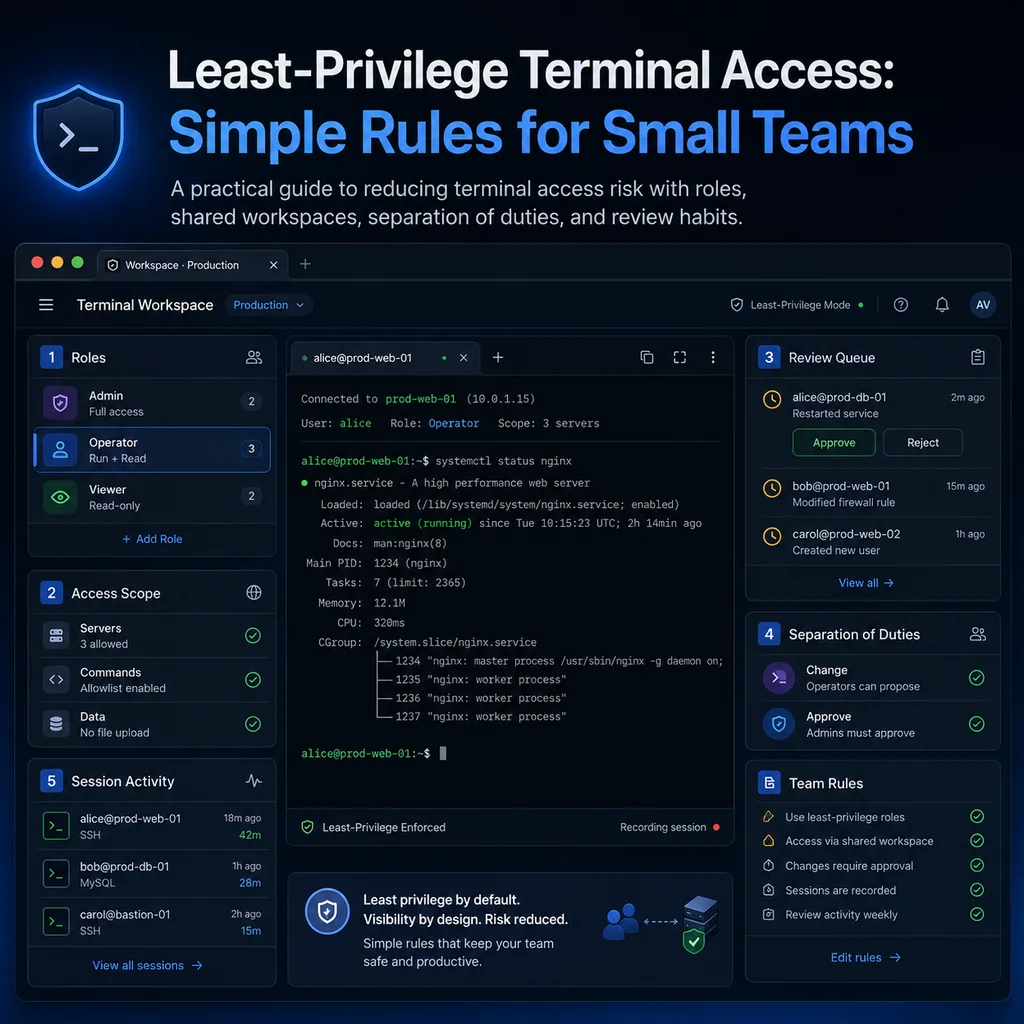
Least-Privilege Terminal Access: Simple Rules for Small Teams
Short answer
Least-privilege terminal access means giving each person only the systems, permissions, and time window required for the task. Define the scope before access is granted, review the work, and remove or reduce access when the task ends.
Why least privilege matters for small teams
Least privilege is often treated like an enterprise security topic. But small teams need it just as much.
Small teams often have:
- Shared SSH accounts
- Long-lived admin keys
- Production and staging access mixed together
- Contractors or temporary operators added quickly
- Too many people with sudo
- Old access that nobody removed
- Little separation between observe-only and change-capable work
- Informal handoffs during incidents
- Terminal sessions where nobody is sure who did what
This is understandable. Small teams move quickly and often do not have a dedicated security team.
But terminal access is powerful. A single command can restart a service, delete files, change firewall rules, reload a switch, overwrite a config, or disconnect the only remote path into a device.
Least privilege gives the team a safer default.
Start with named access
The first rule is simple: avoid shared accounts when possible.
Better:
alice
bob
contractor-jordan
operator-sam
Worse:
admin
support
root
contractor
shared
temp
Named access makes it easier to answer:
- Who connected?
- When did they connect?
- Which system did they access?
- What privilege level did they have?
- Should this access still exist?
For Linux systems, that usually means individual user accounts or individual SSH keys attached to a controlled account. For network equipment, it may mean individual accounts where the platform supports them.
If a legacy device only supports shared access, document that risk.
Example:
Access exception:
Device only supports shared admin login.
Internal owner must supervise contractor session.
Session notes required.
Access window: 20:00-21:00 local.
The point is not to pretend every environment is perfect. The point is to make exceptions visible.
Separate observe access from change access
Not everyone who needs to look at a system needs permission to change it.
During troubleshooting, many tasks are read-only:
- Check logs
- Confirm hostname
- View interface status
- Review running configuration
- Check service state
- Look at route tables
- Watch monitoring output
- Confirm disk space
- Verify active sessions
Change access is different:
- Restart services
- Edit configuration files
- Change firewall rules
- Modify routes
- Apply switch configuration
- Save running configuration
- Upgrade firmware
- Reboot devices
- Delete files or images
Use clear labels:
OBSERVE:
Read-only checks, logs, show commands, status commands.

CHANGE:
Configuration edits, restarts, reloads, saves, upgrades, deletes, reboots.
A small team can use this distinction immediately, even before building a complex access system.
Example note:
Priya: observe-only on fw-01 for log review.
Alex: change-capable on core-sw-02 after approval.
Sam: jump host access only, no production changes.
This helps during incidents, maintenance windows, and contractor sessions.
Give sudo only when needed
Permanent sudo access is convenient, but it increases risk.
Before giving sudo, ask:
- Does this person need sudo for the task?
- Can they complete the task with read-only access?
- Can an internal owner run privileged commands instead?
- Can sudo be limited to specific commands?
- Can the access expire after the work is done?
- Is this production, staging, or lab?
A practical sudo decision note:
User: contractor-jordan
System: report-db-02
Need: read-only diagnostics
Sudo: no
Reason: log review and database diagnostics do not require root
Internal owner will run privileged commands if needed
Another example:
User: operator-sam
System: app-03
Need: restart app-worker during maintenance window
Sudo: limited to systemctl status/restart app-worker
Expires: after maintenance window
Small teams often jump from “needs access” to “give admin.” Slow that down. Match privilege to the task.
Keep production separate
Production access should not feel the same as lab access.
Use clear separation wherever possible:
- Different accounts
- Different SSH keys
- Different jump hosts
- Different workspace names
- Different terminal labels
- Different approval requirements
- Different session notes
- Different visual markers
Even if your infrastructure is small, the habit matters.
Example:
prod-app-03: production, change approval required
stage-app-03: staging, team lead approval not required
lab-switch-01: lab, safe for testing
Avoid ambiguous names like:
app-03
switch
server
new-prod?
If a terminal session is connected to production, make that obvious.
For more on avoiding wrong-target mistakes, see How to Avoid Working on the Wrong Server or Network Device.
Use temporary access for temporary work
Temporary work should not create permanent access.
This applies to:
- Contractors
- Vendors
- Freelancers
- Temporary operators
- Emergency support
- Short maintenance windows
- One-time troubleshooting sessions
- Device recovery work
Before granting access, write:
Person:
Reason:
Systems:
Privilege:
Start time:
End time:
Removal owner:
Example:
Person: Jordan Lee
Reason: inspect slow query logs
Systems: report-db-02 only
Privilege: no sudo
Start time: 20:00 local
End time: 23:00 local
Removal owner: Alex
When the work ends, remove the access.
Removal may include:
- Removing SSH keys
- Disabling temporary accounts
- Revoking VPN access
- Removing sudo rules
- Closing shared sessions
- Revoking temporary credentials
- Confirming no active sessions remain
For a more detailed temporary access workflow, see SSH Access Checklist for Contractors and Temporary Operators.
Limit access by system
Do not grant access to a whole group of systems when the task only needs one device.
Weak scope:
Access to all production servers.
Better scope:
Access to app-03 only.
Read-only diagnostics.
No sudo.
Window: 22:00-23:00 local.
Weak scope:
Access to switches.
Better scope:
Console access to core-sw-02 only.
Purpose: verify trunk state during incident.
Change commands require incident lead approval.
The more specific the target, the easier it is to review and remove access later.
Limit access by time
Long-lived access becomes invisible.
Set access windows for risky or temporary work:
Access start:
Access end:
Extension approved by:
Removal owner:
Example:
Access start: 2026-05-21 20:00 local
Access end: 2026-05-21 23:00 local
Extension approved by: infrastructure lead only
Removal owner: Alex
If the work runs long, extend deliberately:
Access extension:
Original end: 23:00 local
New end: 23:30 local
Reason: post-change verification still running
Approved by: infrastructure lead
Do not let temporary access become permanent because nobody circled back.
Limit access by command when possible
Some tasks need only a few commands.
Examples:
Allowed:
systemctl status app-worker
journalctl -u app-worker
tail -100 /var/log/app/app.log

Not allowed:
systemctl restart app-worker
edit config files
install packages
change firewall rules
For network devices:
Allowed:
show interfaces status
show interfaces trunk
show logging | last 50

Not allowed:
configure terminal
write memory
reload
delete
erase
Even when technical command restrictions are not available, written command boundaries help the team stay aligned.
Use approval for risky commands
Not every command needs a meeting. But high-risk commands should have a deliberate approval step.
Examples of commands that deserve extra care:
reboot
shutdown
reload
delete
erase
rm -rf
dd
mkfs
systemctl restart
configure terminal
write memory
copy running-config startup-config
iptables
nft
firewall-cmd
A useful approval note includes:
Target:
Command:
Reason:
Expected result:
Risk:
Rollback:
Approver:
Example:
CHANGE APPROVAL

Target: core-sw-02
Command: switchport trunk allowed vlan add 40
Reason: restore management VLAN on uplink trunk
Expected result: management SSH restored from jump-01
Risk: trunk behavior changes on production switch
Rollback: remove VLAN 40 if unexpected impact appears
Approver: incident lead
The approval should verify both the command and the target.
For safe terminal handoff practices, see Command Handoffs: How to Pass Terminal Work to Another Engineer Safely.
Separate who observes from who changes
For higher-risk work, use simple separation of duties.
Example:
Operator:
Runs the approved command.

Observer:
Watches output, checks target identity, and records notes.

Approver:
Decides continue, pause, rollback, or save.

Verifier:
Checks the result from outside the changed system.
In a small team, one person may fill more than one role. That is fine, but write it down.
Example:
Operator: Alex
Observer: Priya
Approver: Morgan
Verifier: Sam from jump-01
This is especially useful during firmware upgrades, network changes, production service restarts, and incident response.
Keep access paths clear
Least privilege is not only about accounts. It is also about paths.
A user may not need direct access to production. They may only need access through:
- A jump host
- A browser terminal workspace
- A supervised session
- A serial console path
- A temporary maintenance window
- A read-only log system
Document the path:
Access path:
contractor laptop -> VPN -> jump-01 -> report-db-02
or:
Access path:
internal browser workspace -> serial console controller -> core-sw-02
If someone does not need direct access, do not create it.
Keep session notes for important work
Least privilege is stronger when terminal work is documented.
For important SSH or console sessions, capture:
Target:
Access path:
User:
Purpose:
Commands run:
Changes made:
Verification:
Rollback:
Access cleanup:
Example:
SESSION NOTE

Target: app-03
Access path: SSH through jump-01
User: operator-sam
Purpose: restart app-worker during maintenance window
Commands run:
- systemctl status app-worker --no-pager
- sudo systemctl restart app-worker
- systemctl status app-worker --no-pager

Changes made:
app-worker restarted.

Verification:
service active, external health check passed.

Rollback:
not needed.

Access cleanup:
temporary sudo rule removed after window.
For note-taking structure, see Terminal Notes That Actually Help During Troubleshooting.
Review access after incidents and maintenance
Access review does not have to be complicated.
After a maintenance window or incident, ask:
- Who had access?
- Which systems did they access?
- Was access still needed after the work ended?
- Were any temporary accounts or keys created?
- Were any sudo rules added?
- Were any shared credentials used?
- Were changes documented?
- Were all temporary access paths removed?
- Did anyone have more access than the task required?
A quick review note:
ACCESS REVIEW

Event: firmware upgrade on edge-fw-02
Users with access: Alex, Priya
Temporary access created: none
Sudo changes: none
Shared account used: no
Access removed: not applicable
Follow-up: none
For contractor work:
ACCESS REVIEW

Event: vendor database diagnostics
User: contractor-jordan
Temporary account: contractor-jordan
Sudo: no
Systems: report-db-02 only
Access removed: SSH key removed, VPN revoked
Follow-up: internal team to review query findings
Small reviews catch access drift early.
Remove old access regularly
Even if you follow good temporary access habits, old access can accumulate.
Set a simple review schedule:
- Monthly for production SSH keys
- After every incident
- After every contractor session
- After staff role changes
- After device migrations
- After major maintenance windows
Look for:
- Old user accounts
- Unknown SSH keys
- Unused sudo rules
- Former contractors
- Shared accounts
- Admin access that is no longer needed
- Jump host access that no longer matches current roles
- Console access mappings that are not documented
A cleanup note:
Access cleanup:
Removed old SSH key for contractor-jordan.
Disabled unused operator-temp account.
Confirmed current production access list matches team roster.
Least privilege is not a one-time setup. It is maintenance.
Be careful with shared terminal sessions
Shared terminal work can be useful for collaboration, training, and incident response. It also needs clear roles.
Before sharing a terminal, define:
Who controls input:
Who observes:
Who approves changes:
Whether copy-paste is allowed:
Whether session notes are required:
Whether secrets may appear:
When the session ends:
Example:
Shared session:
Alex controls input.
Priya observes and records notes.
Morgan approves production changes.
No secrets pasted into shared terminal.
Session ends after verification.
For shared terminal workflows, see Shared Terminal Sessions: How to Collaborate Without Losing Control.
Small-team least-privilege checklist
Use this checklist as a starting point.
[ ] Named accounts are used where possible.
[ ] Shared accounts are documented as exceptions.
[ ] Production access is separate from lab or staging.
[ ] Read-only access is separated from change access.
[ ] Sudo or admin rights are granted only when needed.
[ ] Temporary access has an end time.
[ ] Temporary access has a removal owner.
[ ] Contractors and vendors have limited scope.
[ ] Access is limited by system where possible.
[ ] Risky commands require approval.
[ ] Important terminal sessions have notes.
[ ] Handoffs include current state and risks.
[ ] Old SSH keys are reviewed regularly.
[ ] Old accounts are disabled or removed.
[ ] Access after incidents and maintenance is reviewed.
Common mistakes to avoid
Giving everyone permanent admin access
It feels convenient until the wrong command runs on the wrong system.
Using shared accounts by default
Shared accounts make accountability and cleanup harder.
Forgetting temporary access
Temporary access should have an end time and a removal owner before it starts.
Mixing production and lab access
Production should be visually and operationally distinct.
Letting observation become change work
If someone starts with read-only troubleshooting and needs to make a change, pause and approve the change.
Keeping old SSH keys forever
Old keys are easy to forget and hard to justify later.
Saving configuration without review
On network devices, write memory or similar save actions should be deliberate, especially after temporary recovery changes.
Where CliDeck fits
CliDeck is a browser-based workspace for SSH, serial console, runbooks, shared terminal workflows, controller management, and remote operations.
For least-privilege terminal access, the practical need is context and control. Teams need to know who is connected, what system they are working on, whether the session is observe-only or change-capable, what commands are planned, and what cleanup is required afterward.
CliDeck does not replace identity management, access policy, or security review. But a clear browser-based workspace can help small teams keep terminal sessions, runbook steps, access notes, and handoff context closer together.
For related workflows, see SSH Access Checklist for Contractors and Temporary Operators and Safe Copy-Paste Habits for SSH and Serial Console Work.
Final thought
Least privilege is not about mistrusting your team. It is about building a safer default.
Small teams can start with simple habits: named access, limited scope, temporary elevation, visible notes, and regular cleanup. Those habits reduce risk without turning every terminal session into a heavy process.
Who this is for
This guide is for operations teams, incident responders, network engineers, and system administrators who need to prepare, run, verify, and document operational terminal work on SSH, serial, browser terminal, and infrastructure operations workflows.
When to use this
Use this guide when:
- Several commands or checks must be repeated safely.
- Another engineer, customer, onsite technician, or vendor may need context.
- The work should produce notes, logs, verification, or a clear handoff.
When not to use this
Do not use this guide when:
- You do not own or have authorization to work on the device.
- The device is outside your approved change, recovery, or processing scope.
- The task may expose customer data, secrets, licenses, or credentials that you are not allowed to view or store.
- The work requires vendor-specific approval, legal approval, or a customer-specific procedure that is not covered here.
Practical runbook format
A runbook does not need to be a complex script. For many operations, it can be a plain command list with notes, expected output, stop conditions, verification steps, and rollback instructions.
What to include
- Purpose
- When to use it
- When not to use it
- Target system or device
- Access path
- Read-only checks
- Change steps
- Expected output
- Stop conditions
- Rollback steps
- Verification steps
- Handoff notes
- Final summary format
Workflow
- Define the purpose, target device, access path, and approved scope.
- Run read-only checks first and record the expected healthy state.
- Execute commands from the runbook or handoff plan while watching for stop conditions.
- Verify the final state with independent checks.
- Summarize commands run, outputs reviewed, exceptions, and handoff notes.
Verification checklist
- The target device or system is correct.
- Read-only checks were captured before the work.
- Stop conditions and rollback notes were available before changes.
- Final verification checks match the expected result.
- Notes, logs, and handoff summary are stored where the team can find them.
Common mistakes
- Starting commands before confirming the target device and scope.
- Skipping read-only baseline checks.
- Copying commands without expected output, stop conditions, or rollback notes.
- Closing the work without a final verification summary.
CliDeck workflow fit
CliDeck Workspace is designed for this kind of operational workflow. Teams can keep terminals, notes, runbooks, logs, and shared sessions in one browser workspace instead of spreading work across terminal windows, chat messages, screenshots, and separate documents.
CliDeck runbooks can be plain command lists, one command per line. Operators can send commands with one click or use auto-run behavior that waits for the prompt before sending the next line where configured.
FAQ
Does a runbook need to be code?
No. A useful runbook can be a plain list of commands, checks, notes, expected output, stop conditions, and verification steps.
Why use a browser workspace for terminal work?
A browser workspace can keep terminals, notes, runbooks, logs, and shared sessions together, which helps during incidents, handoffs, maintenance windows, and remote support.
Can shared terminal sessions be safer than screen sharing?
Yes, when implemented with clear view/type permissions. The helper can see the relevant terminal context without taking over the operator’s entire desktop.
Can CliDeck help with this workflow?
Yes. CliDeck Workspace helps organize terminals, runbooks, notes, logs, and shared sessions. Console Server Go is useful when the workflow starts at a rack-side console port.
Related guides
- SSH Session Logging: What to Save, What to Avoid, and Why It Matters - A practical guide to SSH session logging for troubleshooting, audits, handoffs, and privacy-conscious operations: what to capture, what to redact, and how to...
- What to Check Before Restarting a Network Service Over SSH - A practical pre-restart checklist for network services over SSH, including scope, impact, rollback, verification, and safe terminal workflow.
- Junos NTP Checks: Peers, Reach and Synchronization State - Capture Junos NTP peer selection, octal reach and system synchronization status before correlating device timestamps or starting maintenance.
- Catalyst 9300 Boot Checks: Running Image versus Next Reload - Compare Catalyst 9300 running software with current and next-reload boot variables, preserving manual-boot context before maintenance.
- Junos Optical Diagnostics: Power, Thresholds and Missing Data - Read Junos optical power, module thresholds and alarm flags without treating missing telemetry as zero or certifying an entire optical path.